
Starting SceneComposer
Starting SceneComposer
Start SceneComposer by calling SceneComposer.exe from folder cgi_studio_root/bin/SceneComposer.
Like any other application, SceneComposer has the ability to be pinned/unpinned to Windows taskbar or to Start Menu (right click on SceneComposer.exe and from the context menu select "Pin to Taskbar" or/and "Pin to Start Menu").
Checking Compatibility of Environment
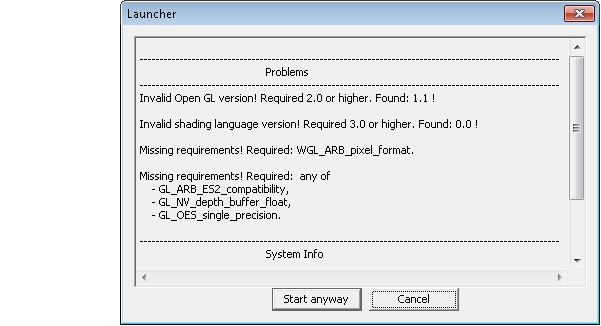
When SceneComposer.exe is started the launcher is automatically called. It checks if all the needed system environment requirements are available before starting SceneComposer.

- Execute "SceneComposer.exe" from folder cgi_studio_root/bin/SceneComposer
- The launcher is automatically called; it checks the environment and starts SceneComposer.
If the needed environment requirements are not available an error message is displayed. The user can choose whether SceneComposer is started or not. By using the "Start anyway" button the error message is ignored and the SceneComposer is started. Please, note, that due to the errors SceneComposer will not work properly. It is better to fix the problems before starting SceneComposer. Use the "Cancel" button to cancel the opening of the application and try to fix the errors before reopening.
Optional Command Line Arguments
The following optional command line arguments are available:
| /schost |
To create SceneComposer solutions for a specific device platform, a corresponding SCHost.dll (which includes that platform) must be used by SceneComposer. This dynamic link library is loaded by SceneComposer during startup. By default, SceneComposer loads the file "SCHost.dll". To start SceneComposer with a different dll file, the command line argument "/schost" is available. To start SceneComposer for a certain platform run
|
| /solution |
To open a specific solution, a command line argument is available:
(e.g.: SceneComposer.exe /solution "C:\Documents and Settings\...\...\SceneComposerSolution.scs") Another possibility to open a solution is without using the /solution argument: e.g.: SceneComposer.exe "C:\Documents and Settings\...\...\Solution\Solution.scs" |
| /metaInfoDebug |
To display in the Output panel debug informations related with widgets, effects and render targets, a command line argument for starting SceneComposer is available:
|
| /useAllEffects |
To enable all the available effects instead of only combined effects in the Toolbox of a 2D scene, a command line argument for starting SceneComposer is available:
Refer also to Effects. |
| /nowelcome |
To start SceneComposer without a welcome screen, a command line argument is available:
|
SceneComposer Names Validation Rules
Allowed characters are:
Letters and digits (including special characters like German ones), any of the following:
$ ' () + , - . = @ ^ _ ` {} ~ and space
If a character which is not allowed (for example "#") is used in the name of any imported item it will be changed with "_". If the user try to use a character which is not allowed inside a SceneComposer solution, the operation will not be possible and the user will be asked to use an allowed character.
Plugins Configuration
Now it is possible to use a configuration file APPLICATION_FOLDER\Plugins\Plugins.xml. During the start-up SceneComposer will try to process this file. If it does not exist, the MFF native importers (old importer SDK) will be loaded from the folder "Importers" and the managed / C# plugins will be loaded from the folder "Plugins". If the configuration file is present, only the specified plugins will be loaded. A sample configuration file is delivered with the SceneComposer.
Refer also to Plugins Configuration.
Customizing SceneComposer
To configure SceneComposer Preferences go to menu "File" > "Preferences".
For further information refer to section Preferences.