
View Definition Editor
View Definition Editor lets you define “screen-level Views” by combining Scenes created in SceneComposer with existing Views, and make those definitions available to the View Tree, the State Machine, and the Action Chain Editor.
On the View Definition Editor panel, onlyOnly Views are placeddisplayed as nodes in the tree.tree Ifof the View Definition Editor panel. Therefore, if you dragwant andto dropuse a Scene, ontoyou themust panel,always ainclude new View that contains that Scene is created automatically and addedit as a childcomponent node.of Thisone way,of the Views. For details, see View composition later in this document. With this structure, the state machine can alwaysconsistently operate in terms oftreat “which screen (View) to activate,”activate” at the View level, while still incorporating Scene-based content can still be incorporated into the overall screen composition.
View Definition Editor UI
Panel layout
Double-click any View in Solution Explorer to open the View Definition Editor panel.
By default, the View Definition Editor panel is hidden. To display it, choose View > View Editor > View Definition Editor from the menu bar.
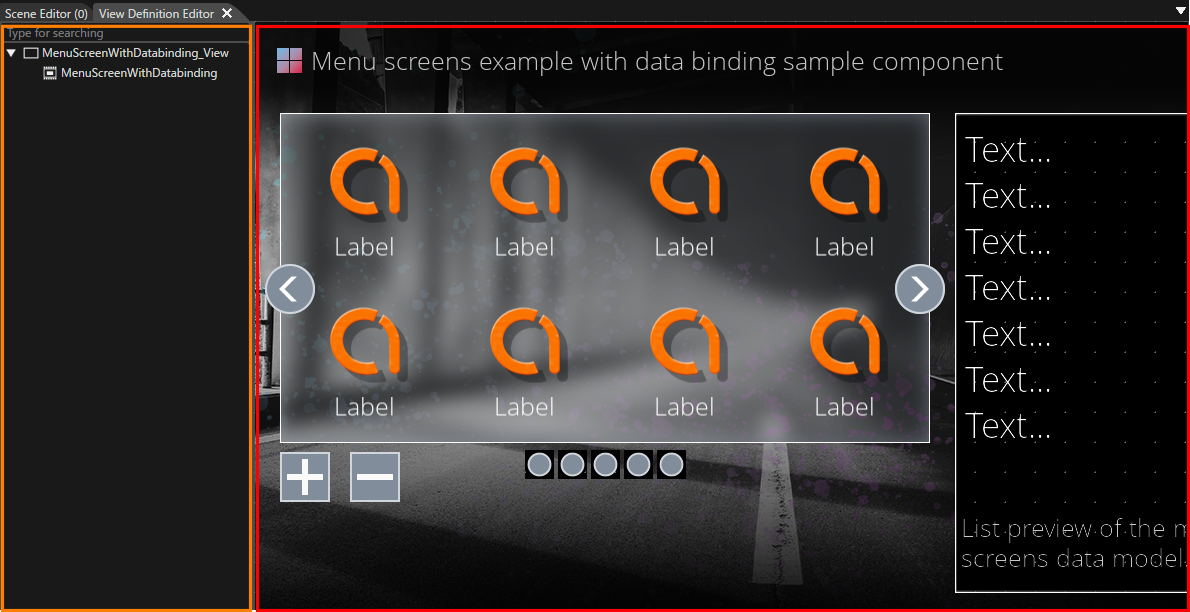
| UI item | Description |
|---|---|
|
View Composition pane (orange frame in the figure above) |
Lists which Scenes/Views the selected View is composed of. Add or remove Scenes and existing Views by drag and drop. |
|
Preview area (red frame in the figure above) |
Displays preview images of the Scenes/Views associated with the |
Basic operations
This section outlines common procedures for defining and editing Views with the View Definition Editor.
For instructions on creating a View, see the View feature overview page.
View composition
OnIn the View Definition Editor panel, you can use the editor’stree treestructure to edit or delete child Views.Views under the currently opened View. You can also inspectreview the hierarchyentire tree rooted at that View on the tree, including the hierarchical relationships of its child Views and their descendant Views.
The composition editing described here applies to Views that were created as new Views. Views that were automatically generated from a Scene are treated as simple Views that display the corresponding Scene, and you cannot edit the tree structure in the View Definition Editor or attach child Views or additional Scenes under them.
In the View Composition pane, edit the elements included in the View.
- If
Addtheelementstarget View does not yet have a Scene as a child element, you can add a Scene or an existing View bydragdragging anddropdropping it from SolutionExplorerExplorer.
To remove anunnecessary elementelements (Scene/View)Scenes/Views), select itthem and choose Delete from the context menu.
Behavior when dragging and dropping a Scene
On the View Definition Editor panel, onlyOnly Views are placedshown as nodes in the tree. Insteadtree of attachingthe View Definition Editor panel. If you want to work with a Scene, you add it as internal content of an existing View.
With this mechanism, the View Definition Editor tree can consistently treat the unit of screen transitions and visibility control as Views.
Grandchild View
In the View Definition Editor panel, a dialogsingle asksoperation whethercan add Views only up to the child View directly under the currently open View (one hierarchy level down). To create a newstructure with three or more hierarchy levels, such as Parent View > Child View > Grandchild View, you must use only Views that meet the following requirements as the starting point:
The View you want to use as the parent level must be a newly created View.
The View you want to holduse as the parent level must not already have a Scene as its child element.
Views that Scene.were Ifautomatically yougenerated confirm,from a Scene, or Views that already have a Scene as a child, cannot be used as the starting point for building a grandchild hierarchy (these Views are always treated as leaf nodes).
Using a View that encapsulatesmeets these requirements as the Scenestarting ispoint, generated automatically and added to the tree as that View’s child.
This mechanism lets the tree always treat the unit of screen transition and visibility control ascreate a three-level structure (Parent View, while> stillChild composingView Scene-based> content inside it.
Grandchild View
On the View Definition Editor panel, you can compose at most one hierarchy level under a View (parent > child). You cannot add a grandchild View directly. To build a structure with two hierarchy levels (parent > child > grandchild), proceed) as follows:
-
Open the View you want to use as the parent
Viewlevel, and add a child View under it (firstParenthierarchyViewlevel)> Child View). OpenthatDouble-click the View you added as the child View in step 1 to open it, and then add another View under it as its child (
childChild View > Grandchild View).(second hierarchy level—the grandchild).
After performing these steps, reopeningreopen the original parent ViewView. willYou showcan then confirm in the tree that a three-level hierarchy as(Parent parentView > childChild View > grandchildGrandchild View.) is displayed.