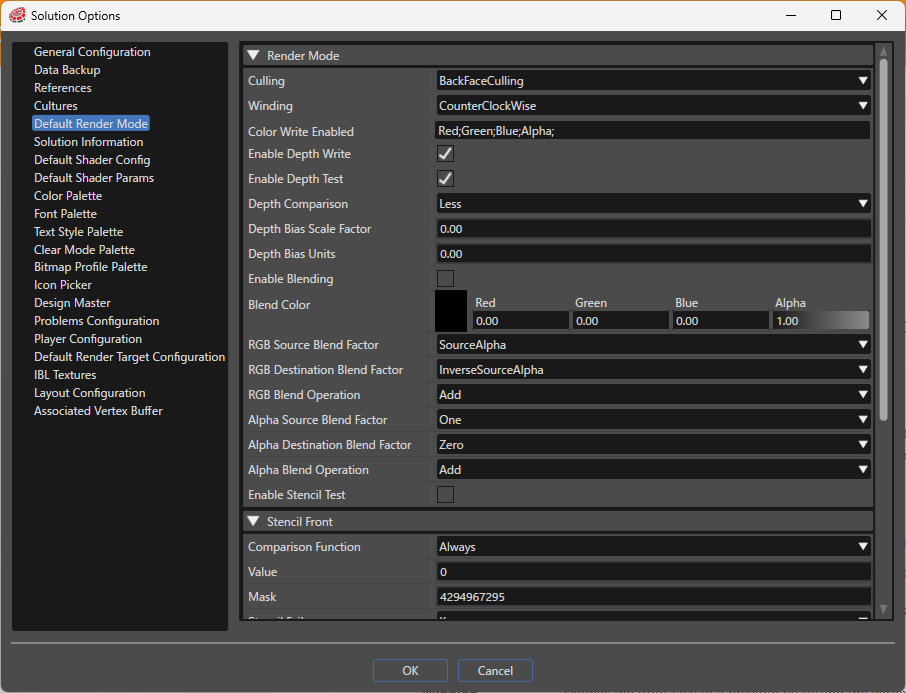
Default Render Mode
ConfigureDefault Render Mode Settings
You can open the Solution Options dialog from [ File > Solution Options ] in the menu bar to configure various rendering properties under [ Default Render Mode
The "File" > "Solution options" > "Default render mode" menu option allows to configure different render properties.]. These properties willare beautomatically applied by SCHost automaticallyunless ifanother norender other "Render mode"mode is explicitly set for anthe object.
If there is a "Renderrender mode"mode associated towith an object, SceneComposerScene Composer compares these property values of the properties with the values from the "Defaultdefault render mode"mode configurationsettings and includes a bit mask, which will bebitmask used by the Candera engine within the asset to optimize rendering.
Render Mode
Setting
Description
CullMode
Configure culling (excluding surfaces from rendering) according to the
rendering,selected setting. Applying front or back culling optimizes rendering.
FrontFaceCulling: Does not render the front faces.
BackFaceCulling: Does not render the back faces.
NoCulling: Renders all faces without culling.
Winding
Defines the front face of a polygon by setting the vertex drawing order to clockwise or counterclockwise.
Clockwise: Renders with clockwise winding.
CounterClockwise: Renders with counterclockwise winding.
Color Write Enabled
Enables or disables writing fragment color values to the color buffer, configurable per RGBA channel.
Enable Depth Write
Enables or disables writing to the depth buffer during rendering. When enabled, depth information is recorded in the
asset.depth buffer
during Renderrendering.
Mode
OptionsCullModeEnable Depth Test
optionEnables enablesor disables depth testing. When enabled, the
cullingdepth typebuffer dependingis used to control rendering based on
optionsdepth. chosen.
FrontfaceCulling/BackfaceCulling will make the front/back face of the object not to be rendered.
If
NoCullingdisabled, optiondepth writing is
chosenalso nodisabled.culling
actionwillDepth beComparison
performed.
The visual effect of culling types can be seen in the images bellow.
Winding option with the two types clockwise and counterclockwise express if the vertices are drawn in a clockwise or counterclockwise order.
Color Write Enable property allows manipulating
Sets the comparison function used
into determine if a depth value passes the depth
testtest. forThe rendering.source Enabledpixel's Depthdepth Writeis andcompared Enable Depth Test are two properties used in order to enable or disablewith the Depthdestination buffer.pixel By default,using the depthspecified buffer is enabled and functions normally.
function.
TheNever: mostAlways commonfails.
actionLess: isPasses disablingif theless depth-write.(commonly Itused).
meansEqual: thatPasses theif geometryequal.
willLessEqual: stillPasses beif testedless againstor theequal.
depthGreater: buffer,Passes butif itgreater.
willNotEqual: Passes if not
affectequal.
theGreaterEqual: depthPasses buffer.if Thisgreater isor oftenequal.
usedAlways: whenAlways renderingpasses objects(unconditional such as particles that are transparent.rendering).
When
Depth Bias Scale Factor
Specifies the
secondscale propertyfactor IsDepthTestEnabledto isdetermine unchecked,how much bias to apply to primitives, mainly used to avoid z-fighting (depth conflicts).
Depth Bias Units
Specifies a constant depth offset value used together with the
geometryscale pays no attentionfactor to
theadjust contentsand ofavoid thez-fighting.
depth-buffer.
Thisis often used for rendering things like heads-up displays, which have no relation to the 3D depth of the scene.
Enable Blending
property allows checkingEnables or
uncheckingdisables blending (color composition). When enabled, the
blending. If a gentle and gradual transition from onesource color
to the other is
desired, this property should be enabled.
Blend Color mixes two colors together to produce a third color.
The color that already exists in the frame buffer is called destination color.
The new color that is being added and that will mixblended with the destination color
isin calledthe sourceframebuffer.color.
Blend Color
Defines Eachthe constant blend color hasused when a separateconstant color blend factor thatis determinesselected.
how
much
RGB Source Blend Factor
Sets the blend factor applied to the source color in the RGB channels.
Zero: Treated as zero, has no effect during blending.
One: Treated as one, uses the original value.
SourceColor: Uses the RGB value of
eachthe source color.
InverseSourceColor: Uses the inverse of the source RGB value (one minus source color).
SourceAlpha: Uses the alpha value of the source color.
InverseSourceAlpha: Uses the inverse of the source alpha value (one minus source alpha).
DestColor: Uses the RGB value of the destination color.
InverseDestColor: Uses the inverse of the destination RGB value (one minus destination color).
DestAlpha: Uses the alpha value of the destination color.
InverseDestAlpha: Uses the inverse of the destination alpha value (one minus destination alpha).
ConstantColor: Uses the specified constant color
is(set combinedin intoBlend Color).
InverseConstantColor: Uses the
finalinverse productof andthe inspecified whichconstant way.color Once(one minus constant color).
ConstantAlpha: Uses the specified constant alpha value.
InverseConstantAlpha: Uses the inverse of the specified constant alpha value (one minus constant alpha).
SourceAlphaSaturate: Uses the minimum of the source and destination
colorsalpha havevalues beenfor multipliedsaturated addition, a special blend mode heavily influenced by
theirthe source value.
RGB Destination Blend Factor
Sets the blend
factors,factor the results are combined accordingapplied to the
specifieddestination blendcolor function.in the RGB channels. Available values are the same as RGB Source Blend Factor.
RGB Blend Operation
Specifies the operation used for blending RGB values.
TheAdd: propertiesAdds SourceBlendFactorRGB,values.
DestinationBlendFactorRGBSubtract: willSubtracts allowthe manipulatingsource from the destination.
ReverseSubtract: Subtracts the destination from the source.
Min: Uses the minimum value.
Max: Uses the maximum value.
Alpha Source Blend Factor
Specifies the blend factor for the source alpha channel, with the same available values as RGB Source Blend Factor.
Alpha Destination Blend Factor
Specifies the blend factor for the destination alpha channel, with the same available values as RGB Source Blend Factor.
Alpha Blend Operation
Specifies the operation for blending alpha values, using the same options as RGB Blend Operation.
Enable Stencil Test
Enables or disables stencil testing on the stencil buffer, allowing control of rendering based on stencil buffer conditions (area control, masking, etc.).
Stencil Front / Stencil Back
Setting
Description
Comparison Function
Sets how the source (new) data is compared to the destination (existing) data before storing in the stencil buffer, using the same options as Depth Comparison.
Never: Always fails.
Less: Passes if less.
Equal: Passes if equal.
LessEqual: Passes if less or equal.
Greater: Passes if greater.
NotEqual: Passes if not equal.
GreaterEqual: Passes if greater or equal.
Always: Always passes.
Value
Specifies the reference value used with the comparison function for stencil testing.
Mask
Specifies the mask value applied to the source and destination
colordata factorduring RGBstencil (red,testing, green,useful bluefor colortargeting model).specific bits during comparison.
StencilFail
Sets the stencil buffer operation if the stencil test fails.
SetToZero: Sets the value to zero.
TheKeep: properties SourceBlendFactorAlpha and DestinationBlendFactorAlpha will allow manipulatingKeeps the
alphacurrent channelvalue.
forReplace: Replaces with the
sourcereference andvalue.
destinationIncrement: color.Increments by one, clamps at max.
Decrement: Decrements by one, clamps at zero.
Invert: Inverts bits.
IncrementWrap: Increments by one, wraps to zero if exceeded.
DecrementWrap: Decrements by one, wraps to max if below zero.
When
DepthFail
the ConstantColor option is chosen for the properties described above, the color specified in the BlendColor property will be considered in computing the final color that will be rendered.
RBG Blend Operation and Alpha Blend Operation properties allow to specify
Sets the operation
used in computingif the
finalstencil colortest bypasses mixingbut the
sourcedepth test fails. Options are the same as StencilFail.
DepthPass
Sets the operation if both the stencil and
destinationdepth colorstests withpass. Options are the
chosensame factors.as StencilFail.
WriteMask
Specifies the mask value used when writing values to the stencil buffer, allowing control over which bits are written.