Effects
Use Effects
Effects describe the appearance of a RenderNode in a 2D scene. The number of effects may differ on each platform. A functional overview of each effect is provided in the table below (you can navigate to the detailed pages by using the links in the titles).
Description
1
BitmapBrushBlendRenders a bitmap image as source content and blends it with the destination (store) buffer.
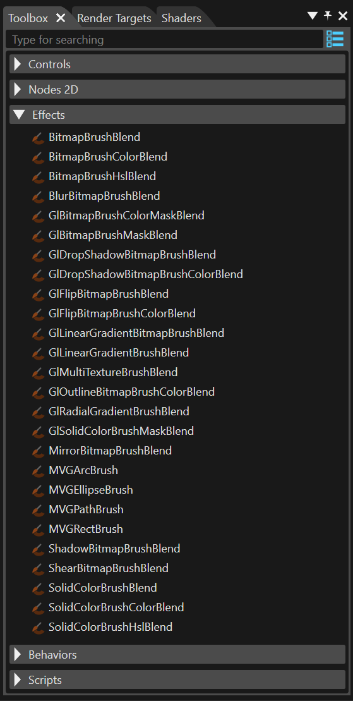
2 BitmapBrushColorBlend Renders a bitmap, modulates its color (e.g., RGBA factors) and blends the result with the destination buffer. 3 BitmapBrushHslBlend Renders a bitmap with hue/saturation/lightness adjustments and blends it with the destination buffer. 4 BlurBitmapBrushBlend Produces a blurred bitmap image (post filter) and blends it into the destination buffer. 5 GlBitmapBrushColorMaskBlend Renders a bitmap using a color-based alpha mask and blends it with the destination buffer. 6 GlBitmapBrushMaskBlend Renders a bitmap with an alpha mask (mask texture) and blends it with the destination buffer. 7 GlDropShadowBitmapBrushBlend Draws a drop shadow for the input bitmap and blends both shadow and image with the destination buffer. 8 GlDropShadowBitmapBrushColorBlend Draws a drop shadow and applies color modulation to the bitmap output before blending to destination. 9 GlFlipBitmapBrushBlend Flips the bitmap horizontally and/or vertically and blends it with the destination buffer. 10 GlFlipBitmapBrushColorBlend Flips the bitmap, applies color modulation, and blends the result with the destination buffer. 11 GlLinearGradientBitmapBrushBlend Applies a linear gradient over bitmap/text content and blends it to the destination buffer. 12 GlLinearGradientBrushBlend Generates a linear-gradient brush as source pixels and blends it with the destination buffer. 13 GlMultiTextureBrushBlend Blends two bitmap inputs (multi-texture combine) and then blends the result to the destination buffer. 14 GlOutlineBitmapBrushColorBlend Creates an outline from the image alpha (notably for bitmap-cached text), modulates color, and blends to destination. 15 GlRadialGradientBrushBlend Generates a radial-gradient brush as source pixels and blends it with the destination buffer. 16 GlSolidColorBrushMaskBlend Fills with a solid color through an alpha mask and blends it with the destination buffer. 17 MVGArcBrush Renders a vector arc shape (MVG) as a brush output (source pixels). 18 MVGEllipseBrush Renders a vector ellipse/circle (MVG) as a brush output. 19 MVGPathBrush Renders a vector path (MVG) as a brush output. 20 MVGRectBrush Renders a vector rectangle/rounded-rect (MVG) as a brush output. 21 MirrorBitmapBrushBlend Renders a bitmap together with its mirror reflection and blends the combined output to destination. 22 ShadowBitmapBrushBlend Produces a shadow or glow around the bitmap and blends the effect and image with destination. 23 ShearBitmapBrushBlend Shears (skews) the image by X/Y shear angles and blends it with the destination buffer. 24 SolidColorBrushBlend Generates a solid-color rectangle as source pixels and blends it with the destination buffer. 25 SolidColorBrushColorBlend Generates a solid-color rectangle, applies color modulation, then blends to the destination buffer. 26 SolidColorBrushHslBlend Generates a solid-color rectangle with HSL correction and blends it with the destination buffer.Combined Effects
The effects provided in SceneComposer are combined effects. They can be dragged from the toolbox and dropped onto a RenderNode.
Background information
Combined effects are a combination of two or three basic effect types that are combined to an effect chain.
The following three basic effect types are used to form this effect chain
- Brush Effect: Acts as the input effect; it defines the source data for the node (e.g. SolidColorBrush, BitmapBrush)
- In-place Effect: Multiple different in-place effects can be concatenated (e.g. ConstantAlphaEffect, MaskEffect)
- Blend Effect: e.g. AlphaBlendEffect
A correctly configured effect chain consists of the following
- a Brush effect at first
- followed by an optional In-place effect
- finished by a final Blend effect
For usability reasons, Scene Composer only provides combined effects in the Toolbox by default.
Use Combined Effects
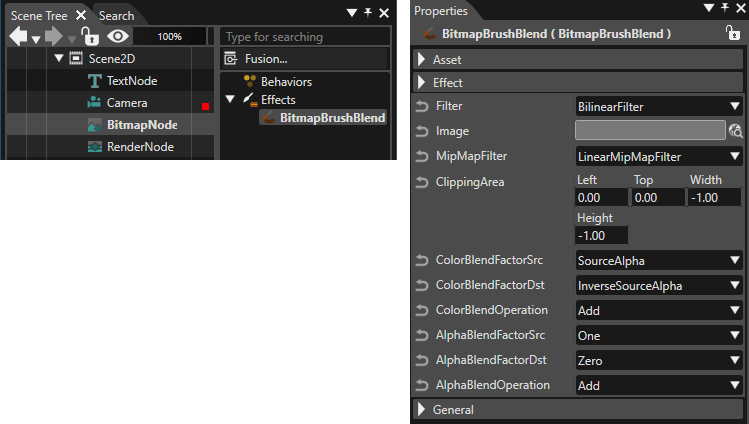
Several node types are already preconfigured with a specific combined effect. E.g when a BitmapNode is added to the scene graph, it is automatically linked to a BitmapBrushBlend combined effect
For user-defined nodes, use the following 2D node type:
- RenderNode: Drag a combined effect from the Toolbox and drop it over the desired RenderNode in the Scene Tree panel.
Follow these steps to view and edit the effect:
- Select the node in the left side of the Scene Tree panel.
- The linked effect will appear on the right side.
- Select the effect to display its properties in the Properties panel, where you can edit them.