
OpenGL Solid Color Brush Mask Effect
GlSolidColorBrushMaskBlend
With this effect, you can define a rectangle with a any solid color, similar to the SolidColorNode. Additionally, the configuration of a mask image and a mask node is possible in order to specify transparent areas in this colored rectangle.
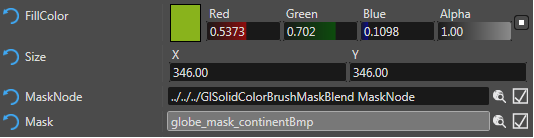
Fill Color
The color can be chosen in the “Color Palette” dialog where you can also define and save the custom colors you need for your project. The default blending color after applying this effect is white.
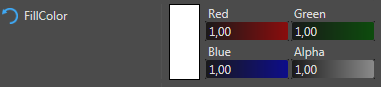
Size
This property defines the horizontal and vertical size of the SolidColorNode in pixels.
Mask Node
The “Mask Node” provides transformation information (that means position, orientation and scaling factor) for the mask image. If no Mask Node is configured, the mask is set to the same position as the displayed image with no rotation and scaling factor 1.

One way to position the mask properly is to create a BitmapNode with the mask image and apply the necessary transformations. With the visible mask image, the correct position, rotation and scaling factor can easily be found. After the desired position is set to this BitmapNode, the property “Enable Rendering” can be unchecked to make this node disappear.
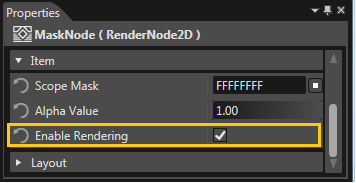
Now, this BitmapNode can be set as Mask Node by choosing it from the “Choose Item” dialog.
Mask
An image with alpha information can be configured as mask for this solidly colored rectangle. This way, the mask image can add alpha information to a plain rectangle without alpha information. The color information of the mask image is not taken into account. Also, blend options are not applied between the displayed solid rectangle and the mask image.