
Basic Effect Properties
CGI-Studio provides various effects, each of which have certain properties, which they can be configured with. Properties that apply to most of the CGI-Studio Blend Effects are described below.
Filter
When the content of a node (e.g. a texture) should be displayed in a different size than its original size (this means if a magnification or a minification of the content is desired), filtering is applied.
- If each source pixel maps onto more than one destination pixel, this is known as minification.
- If each source pixel maps exactly onto one destination pixel, filtering is not applied.
- If each source pixel maps onto less than one destination pixel this is known as magnification.
Values
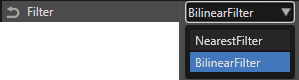
NearestFilter
Nearest-neighbor interpolation is the fastest and crudest filtering method — it simply uses the color of the source pixel closest to the center of the destination pixel for the pixel color. While fast, this results in a large number of artifacts - texture 'blockiness' during magnification, and aliasing and shimmering during minification.
BilinearFilter
Bilinear filtering is the next step up. In this method the four nearest source pixels to the center of the destination pixel are sampled (at the closest mipmap level), and their colors are combined by weighted average according to distance. This removes the 'blockiness' seen during magnification, as there is now a smooth gradient of color change from one source pixel to the next, instead of an abrupt jump as the center of the destination pixel crosses the source pixel boundary. Bilinear filtering is almost invariably used with mipmapping; though it can be used without, it would suffer the same aliasing and shimmering problems as nearest-neighbor filtering.
Mip Map Filter
This setting is available for all effects using images and controls filtering when the image has a mipmap chain. This Mip Map Filter option is available for all platforms. However, it is applied on OpenGL based 2D implementations only.
Values
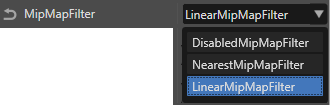
DisabledMipMapFilter
Mipmap filtering is disabled and not applied.
NearestMipMapFilter
This method still uses nearest neighbor interpolation, but adds mipmapping — first the nearest mipmap level is chosen according to distance, then the nearest texel center is sampled to get the pixel color. This reduces the aliasing and shimmering significantly, but does not help with blockiness.
LinearMipMapFilter
For OpenGL devices LinearMipMapFiltering is a common standard filter mechanism. It is a required standard for all OpenGL versions. It uses nearest-neighbor sampling from individual mipmaps whilst linearly interpolating the two nearest mipmaps relevant to the sample.
ClippingArea
The Clipping Area can be configured for effects that use images. It specifies the area of the image to be rendered.

This area is defined by its top-left position (Left, Top) and its dimensions (Width, Height). The default configuration, as shown in the image above, renders the entire image without applying any clipping.
Blend Factor
Blending is the process of mixing color values of the pixels that are already drawn with those, that are about to be drawn. Blending parameters allow the source and destination colors for each output to be combined in various ways. The output for a combined color value is computed separately for each color component (red, green, blue). A combined transparency value is calculated using the source and destination alpha values.
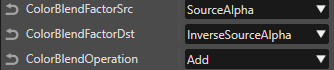
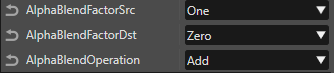
In CGI Studio you can define a Color Blend Factor for Source and for Destination and a Color Blend Operation. The same applies for the Alpha value, where you can define Alpha Blend Factors for Source and Destination as well as an Alpha Blend Operation.
Color Blend Settings (with default values)
Alpha Blend Settings (with default values)
Computation of a Combined Color Value
Formula:

| valueDST | color value of destination (background) pixel to blend |
| valueSRC | color value of new scene graph element (source) pixel to blend |
| src_blend_factor | factor to multiply source pixel color value with |
| dst_blend_factor | factor to multiply destination pixel color value with |
| op | operation to combine multiplied source and destination values |
Computation of a Combined Alpha Value
Formula:

| alphaDST | alpha value of destination (background) pixel to blend |
| alphaSRC | alpha value of new scene graph element (source) pixel to blend |
| src_blend_factor | factor to multiply source pixel alpha value with |
| dst_blend_factor | factor to multiply destination pixel alpha value with |
| op | operation to combine multiplied source and destination alpha values |
Values
| Value | Meaning | |
| Zero | 0 | keep value as it is |
| One | 1 | ignore value |
| SourceColor | valueSRC | source color value |
| InverseSourceColor | (1 - valueSRC) | 1 - source color value |
| SourceAlpha | alphaSRC | source alpha value |
| InverseSourceAlpha | (1 - alphaSRC) | 1 - source alpha value |
| DestColor | valueDST | destination color value |
| InverseDestColor | (1 - valueDST) | 1 - destination color value |
| DestAlpha | alphaDST | destination alpha value |
| InverseDestAlpha | (1 - alphaDST) | 1 - destination alpha value |
As shown in the equations in Computation of a Combined Color Value and Computation of a Combined Alpha Value the color and alpha blend factors determine the value by which each pixel is multiplied. Note that color and alpha values are normalized between 0.0 and 1.0 rather than using the 0 to 255 range.
Blend Operation
The Blend Operation specifies how the destination and source pixel values are combined. In CGI Studio, the Blend Operation can be configured for the color (Color Blend Operation) and for the alpha value (Alpha Blend Operation).
Values
| Value | Operation |
| Add | <term1> + <term2> |
| Subtract | <term1> - <term2> |
| ReverseSubtract | <term2> - <term1> |
| BitwiseAnd |