
View Definition Editor
View Definition Editor lets you define “screen-level Views” by combining Scenes created in SceneComposer with existing Views, and make those definitions available to the View Tree, the State Machine, and the Action Chain Editor.
On the View Definition Editor panel, only Views are placed in the tree. If you drag and drop a Scene onto the panel, a new View that contains that Scene is created automatically and added as a child node. This way, the state machine can always operate in terms of “which screen (View) to activate,” while Scene-based content can still be incorporated into the overall screen composition.
View Definition Editor UI
Panel layout
Double-click any View in Solution Explorer to open the View Definition Editor panel.
By default, the View Definition Editor panel is hidden. To display it, choose View > View Editor > View Definition Editor from the menu bar.
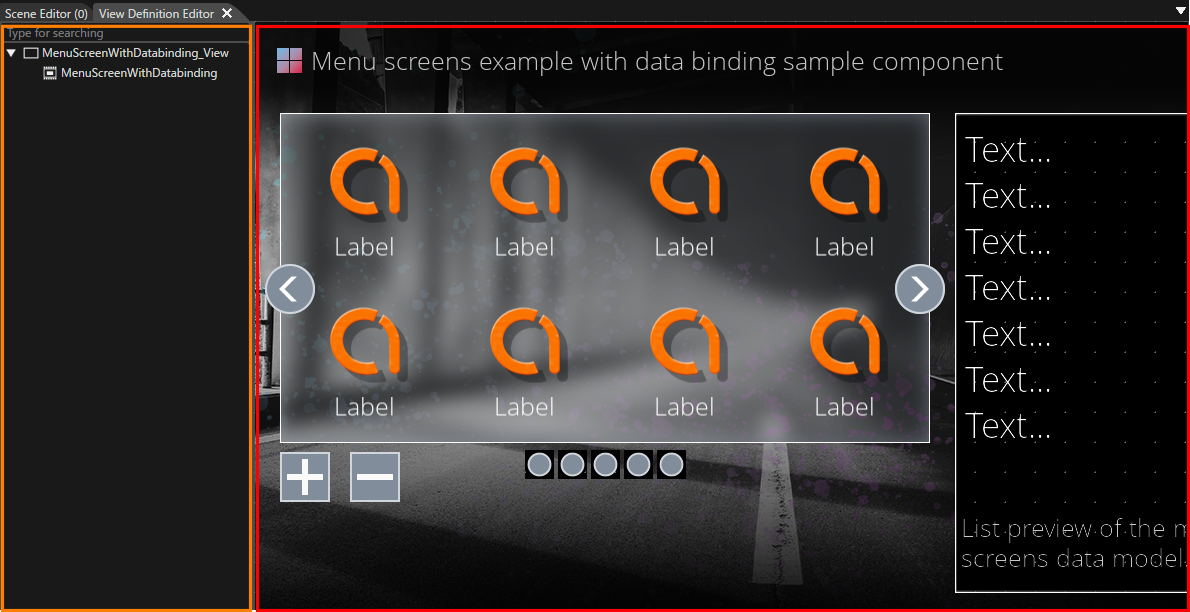
| UI item | Description |
|---|---|
|
View Composition pane (orange frame in the figure above) |
Lists which Scenes/Views the selected View is composed of. Add or remove Scenes and existing Views by drag and drop. |
|
Preview area (red frame in the figure above) |
Displays preview images of the Scenes/Views associated with the View. Useful for improving visual identification when referencing this View from the state machine or View Tree. |
Basic operations
This section outlines common procedures for defining and editing Views with the View Definition Editor.
For instructions on creating a View, see the View feature overview page.
View composition
On the View Definition Editor panel, you can use the editor’s tree to edit or delete child Views. You can also inspect the hierarchy of the selected View—including its descendants—directly on the tree.
Behavior when dragging and dropping a Scene
On the View Definition Editor panel, only Views are placed in the tree. Instead of attaching a Scene directly under the tree, the editor automatically creates a new View that contains the Scene and adds that View as a child View.
- When you drag and drop a Scene onto a View on the View Definition Editor panel, a dialog asks whether to create a new
- View to hold that Scene. If you confirm, a View that encapsulates the Scene is generated automatically and added to the tree as that View’s child.
This mechanism lets the tree always treat the unit of screen transition and visibility control as a View, while still composing Scene-based content inside it.
Grandchild View
On the View Definition Editor panel, you can compose at most one hierarchy level under a View (parent > child). You cannot add a grandchild View directly. To build a structure with two hierarchy levels (parent > child > grandchild), proceed as follows:
- Open the parent View and add a child View (first hierarchy level).
- Open that child View and add another child View (second hierarchy level—the grandchild).
After these steps, reopening the original parent View will show the hierarchy as parent > child > grandchild.