
Building Own Application for Linux with a Wayland Display Server
Generate Makefiles with CMake
For general information about CGI Studio Build System and CMake properties available to configure Candera applications refer to CGI Studio Build System
To configure and generate makefiles for compiling the CGI Player, follow below steps:
The first step for cross compiling is to make sure all the environment variables for the Yocto SDK are set!
- Open a terminal.
- Set the environment. This step is mandatory. Omitting this step will cause building with the host systems compiler instead of cross compiling.
$source /<path to the Yocto SDK installation>/environment-setup-<platform specific suffix e.g. aarch64-poky-linux> - Important! From the same console with the set environment start the CMake GUI or run the CMake commandline. We will continue with the CMake GUI in this guide.
- Point CMake to source directory
- Folder containing top-level "CMakeLists.txt", e.g. /cmake/Candera/Player

- Folder containing top-level "CMakeLists.txt", e.g. /cmake/Candera/Player
- Point CMake to binary directory
- May not exist, create folder with CMake if necessary
- Root directory for generated makefiles / solutions
- Root directory for build artifacts

- Configure
- Specify Unix Makefiles as generator for the project.
- Specify tool-chain file for cross-compiling.
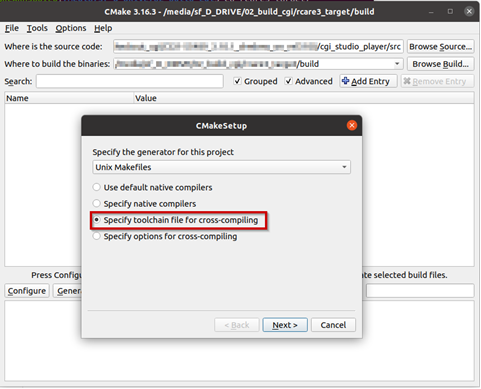
- Select the toolchain-file from the delivery (adapt for your toolchain installation and application specific needs)
/cgi_studio_devices/src/Wayland/ToolchainFiles/GCC-toolchain-Wayland-Linux.txt - Adapt the CMake settings, if necessary, e.g.:
- CMAKE_BUILD_TYPE-> Debug or Release.
- Enable/disable features.
- Press Configure.
- Press Generate.
Building Application
-
Make sure that the environment variables for the Yocto SDK are set in the terminal! Either reuse the terminal used to start CMake for building the Player or call the environment setup script again.
$source /<path to the Yocto SDK installation>/environment-setup-<platform specific suffix e.g. aarch64-poky-linux>
- Open CMake GUI and configure the project (e.g Player, CourierSampleApp, CitDemoApp) according to Generate Makefiles with CMake.
- After generating your cmake files, navigate to the specified build directory (binary directory created in CMake GUI) and type "make" to start the build or “make -j” to build with multithreading.
With some hypervisors, the Linux VM may get unresponsive when using the –j option. Reducing the number of used threads to the number of available cores improves the responsiveness of the VM during the build.
-
For CourierSampleApp and CitDemoApp asset file must be created with a matching SCHost.dll as the SCHost.dll for the CourierSampleApp and CitDemoApp contain specialized Widgets.