Font Palette
Color
To anduse Fontspecific asfonts Templatein
Eacheach TextNode (the text brush), hasyou need to beconfigure configured for using:
It is possible to define some color templates orthe font templates by using "Color Palette..." or "Font Palette..." that can be foundsettings in Solutionadvance. Options menu ("File" > "Solution Options").
Color Palette
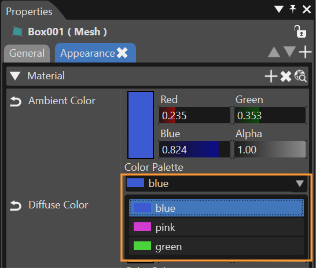
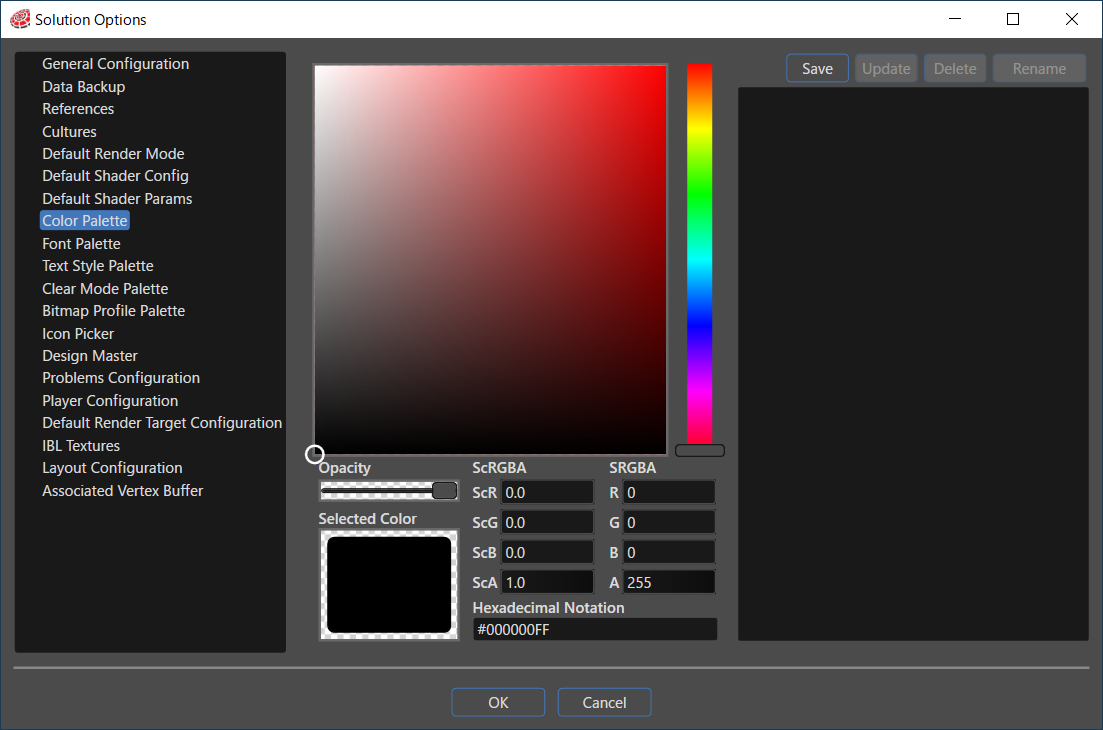
By using the Color Palette many color templates can be saved and kept for future projects. The color templates can be used later to create other solutions and scenes without defining again the properties of a new color.
Font Palette
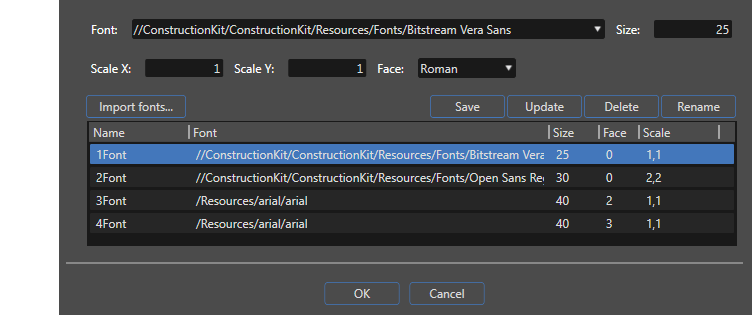
By using the Font Palette manyavailable in the Solution Options menu, you can create and manage font templates that define the font type, size, scale, face, and other font properties to be used.
The created font templates can be savedapplied forto futureeach projects.TextNode Anythrough fontthe templatesText Style Editor and can be used lateracross to create otherall solutions and scenes during project development. This allows you to apply consistent font settings efficiently across multiple text elements without defining again the propertiesneed to specify the fonts individually each time.
Font Palette UI
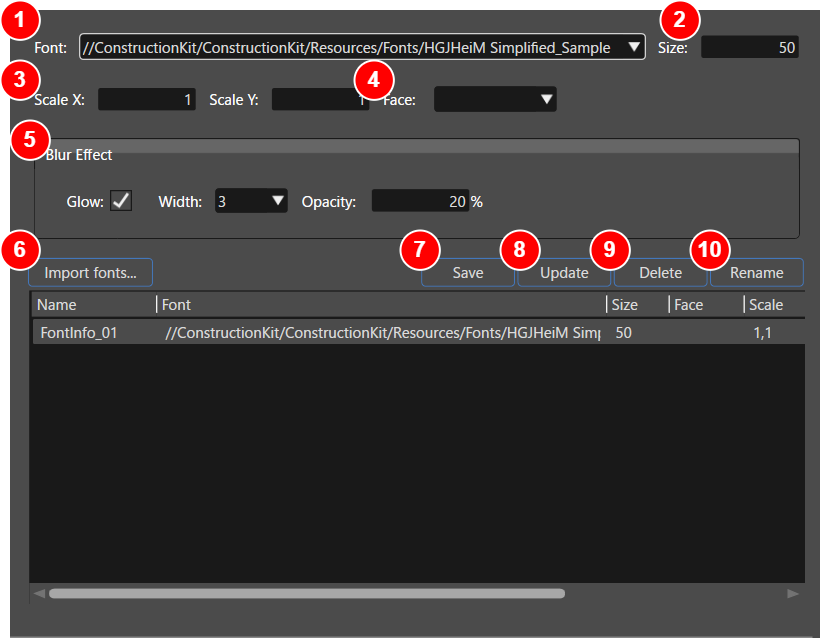
Specify the scaling ratio for the horizontal (X) and vertical (Y) directions of athe newtext. font.
Fontdefault templatesvalue canis be1 customized(original withsize), followingand settings:
Select the style included in the font (typeface)such
The usageBlur of ScaleX and ScaleY factorsEffect is thea optimumfunction waythat to scale the glyphs without pixelation.
Color Preview
Selectingadds a colorglow from the Properties panel will apply the selected coloreffect to the elementsfont. asIt previewcan beforebe closingused to enhance visibility or to add design accents by applying a soft glow around the editor.text.
TheGlow:elementEnables the glow effect when checked.
For details about this option, please refer to here.
Procedure to Enable the Blur Effect
This option can only be configured when CANDERA_FONTENGINE is set to MonoType. If any other setting is used, this option will not be displayed and cannot be utilized.
Configuring the CGI Studio Build Environment (CMake)
Open the CMake configuration for your CGI Studio project.
Please refer to this page for information on the source directory to specify when using CMake.
Set the colorCANDERA_FONTENGINE CMake flag to MonoType.
Please refer to this page for instructions on how to configure MonoType using CMake.
Use CMake to “Configure” the changes and then “Generate” the solution files.
Building SCHost.dll
Open the generated Visual Studio solution (e.g., Player.sln).
Build the SCHost project.
Ensure that Scene Composer is not running before starting the build.
Copy the built SCHost.dll to the directory where the Scene Composer executable resides.
If the CMake variable CGIAPP_SCENE_COMPOSER_PATH is properly configured, the DLL will be previewedautomatically beforecopied closingto the editor.directory containing the Scene Composer executable.
If it is not configured, you will need to copy the DLL manually.
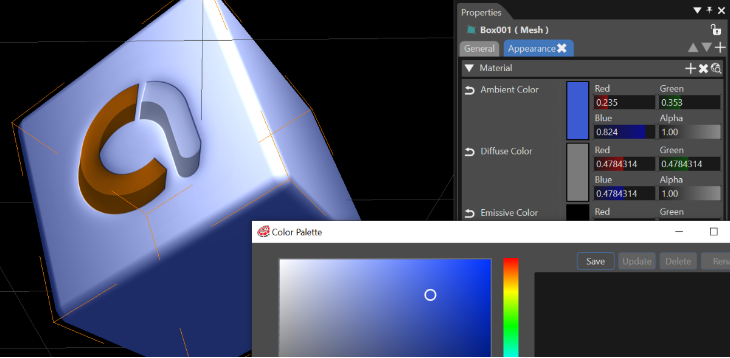
If thereyou are some color templates previously created, they can be used on any object by selecting them fromusing the Color64-bit Paletteversion comboof boxScene Composer, ensure that SCHost.dll is also built as a 64-bit DLL.
After completing the above steps, launch Scene Composer and confirm that the Blur Effect option is displayed in the Material'sSolution sectionOptions on> Properties.Font Palette dialog box.