
Effects
Use Effects
Effects describe the appearance of a RenderNode in a 2D scene. The number of effects may differ on each platform.

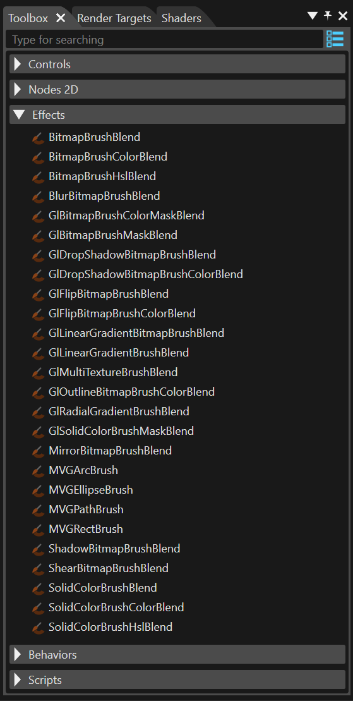
Combined Effects
The effects provided in SceneComposer are combined effects. They can be dragged from the toolbox and and dropped onto a RenderNode.
Background information
Combined effects are a combination of two or three basic effect types that are combined to an effect chain.
The following three basic effect types are used to form this effect chain
- Brush Effect: Acts as the input effect; it defines the source data for the node (e.g. SolidColorBrush, BitmapBrush)
- In-place Effect: Multiple different in-place effects can be concatenated (e.g. ConstantAlphaEffect, MaskEffect)
- Blend Effect: e.g. AlphaBlendEffect
A correctly configured effect chain consists of the following
- a Brush effect at first
- followed by an optional In-place effect
- finished by a final Blend effect
Multi Line Text Input
Sometimes it could be necessary to introduce a long text - structured in multiple, successive, lines - into a text field. For such reasons SceneComposer provides the possibility to introduce many lines in any text field available in Properties panel. Do this by using the Ctrl + Enter combo at the end of every line. On this way another piece of text will be introduced on the next line.

If it is be necessary to keep the same "multi lined" text but to re-order it as a single - linear - piece of text later on, the Multi-Line property should be used to achieve this effect. The multiline laying out property allows you to force multiline text to be laid out within a single line, ignoring new line markers.
To access the Multi-Line property within the Text Layout category, you will first need to enable the Enable Text Layout option.
This property is accessible for any text effect.

For usability reasons, SceneComposerScene Composer only provides combined effects in the Toolbox by default.
Use Combined Effects
Several node types are already preconfigured with a specific combined effect. E.g the oncewhen a BitmapNode is createdadded into the scene graph, it willis already beautomatically linked to a BitmapBrushBlend combined effect
For a user-defined node,nodes, use the following 2D node type:
- RenderNode: Drag a combined effect from the Toolbox and drop it over the desired RenderNode in the Scene Tree panel.
Follow these steps to view and edit the effect:
panel, where you can edit them.

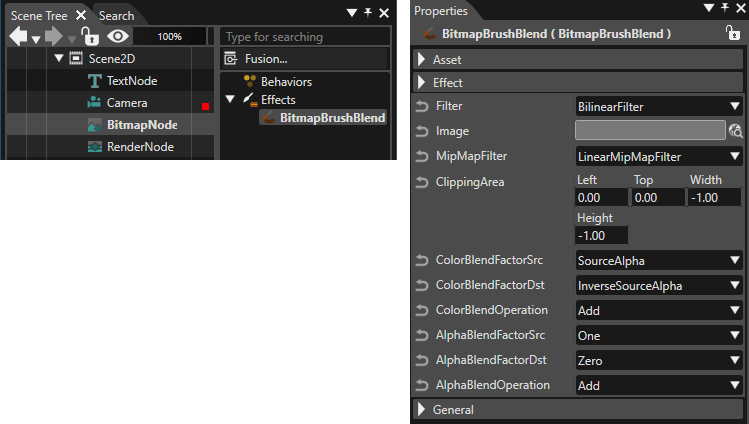
Edit the properties specific to the effect type in the Properties panel.
