
Transitions Solution
Summary
This solution showcases Transitions in SceneComposer. Therefore different types of transition are used for replacing a scene with another scene. It shows how using a transition provides continuity so that the scene change is not quite so abrupt. Note that the Player has to be used to run the sample appropriately because only the Player supports Transitions.
Purpose
The user gets an impression of what can be done by using Transitions.
Tutorial
Also be sure to check Transitions to get detailed information.
Open the Transition Rules Editor via the menu
[ View ] - [ Transitions ] - [ Transition Rules Editor ].
Here you can view and edit the configured transition rules.

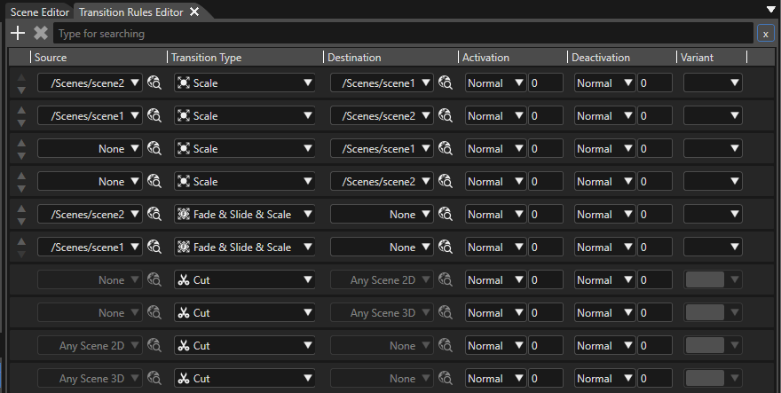
To check out the transitions, click on the play button to [ Play the scenario... ]

This will open the CGI Panel.
Activate the following scenes in the panel on the left by checking the appropriate checkbox:
Go to the Transitions tab.
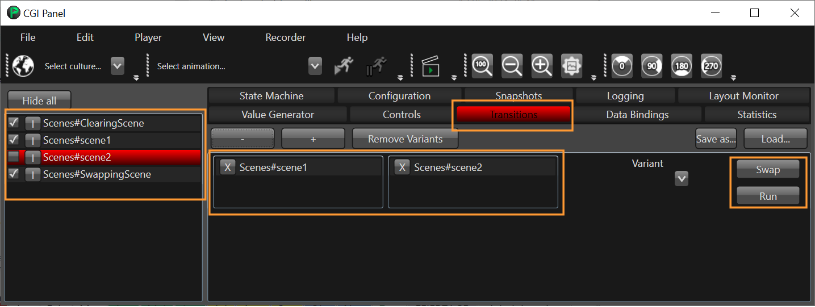
Click the [ Run ] button to view the transition from scene1 to scene2.
Click the [ Swap ] button to interchange the scenes. When clicking the [ Run ] button again, you can view the transition from scene 2 to scene1.
The CGI Panel can be configured to execute additional transitions using the [ + ] button and dragging and dropping scenes to configure 'deactivation' and 'activation' scenes.