
Advanced Cluster Solution
Overview
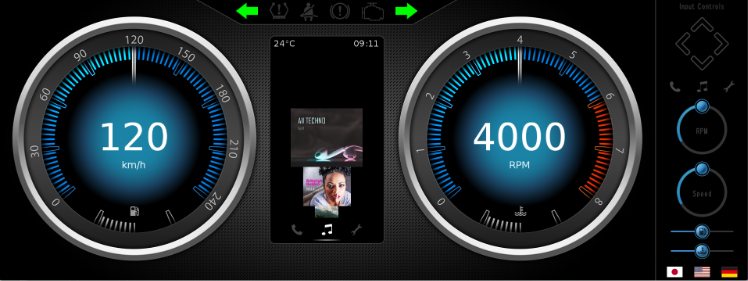
This solution representsshows an advanced 2D cluster example. ItIt consists of various scenes that are necessary to represent an advanced Cluster. The Main Scene consists of gauges that can be manipulated with Controls and Behaviors. Other scenes, like theControlPanel coverflow,scene, show some othervarious interactions inwithin the solution and how this can be achieved with Behaviors. CultureThe isControlPanel scene also useddemonstrates how to support switchingswitch between display languages. Furthermore, a scene with a dynamic list is included in the sample. The dynamic list is the result of the tutorial that can be found under Dynamic List.
This sample solution serves as an example of how Scene Composer can be used to easily implement an advanced 2D gauge cluster without requiring any coding required.coding.
For information on how to create the main scenes of this sample solution and how to implement HMI logic using controls, please refer to the Advanced Cluster Solution tutorial.
Description
The Advanced Cluster solution consists of multiple scenes to display an advanced 2D gauge cluster. Each scene uses controls suitable for the UI. It also uses Behaviors and a State Machine to pass data between scenes and transition between scenes. For more information onabout the scenes, controls, behaviors, and the state machines,machine used in this solution, please see the following description.
Scene
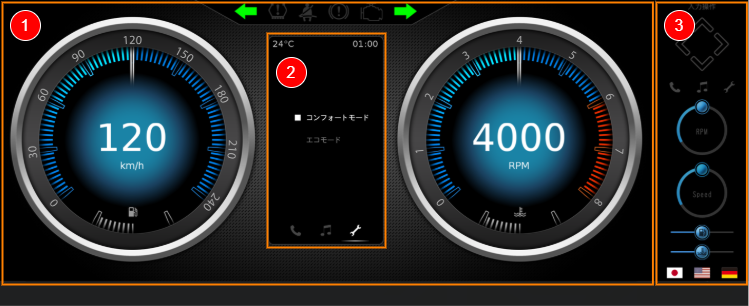
The Advanced Cluster solution consists of five scenes, eachusing ofScene whichComposer's usesversatile variousbuilt in Controls that come standard with Scene Composer to display an advanced 2D gauge cluster.
| No. | Category | Scene name | Description |
| (1) | Scene2D_Main |
The main scene of this sample solution. Two gauges are displayed on the left and
|
|
| (2) | Infotainment |
Scene2D_Music Scene2D_Phone Scene2D_Settings |
The following controls are mainly used:
|
| (3) | UI operation | Scene2D_ControlPanel |
A UI for operating the main scene and infotainment scene is displayed. Using
The following controls are mainly used:
|
Behaviros/Behaviors/State Machine
ByThis usingsolution Behaviorsoffers andthe Statepossibility Machine,to change the screen display can be changed byvia UI operationsoperation as showndescribed in the table belowbelow. This kind of interaction is achieved without any coding.coding, but solely by configuring behaviors and a state machine.
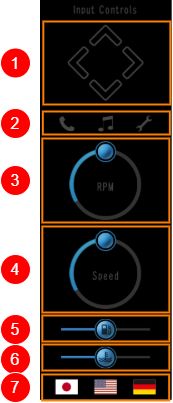 |
(1) |
The left and right arrows The up and down arrows change the content of each infotainment. |
| (2) |
Click on the Phone/Music/Settings icon to |
|
| (3) | The circular slider |
|
| (4) |
The circular slider |
|
| (5) | The slider |
|
| (6) | The slider |
|
| (7) | Click the language icon to switch between languages displayed on the main screen and infotainment screen. |
UserThe user can checkexplore and study the details of each UI's BehaviorsBehavior and State Machine settingssetting inusing theall of Extra Scene Tree, Fusion panel, and State Machine Editor of the target node.
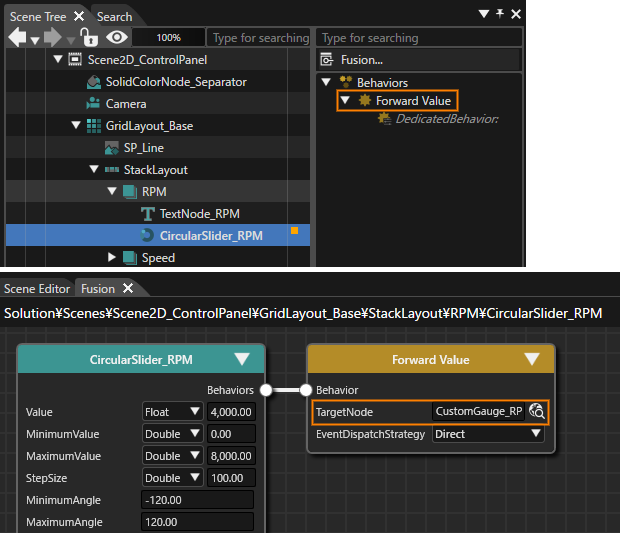
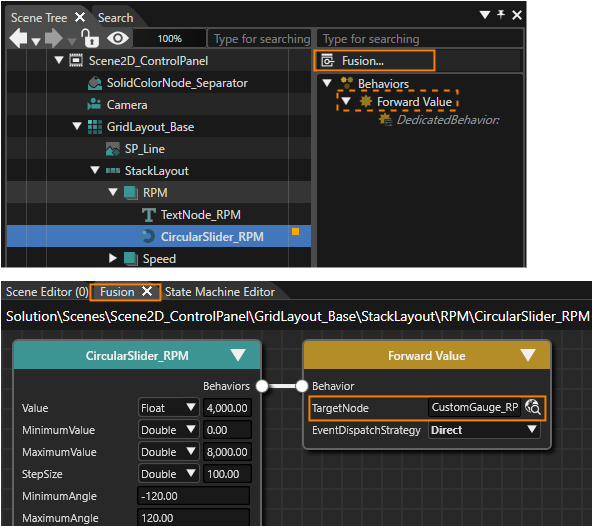
The imagefollowing belowdescription showsand theimages detailsprovide an example on how to explore a specific configuration:
One of the settingsControlPanel's forCircularSlider controls (CircularSlider_RPM) is used to remotely control the Main scene's tachometer value. The connection between CircularSlider_RPM and the tachometer (Scene2D_Main's CustomGauge_RPM) is a tachometerForward usingValue abehavior circularwith sliderCustomGauge_RPM button.as InTargetNode.
When selecting the CircularSlider_RPM in the Scene Tree panel, the Forward Value behavior can be seen in the Extra Scene Tree,Tree. youPressing can see thaton the Fusion... button right above the Extra Scene Tree panel, Fusion will be opened displaying the CircularSlider_RPM's Fusion diagram. This diagram contains a Fusion Node Forward Value behaviorwith hasa beenTargetNode addedproperty that can be confirmed to the CircularSlider_RPM (CircularSlider control) in the Scene2D_ControlPanel scene. User can also use the Fusion panel to confirm that the TargetNode property of the Forward Value behavior isbe set to CustomGauge_RPM in the Scene2D_Main scene. These settings enable data transfer from CircularSlider_RPM toScene2D_Main's CustomGauge_RPM.
Play/Operation usingUsing the Player
Click the [ Play selected scenario… ] icon on the toolbar to launch Player,the andPlayer. theThe Advanced Cluster solution will be displayed in the Player view. UserThe user can operate the display of the main screen using the ControlPanel scene's UI on the right side of the display screen.