
Advanced Cluster Solution
Overview
This solution represents an advanced 2D cluster example. It consists of various scenes that are necessary to represent an advanced Cluster. The Main Scene consists of gauges that can be manipulated with Controls and Behaviors. Other scenes, like the coverflow, show some other interactions in the solution and how this can be achieved with Behaviors. Culture is also used to support switching between display languages. Furthermore, a scene with a dynamic list is included in the sample. The dynamic list is the result of the tutorial that can be found under Dynamic List.
This sample solution serves as an example of how Scene Composer can be used to easily implement an advanced 2D gauge cluster without any coding required.
For information on how to create the main scenes of this sample solution and how to implement HMI logic using controls, please refer to "xxxx".
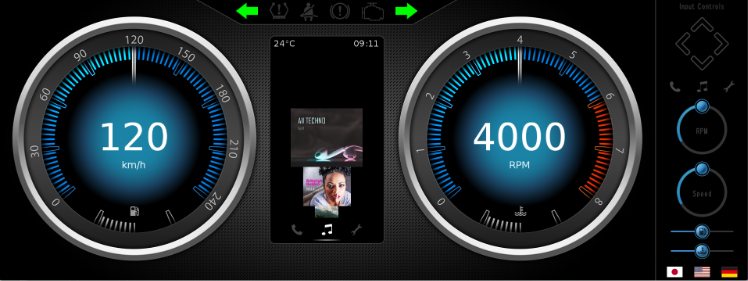
Description
Scene
The Advanced Cluster solution is made up of multiple scenes that fall into three categories:
| No. | Category | Scene name | Description |
| (1) | Mina | Scene2D_Main |
The main scene of this sample solution. Two gauges are displayed on the left and right, various indicators are displayed at the top, and infotainment is displayed in the center. |
| (2) | Infotainment |
Scene2D_Music Scene2D_Phone Scene2D_Settings |
A scene that displays infotainment (Music/Phone/Settings). Only the selected scene is displayed in the center of Scene2D_Main. |
| (3) | UI operation | Scene2D_ControlPanel |
A UI for operating the main scene and infotainment scene is displayed. Using the UI, you can change the speedometer/tachometer values, switch infotainment scenes, change the display language, and more. |
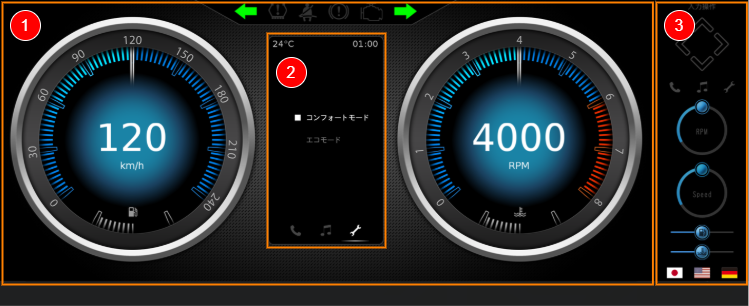
UI operation
Controls, Behaviors, and State machines make it possible to update the values of items in a scene and change their states through UI operations without any coding required.
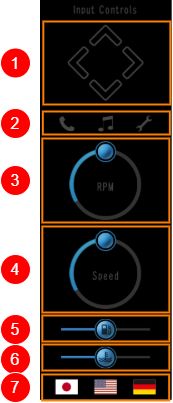 |
(1) |
The left and right arrows change infotainment (Music/Phone/Settings). The up and down arrows change the content of each infotainment. |
| (2) |
Click on the Phone/Music/Settings icon to change infotainment. |
|
| (3) | The circular slider button changes the tachometer value. | |
| (4) |
The circular slider button changes the speedometer value. |
|
| (5) | The slider button changes the fuelmeter value. | |
| (6) | The slider button changes the water temperature meter value. | |
| (7) | Click the language icon to switch between languages displayed on the main screen and infotainment screen. |