
Properties Panel - Favorites
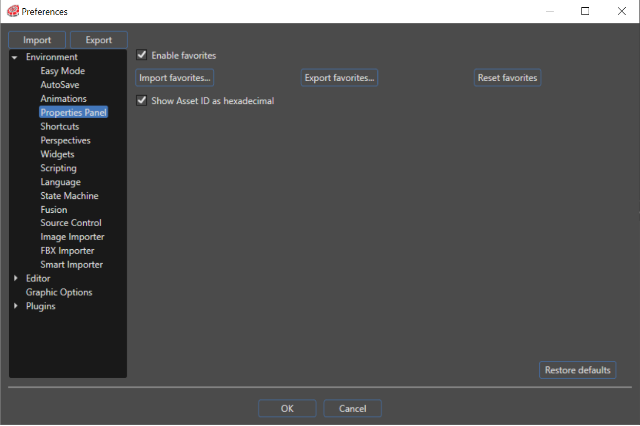
PropertiesEnable Panelfavorites
You can save any property as a favorite property. This feature can be enabled by checking the "Enable favorites" checkbox from the section "Environment - Properties" panel, in the "Preferences" dialog.

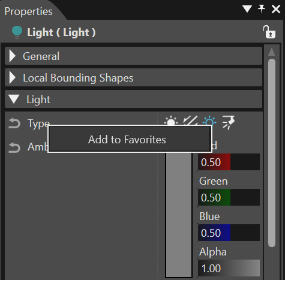
Add
Add/ Remove Properties to Favorites
Any property can be saved as a favorite property just by right-clicking on it, after the favorites are enabled.

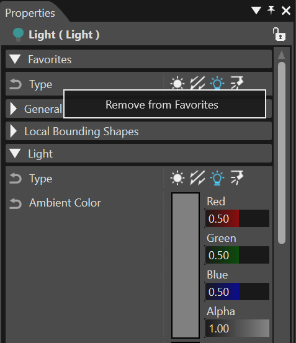
A "Favorites" category will appear in the Properties, where you can see all the selected favorite properties.
Right click on a property in the "Favorites" category and select "Remove from Favorites" in the context menu to remove a single one.
Import favorities... / Export favorities...
Use "Export favorites..." in the "Environment - Property" section for saving all the selected favorite properties on a chosen location (as an .XML document). Any exported .XML favorites document could be imported by using the "Import favorites..." button from the "Environment - Properties panel" section.
RemoveReset Properties from Favoritesfavorites
The "Reset favorites" button in the "Environment - Properties" panel section allows to reset all the available favorite properties. Right
Show onAsset aID as hexadecimal
If enabled, Asset IDs (ID property in the "Favorites"Assets categorysection andof selectthe "RemoveProperties frompanel) Favorites"are displayed in thehexadecimal, contextif menudisabled tothey removeare adisplayed singlein one.decimal.
