
Dashboard
The Control Center Dashboard is the first page opened when opening a solution. If you close the solution using the menu "File - Close solution", you will come back to the Control Center Welcome Screen.
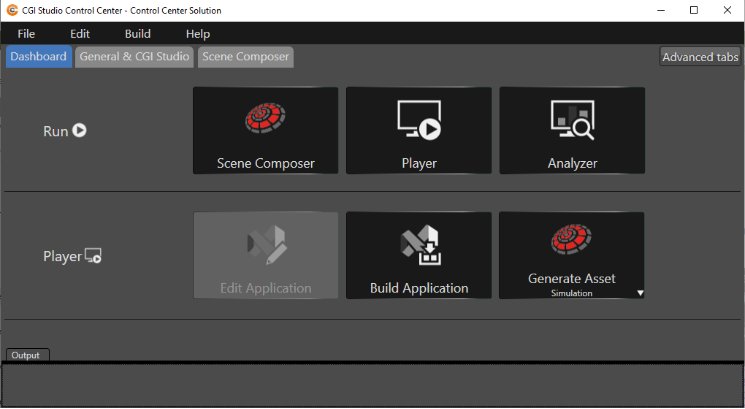
"Run" Section
Below the ribbon you can find buttons to run SceneComposer, the Player, and CGI Studio Analyzer with your open Solution.

|
1 |
Scene Composer |
Clicking on this button opens the selected solution in Scene Composer for the selected platform. More info can be found in the Scene Composer chapter. |
|
2 |
Player |
This button opens the CGI Player. Before the CGI Player is opened, a Windows Security Alert will prompt you for access. In the CGI Player you can select via checkboxes which scene will be rendered in the CGI Player Window. More info can be found in the Player chapter. |
|
3 |
Analyzer |
The Analyzer button opens the CGI Studio Analyzer. More info can be found in the Analyzer chapter. |
"Player" Section
In this section you can edit or build your application and you can generate your assets for Simulation, Target or for Simulation and Target.
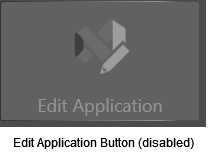
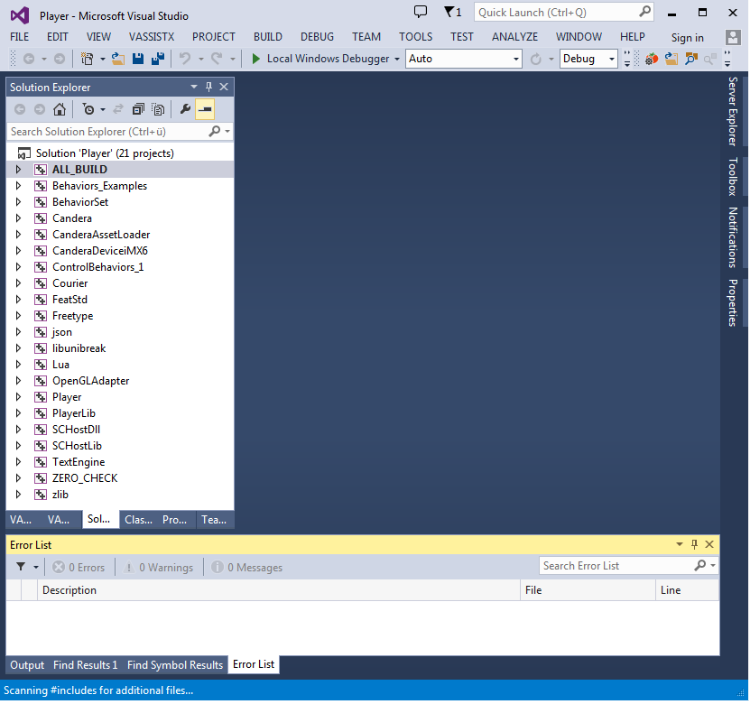
Edit Application
Build Application
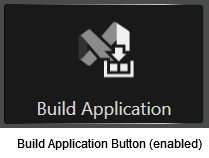
Click here to build your application. This will open the CGI Studio Control Center - Build Window and start the build process, which may take some time.
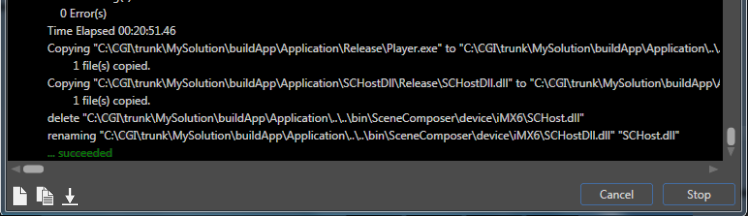
A successful build completion is signaled by "... succeeded"
Generate Asset
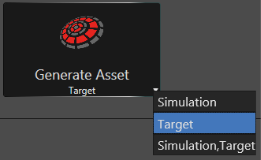
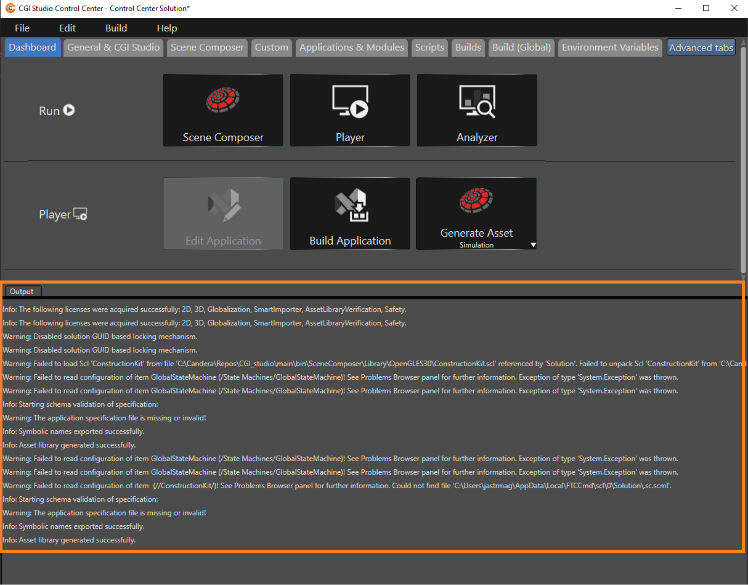
To generate assets select Simulation, Target, or Simulation and Target as desired and press the "Generate Target" button. Log output during asset generation is displayed directly in the lower part of the Control Center Window.
CGI Studio Control Center - Build Window
Whenever a build process is started in the CGI Studio Control Center (e.g. Build Application and Build Panel) the build window is opened. This window displays the build output.
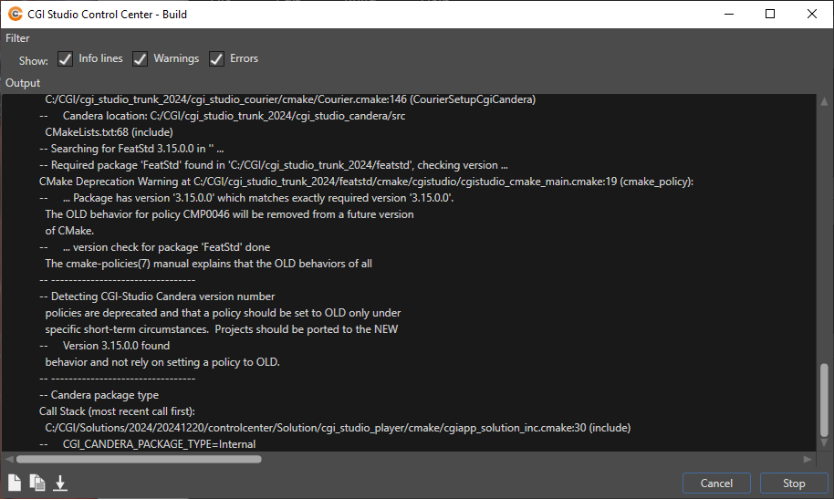
You can scroll through the build output. You can filter the output lines for Info lines, Warnings and Errors using the Checkboxes in the top of the window. You can cancel or stop the build with the buttons on the bottom right.
The buttons on the left have the following functionality:

|
1 |
Open the Build-Log file. |
|
2 |
Copy the Build-Log to Clipboard. |
|
3 |
Automatically scrolls to the bottom of the log output. (If you have scrolled up in the output) |