Part 4: Animation settings
This section describes thehow to create an animation settings.that Here,animates the position and size of an object. Here, the thumbnail image of the music is changedanimated.
byConfiguring the animationAnimation
settings.
Right-click on
In the
"Cover"Scene belowTree "Music"panel innavigate to the
SceneTreeRenderNode2D panelCover and
selectright-click "it. Select [Add Animated Property...
"] to openfrom the
"context menu. The Cover node can be found in the path below.
The Property Animation Configuration"Configuration dialog.dialog will be opened.
Scene Tree Path
IVI_Sample > IVI_Sample > Music > Cover
In the
"Property Animation Configuration"Configuration dialog makeapply the
followingsettings settingsas in the table below and press
OK.[OK].
Add to : CreateA new animation andMyAnimation enterhas anybeen name (eg. MyAnimation)created.Location : /Animations
Property: Position
Interpolation: Spline
Select Radio button of "CreateThe new
keyanimation frameis sequence"
and check both axes: "X" and "Y".
The screen will switch to Animation Design screen. Press "Scene Design" buttonvisible in the upperSolution leftExplorer.
toolbarScene Composer switches to
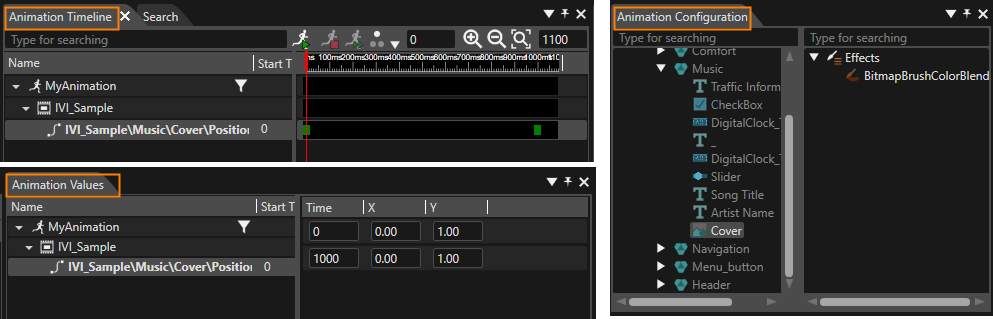
returnAnimation Design. Three new panels are visible:
Animation Configuration panel
Animation Timeline panel
Animation Values panel
To switch back to Scene Design press the screen[Scene Design] button in Scene Composer's main toolbar.
Create new Animation
MyAnimation
Location
/Animations
Property
Position
Interpolation
Spline
Create new keyframe sequence
X and Y
In the Animation Configuration panel's scene tree select the same Cover node as before. In the Properties panel click on the [+] button.
The Property Animation Configuration will be opened.
In the Property Animation Configuration apply the settings as in the table below and press [OK].
A new keyframe sequence for the property "scale" has been added to the
Sceneexisting Designanimation screen.MyAnimation.
After returning to "Scene Design" screen, again right-click "Cover" below "Music"seen in SceneTreethe Animation Timeline, in the Animation Values panel and select "Add Animated Property..." again. This time, configure followingin the belowProperties list.
panel.
Addto: Selected Animation
(SelectMyAnimation
Animation
youjustProperty
created)Scale
Property:
ScaleInterpolation:Interpolation
Spline
Select
Radiobutton of "Create new keykeyframe framesequence
sequence"
Check both axes: "X"X and
"Y".Y
Select "Animation Design" button to show
In the
Animation Values Panel.panel Selectselect the
Positionanimated Animation Valuesproperties and enter the
valuesconfigurations from
belowthe table.table below.
The keyframes for the animated properties are fully configured.
IVI_Sample\Music\Cover\Position\XY
Time
X
Y
0
138.00
240.140.00
1000
104.00
207.00
Next, select the Scale Animation Values and enter the values from below table.
| IVI_Sample\Music\Cover\Scale\XY |
Time
X
Y
0
0.
550
0.
550
1000
1.00
1.00
Check Animation in Player
Use the Player to check the configured animation.
Save your solution and click the
[Play
buttonselected inscenario...] icon on the
menu bartoolbar to
runstart CGIthe Player.
InThree thewindows Musicwill section:open, Clickand onto the progress bar below the Song title or drag it around. Youyou can see that the progresssimulation timedisplay is changed according to your operation.
Inshows the
ComfortIVI_Sample section: Press either +/- buttons in Seat heater section and watch the value and progress bar being updated according to your operation.scene.
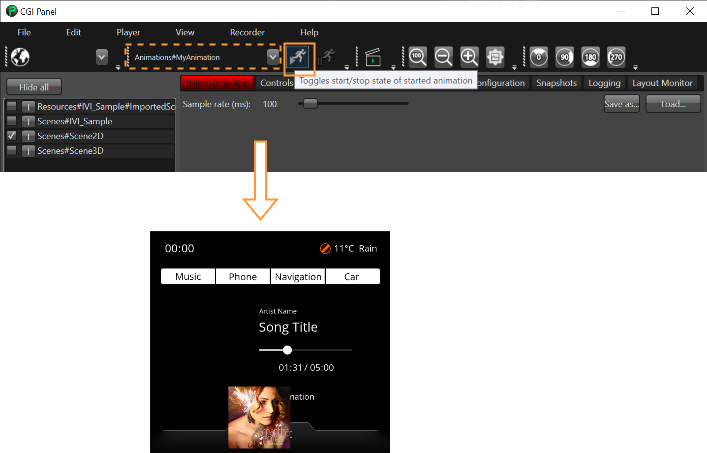
In CGI Panel below the menu select your animation from the drop-down
list.list Thenand press the "run animation" button right next to the drop-down
listlist.
inorder to play theThe configured
animation.animation You can now watchof the Cover image
animationwill be started and played once in
CGIthe Player.simulation display.