iOS Player Build Guide
Before you begin, it’s recommended to prepare and verify the connection between your Mac and your iPhone.
Checking SDK Compatibility
First, make sure that the SDK version in Xcode is compatible with your iPhone’s iOS version.
To do this:
- Create a new project in Xcode (for example, “HelloWorld”).
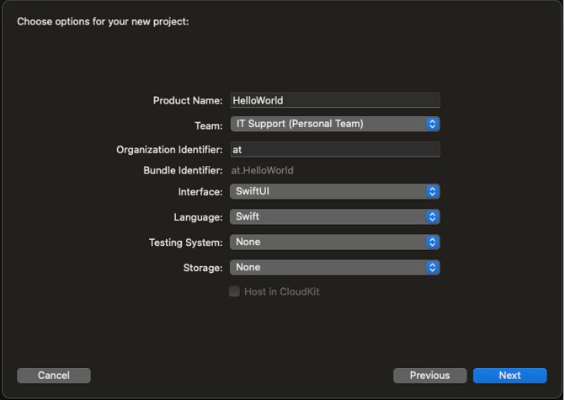
- Try running it on your device.
- If any warnings appear, follow the instructions until the project successfully runs on the iPhone.
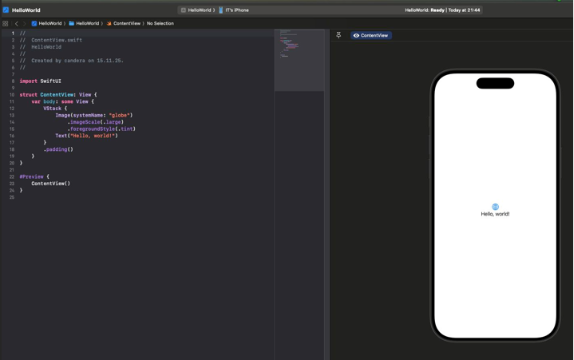
This step ensures that your device pairing, certificates, and accounts are set up correctly.
Generating the Project
Before generating the project:
Make sure that your Asset.bin file is placed in the root directory.
Go to the directory where you downloaded your client and create a folder named build.
Ensure that CMake is installed, then run:
cmake \
  -G Xcode \
  -DCMAKE_TOOLCHAIN_FILE=../cgi_studio_devices/src/iOS/Toolchain_Files/GCC-toolchain-iOS-Device.txt \
  ../cmake/Candera/Player
After the project is generated, open Xcode and load the created project.
Installing Player on iOS
- Launch Xcode and open the Player_iOS_64 project.
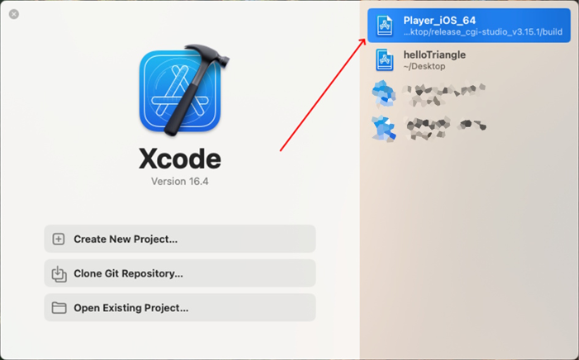
- Make sure that Developer’s iPhone is selected as the target device.
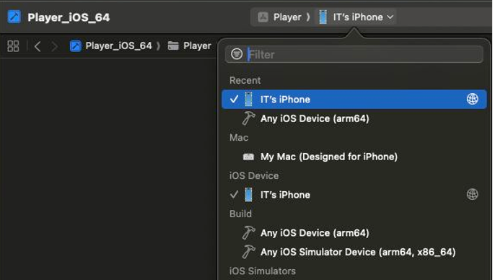
- If something else is selected, click on the device selector and choose the correct iPhone.
If your iPhone does not appear, disconnect and reconnect the USB cable. - Click the [ Play ] button or select [ Product > Run ] and wait for the app to build and install and launch on the device.
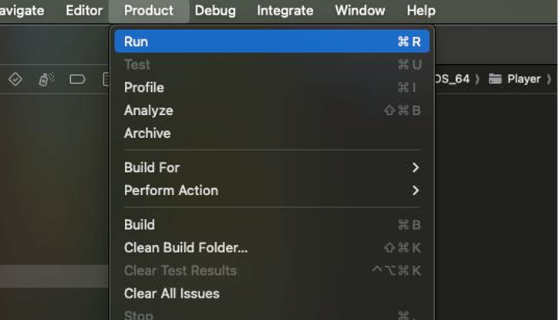
- Once you see the Asset running on the iPhone screen, click [ Stop ] in Xcode and disconnect the device.
Everything should now be functioning correctly.
Replacing Asset.bin
To replace the Asset file:
- Go to the project root directory.
- Replace the existing Asset.bin file with your new version.
Troubleshooting
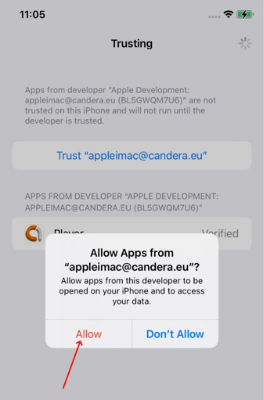
If an error appears during installation, it may indicate that your developer account needs to be trusted on the iPhone.
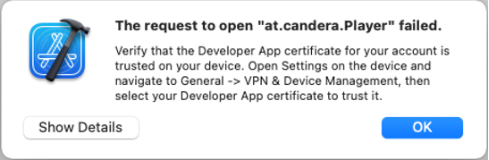
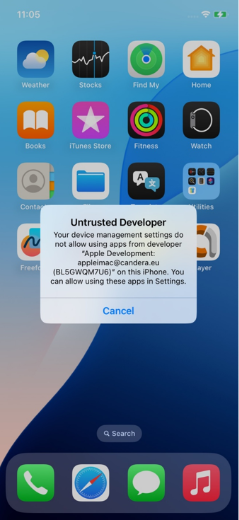
To trust the developer:
- On the iPhone, go to [ Settings > General ].
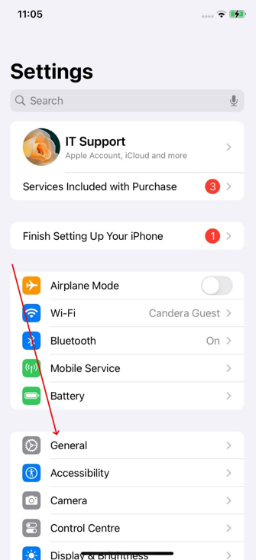
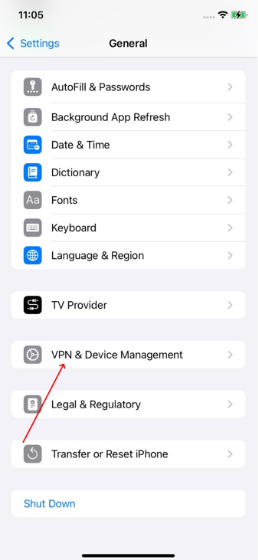
- Scroll down and open VPN & Device Management.
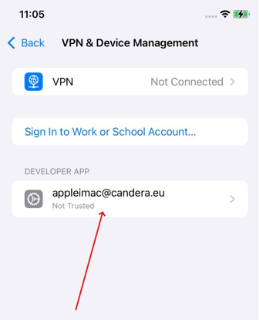
- Select your account email.
- Tap Trust developer@example.com.
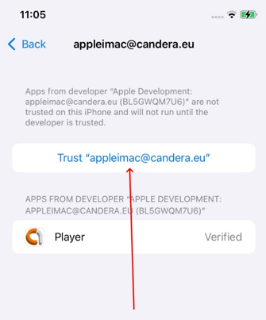
- Confirm by choosing [ Allow ], then try installing the app again.