
Coffee Machine
Overview
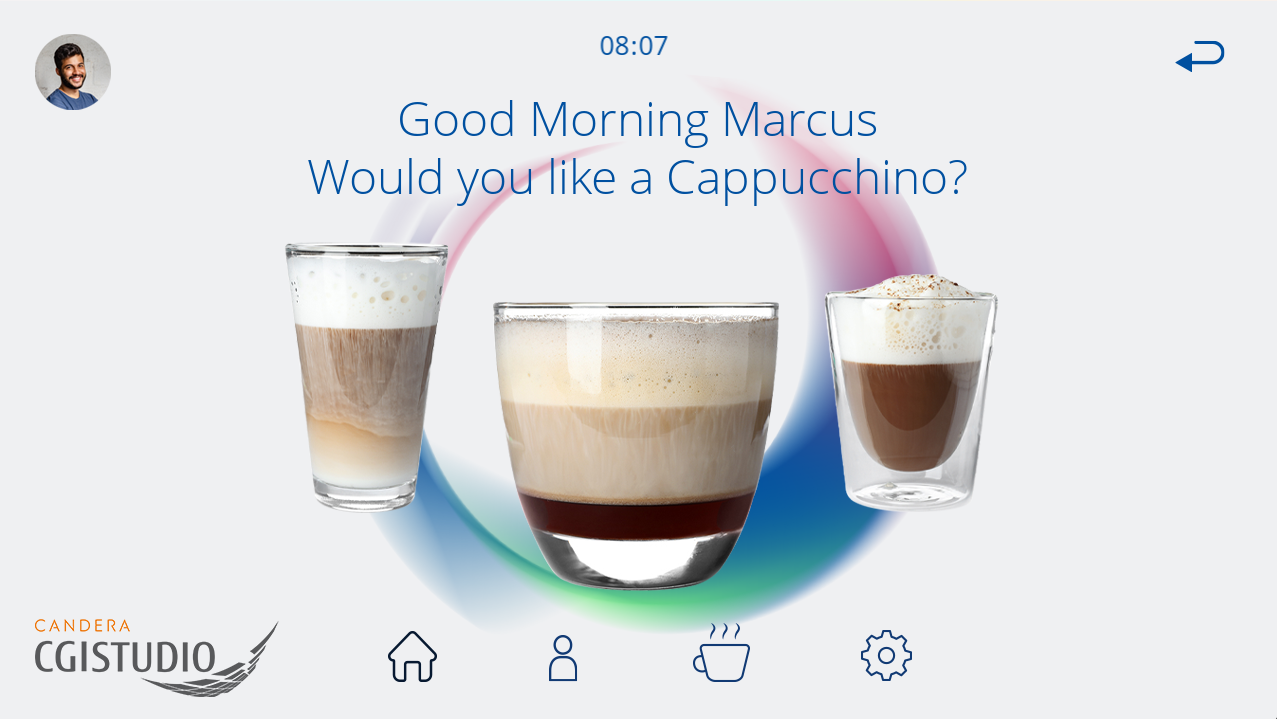
This sample shows an automated coffee machine HMI solution. It is designed to make preparing drinks easier, smarter, and more connected through an advanced user interface. It brings together different functions in one organized way, helping users navigate the machine efficiently and manage the preparation process.
The solution includes features such as drink selection, user profiles, drink customization, and coffee machine management. Its main strength is a central interface that connects different modules for drink preparation, maintenance, and settings. These parts work together to create a smooth workflow and a consistent user experience across the entire coffee machine system.
Feature Description
Scene
| No. | Name | Scene Name | Description |
| (1) | Background | This scene acts as a commonly used layer within the Coffee Machine solution and contains |
|
| (2) |
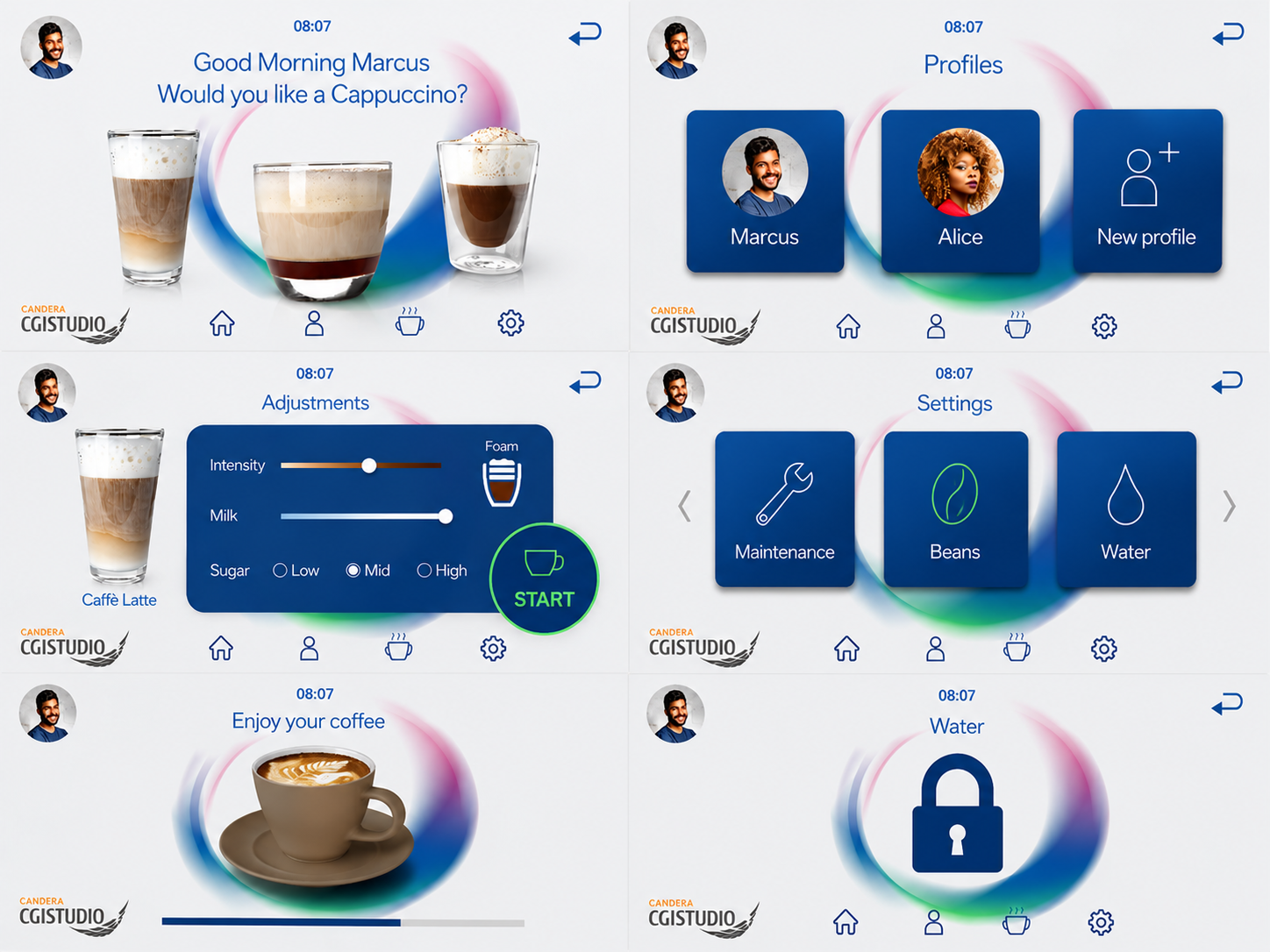
In this scene, the use can individually adapt the previously selected coffee to their needs. It allows the user to adjust the following parameters:
- Intensity (amount of coffee beans)
- Milk (amount of added milk)
- Sugar (low, medium, high)
- Foam (none, low, medium, high)
The previously selected coffee type is being displayed in the left of the screen.
(This scene contains various options for the coffee machine maintenance and setup:
- Maintenance
- Beans
- Water
- General
- Connection
The various options are currently implemented as placeholders and lead to the Restriced scene.
(This scene is acting as a placeholder for further functionality implementation. It currently displays a lock indicating that there is no further action possible aside from returning to the previous scene.
Control
There is one customer control for the progress bar. For this custom control the interpolation behaviour was removed from the default toolbox toas restrictit conflicted with the interpolation done by the Preparing animation behaviourwhich whenalso changingchanges the values onof the progress bar (used for Milk and Intensity adjustment).
Please note that this could also be achieved by using the default progress bar and changing its "InterpolateBarValue" property "Receivers" --> settings "UnitsPerSecond" & "FilterTimeConstant" to "0".bar.
Transition
The default transition is used for all scenes in this solution ("Cut").
Animations
There is one animation that animates the coffee cup in CoffeeCup3D and activates the text in the Preparing Screen. This animation is started when the Start Button in Scene_Adjustments is pressed.
State Machine
The statemachine is used to acitvate/activate/deactivate the different scenes on specific button presses. Additionally correct images and text are set dependent on the button. All scenes except the Background and the StatusBar are activated when the state is entered and deactivated when left.
States
| State | Activated Scene(s) | Trigger | Additional Actions |
Notes |
| Welcome |
Scene_Background StatusBar Scene_Welcome
|
Initial State End of preparing animation Scene_Adjustments/ReturnButton/Return Welcome |
Initial activation of the StatusBar. This state is re-entered when the Preparing animation has finished. |
|
| Selection | Scene_Selection |
|
||
| Adjustments | Scene_Adjustments |
Every coffee button in SceneSelection/List and SceneWelcome
|
Dependent on the button the correct coffee image is activated and different texts are set to the "Preparing your coffee..." TextNode of the StatusBar Additionally the back button is switched. |
This state can be entered from 2 different scenes so it is important that the back button triggers the correct one. Therefor 2 back buttons are available and only the required one is activated when the state is triggered. |
| Preparing |
Preparing Screen CoffeeCup3D |
Scene_Adjustments/Start Button |
Starts the Preparing animation that fills up the coffee cup in CoffeeCup3D |
|
| Settings | Scene_Settings |
|
|
|
| Profiles | Scene_Profiles |
|
|
|
| Settings_Submenu | Submenu |
All buttons in Scene_Settings/List |
Sets different texts dependent on the pressed button |
|