
Coffee Machine
Overview
PendingThis solution shows our Candera demo for a Coffee Machine screen. It demonstrates a wide range of coffee machine functionalities and also introduces new ideas like the implementation of profiles.
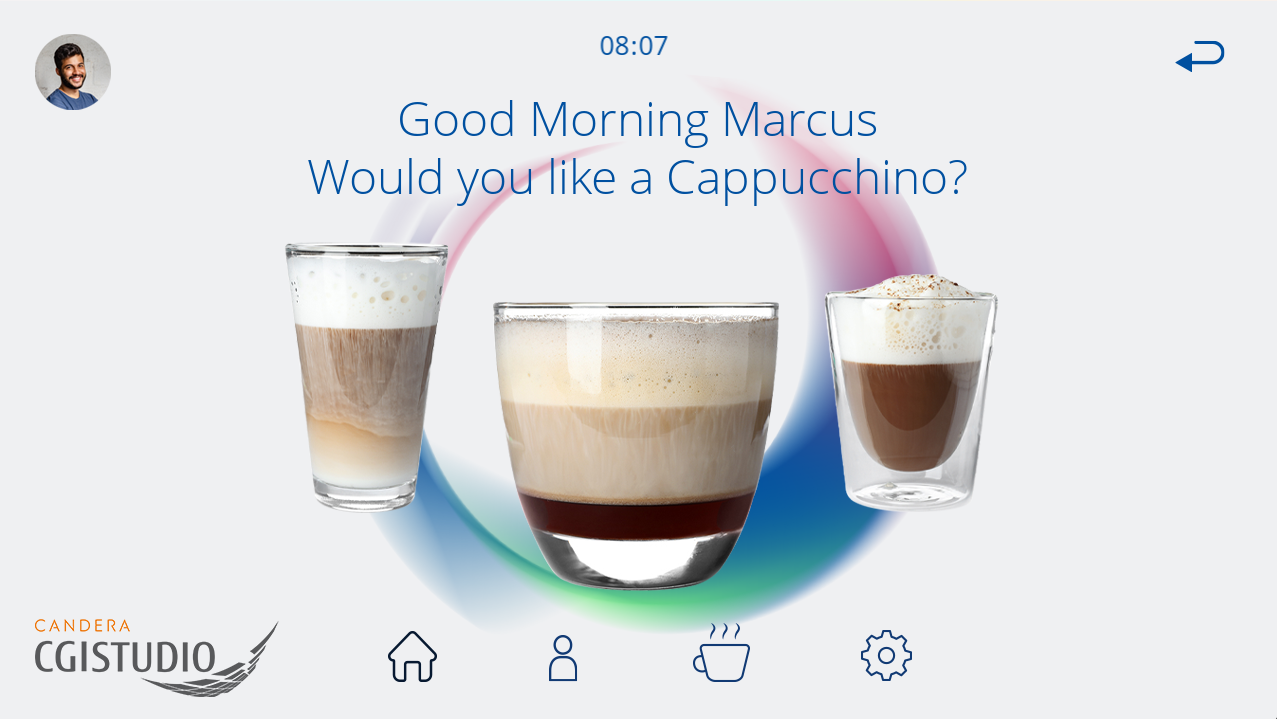
Feature Description
Scene
Control
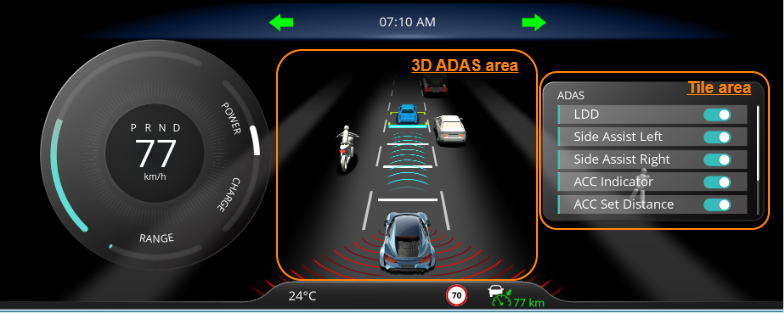
ADAS controls that is used in this solution is same as the one which is added under 3d-adas-control-solution under sample solutions. For details, please refer to 3D ADAS Control Solution.
All ADAS features added when toggle buttons in ADAS scene are enabled.
Transition
Transition rules were used with animation as transition type for respective tiles movement and it is cyclic.
For example:
State Machine
GlobalStateMachine activates common scenes that are used by all the other scenes such as background scene, cluster scene and 3D-ADAS scene. Few animations are configured that needs to be activated during startup like range display in cluster which indicates battery that decreases as per efficiency.
MainCarPositionStateMachine handles direction of central car movements. Left and Right arrow keys are used for this action.
SetDistanceStateMachine gets activated when ADAS tiles toggle button is enabled and the lines between central car and another object shows up as shown in below image. Plus and Minus keys are used for this action.
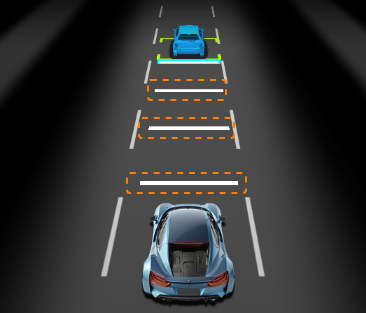
SetSpeedStateMachine specifies speed range on which car must be, as per user settings. If set speed initially 80 and when user sets for 90, then speed ranges from 0-90.
TileStateMachine handles tiles movement with up and down arrow keys among Music player, Contacts, ADAS and Navigation tiles.
Play/Operation using Player
3D ADAS area
Tile area
AdasScene2D→NavigationScene2D→MusicScene2D→PhoneScene2D The Add Key ($+$) and Subtract Key ($-$) inputs can be used to set the ACC distance in the AdasScene2D. In the ADAS 2D scene, the Add and Subtract Keys are used to set the ACC speed.