General Options
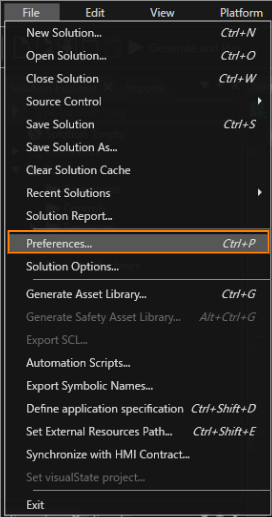
SceneComposer Customization can be done via menu bar [ File > Preferences... ].
Hide warnings and messages from imports in Problems panel
If enabled, warnings and messages from imports in the Problem panel will be hidden.
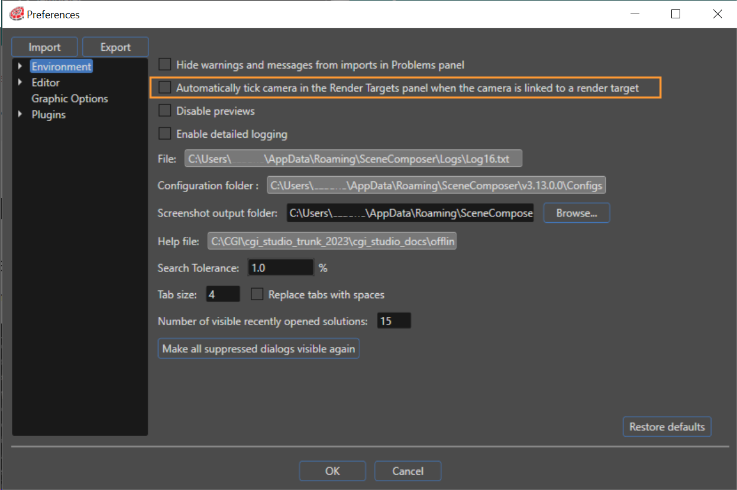
Automatically Tick Camera
If enabled, Camera rendering will be automatically enabled when a Camera is linked to a Render Target. Also, this setting only applies to Camera that are newly linked to Render Target, and does not affect the settings of Cameras that are already linked to Render Target.
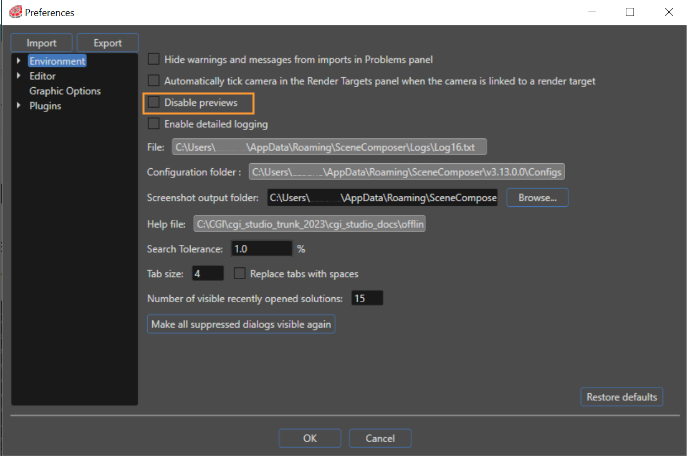
Disable Previews
If enabled, image file previews will be hidden, which may improve Scene Composer performance (e.g. when importing a large number of images).
Enable Detailed Logging
If enabled, more detailed Scene Composer log files will be output, which may be useful for debugging analysis and performance improvement.
File
This is the path to the detailed log file.
Configuration folder
This is the path to the folder where all Scene Composer configuration files are saved.
Screenshot Output Folder

This sets the output destination for taking Display screenshots.
The default output destination is C:\Users\...\AppData\Roaming\SceneComposer\Screenshots.
You can take a Display screenshot using the following steps.
- Display the desired Display panel using one of the following methods.
- In the Render Target panel, double-click the desired Display.
- From the menu bar, click [ View > Display ] and then click the desired Display.
- Take a screenshot using one of the following methods.
From the context menu of the desired Display panel, click [ Save Screenshot ].
With the desired Display panel active, press <F12>.
Once the screenshot is taken, the Screenshot output folder will open and you will see that the screenshot image has been saved in PNG file format.
In some conditions the user might need to see exactly the content visible in an opened display. To fulfill such a need, SceneComposer provides the possibility to take screenshots of every display. For this, the desired display has to be opened by double-clicking on the display in the render target tab. The screenshot can be taken by right-clicking on the display in the render target tab and selecting "Save Screenshot" in the context menu or by pressing F12.
After taking a screenshot (e.g. via the context menu in the display window, which can be opened through the menu "View > Display > Display-0") the destination folder will be opened instantly.
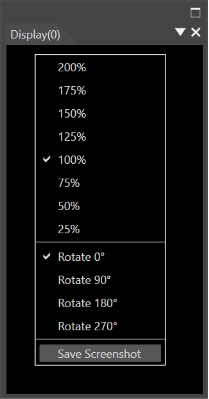
The default screenshot output folder is C:\Users\...\AppData\Roaming\SceneComposer\Screenshots. This default setting can be changed in one of the following ways:
Help file
This is the path to this document (CGI Studio Documentation).
Search Tolerance
The percent value given to the option "Search Tolerance" is taken in to account during the search operation for properties of type Float, Color when the operator "about equal" is used.
Tab size / Replace tabs with spaces
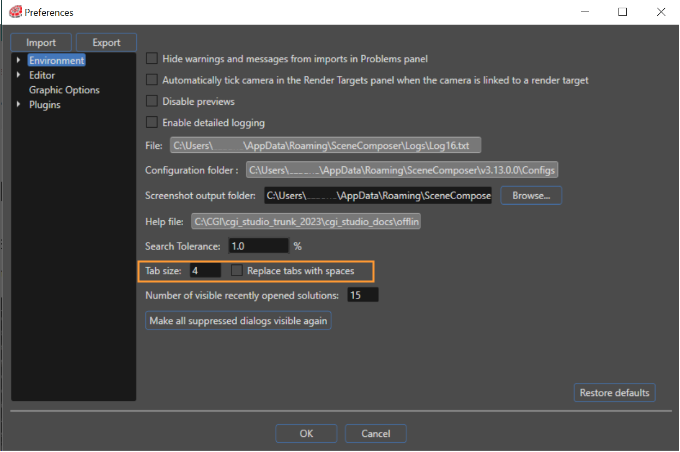
The user can change the tab size and decide if tabs should be changed to spaces. This option is available for editing shaders in the Shader Editor panel ("View" > "Editors" > "Shader Editor").
There are platforms which do not allow shaders editing operation.
Number of visible recently opened solutions
Sets the maximum number of recently opened solutions to be displayed in the Startup panel (maximum: 20).
Make All Suppressed Dialogs Visible Again
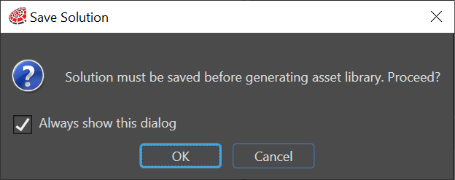
"Make all suppressed dialogs visible again" option enables the display of the dialog boxes asking confirmations for generate asset and import FBX files option. One can disable the option of displaying these dialog boxes by unchecking the "Always show this dialog" option.