Configuration example
In thisThis sepage ction,explains l explain how to use Fusion to configure operations related to "Set Text"," which is one of the examples of usingapplying thea behavior.behavior within a Fusion diagram.
Prepare nodesNodes in the sceneScene editorEditor
DragIn andthe dropToolbox, anavigate TextButtonto control from [ Control > Touchable ] in the Toolbox onto the Scene Editor.Touchable.- Drag and drop a
TextTextButton Node from the toolbox [ Node 2D ]control onto the sceneScene editor.Editor.
- In the Scene Editor, a TextButton has been created.
In the Toolbox, navigate to Node 2D.
Drag and drop a Text Node onto the Scene Editor.
In the Scene Editor, a TextNode has been created.
Adjust the position of the Text Node
on the Scene Editor so that it is placed
onnext to the
sideTextButton in the Scene Editor.
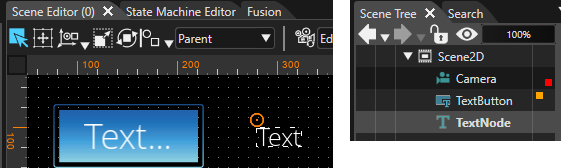
In the Scene Editor, a TextButton and a TextNode are next to each other.
In the Scene Tree panel, TextButton and TextNode are part of the
TextButton.scene tree.
Configure TextButton
Select the TextButton in
Fusion
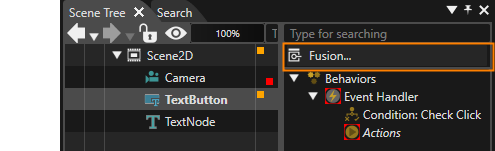
In the
sceneScene treeTree panel, select the TextButton and click the
[ Fusion... ] button in the
ExtraSceneExtra tree.Scene Tree.
Fusion will be opened, displaying the TextButton's Fusion diagram.
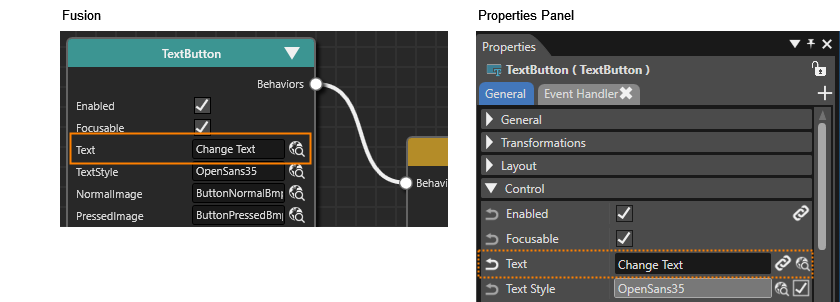
TypeIn Fusion, at the TextButton's Fusion Node change the Text property to "Change Text"
in the [ Text ] of the top node TextButton..
- This is the same as editing the
[TextButton's Text ] in the [ Controls ] section that appearsproperty in the Properties window when the TextButton is selected in the scene tree.
panel.
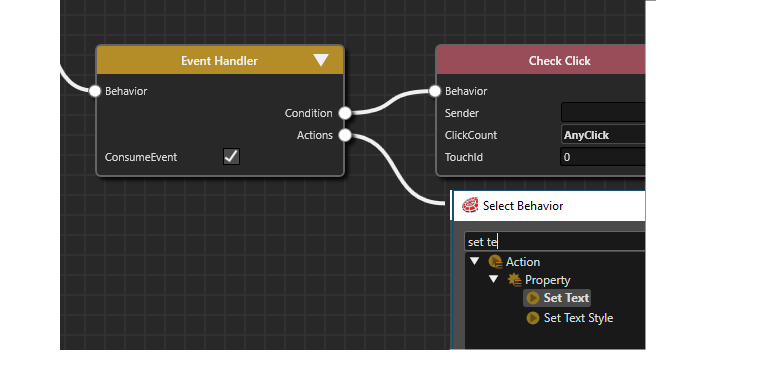
DragIn Fusion, click the
ActionsAction connector on the right side of the
Event Handler Fusion
nodeNode.
and move the mouse.
A link will appear following the mouse operation, and release the left mouse button anywhere.
- The
[ ChooseSelect Behavior ] dialog will appear.be
Behaviors are displayed by category.opened.
SelectClick [ Action>Property>Set Text ] frominto the
list and connect it to the Event Handler Fusion node.
You can also narrow down the list of behaviors in the dialog by typing "Set Text" in the searchinput field
atin the top of the
dialog.dialog and start typing Set Text.
The list of behaviors will be narrowed down while typing.
In the dialog, double-click the SetText behavior.
A new Fusion node Set Text has been created, connected to the Event Handler's Actions connector.
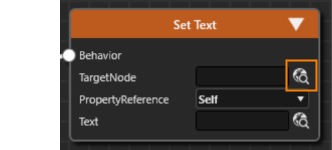
ClickIn Fusion, click the Select Item icon
inat the
[ TargetNode ] sectionproperty of the added
Set Text Fusion node.
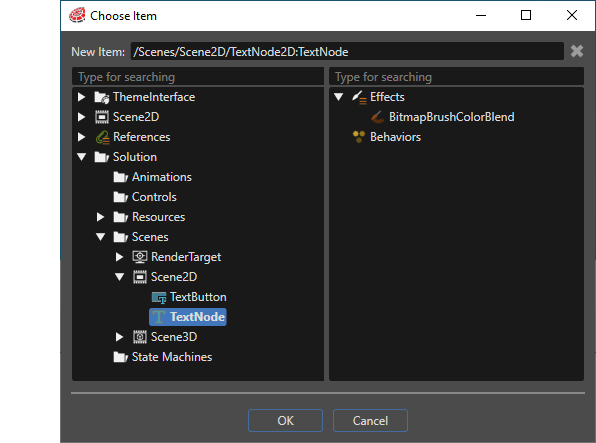
The Choose Item dialog will be opened.
TheIn [the Choose Item ]dialog, dialogselect appears,the TextNode and
click [OK].
The TargetNode for the Set Text behavior is the scene's TextNode.
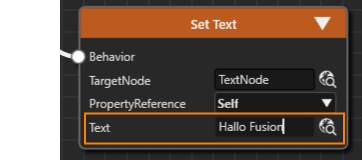
In Fusion, configure the Set Text Fusion Node's Text Property to "Hallo Fusion".
The Set Text behavior will set the TextNode's text to "Hallo Fusion",
Configure the TextNode in Fusion
In the Scene Tree panel, select the TextNode
as the target node for the text display.
Next, type "Hello Fusion" in the [ Text ] section of the Set Text Fusion node to specify the text to display.
Configure TextNode
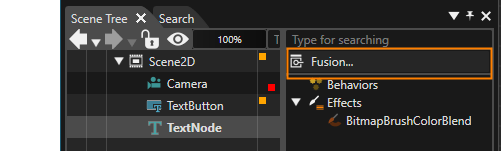
Select the TextNode in the scene tree and click the
[ Fusion... ] button in the
ExtraSceneExtra tree.Scene Tree.
Fusion will be opened, displaying the TextNode's Fusion diagram.
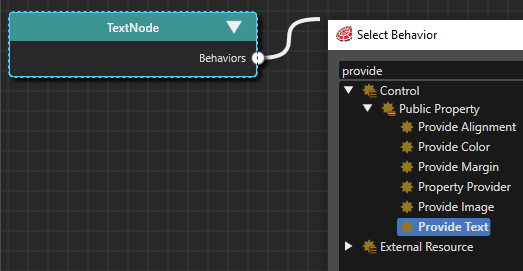
DragIn Fusion, click the
Behaviors connector on the right side of the
TopText Node andFusion moveNode.
the mouse.
A link will appear following the mouse operation, and release the left mouse button anywhere.
- The
[ ChooseSelect Behavior ] dialog will appear.be
Behaviors are displayed by category.opened.
FromClick withininto the
list, select "Control>Public Property>Provide Text" to connect to the top node.
You can also narrow down the list of behaviors in the dialog by entering "Provide Text" in the searchinput field
atin the top of the
dialog.dialog and start typing Provide Text.
The list of behaviors will be narrowed down while typing.
In the dialog, double-click the Provide Text behavior.
A new Fusion node Provide Text has been created, connected to the Text Node's Behaviors connector.
TheCheck operationthe confirmationScene usingin the Player
After
completingSave allyour work and start the Player to test the functionality of
theyour aboveconfiguration.
configurations,clickThe Player will be opened, displaying the
[configured Playscene.
selected
scenario...
]Click icon on the
toolbarTextButton.
The TextNode's text will be changed to
start"Hallo Player.Fusion".
Once
the
Player is launched, click TextButton control. Then confirm that the text of the Text Node changes.