Part 3: Configure Behaviors
This page explains how to configure interaction between various components of the scene with Behaviors using Fusion.
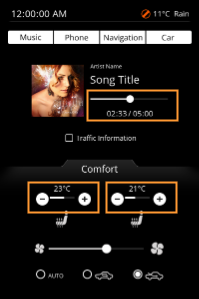
- Changing the playback time value by moving the slider knob for playback music
- Changing the state of the temperature progress bar by pressing the seat heater buttons
Configuring the Music's Playback Time Slider
- In the Scene Tree panel navigate to and select the Slider control, which can be found following the path below.
- The Slider Control is selected.
Scene Tree Path IVI_Sample > IVI_Sample > Music > Slider
- The Slider Control is selected.
- In the Menu select [View > Fusion > Fusion].
- The Fusion editor will be opened, hiding the Scene Editor.
- The Slider Fusion Node is displayed as Top node with a set of properties.
- In the [Slider] Fusion Node drag the Behaviors connector circle to the right and release the mouse.
- A Select Behavior dialog will be opened.
- This dialog has an input field on top and a list of behaviors organized as a tree on the bottom.
- This list of behaviors is similar to the one in the Toolbox panel's [Behaviors] section.
- In the Select Behavior dialogue's input field start typing "Forward Value".
- While you are typing the list of behaviors gets smaller as the content of the input field serves as a filter.
- While you are typing the list of behaviors gets smaller as the content of the input field serves as a filter.
- In the Select Behaviors dialog double-click the Forward Value behavior.
- In Fusion a new [Forward Value] node is created, which is connected to the Slider's Behaviors connector.
- In Fusion a new [Forward Value] node is created, which is connected to the Slider's Behaviors connector.
- In the [Forward Value] node click the search icon next to the property "Target Node".
- The Choose Item dialog will be opened.
- The Choose Item dialog will be opened.
- Select the IVI_Sample scene's DigitalClock_Time control, which can be found following the path below and click [OK].
- DigitalClock_Time is set as Forward Value's TargetNode.
- When the Slider's value is changed, the value will be forwarded to DigitalClock_Time.
Path IVI_Sample > IVI_Sample > Music > DigitalClock_Time
Configuring Seat Heater Setting
Creating Fusion Nodes
- In the Scene Tree panel select the Seat_Right's "Icon_Button_-", which can be found following the path below.
- Fusion displays the Fusion Node for "Icon_Button_-".
Path IVI_Sample > IVI_Sample > Comfort> Seat_Right > Icon_Button_-
- Fusion displays the Fusion Node for "Icon_Button_-".
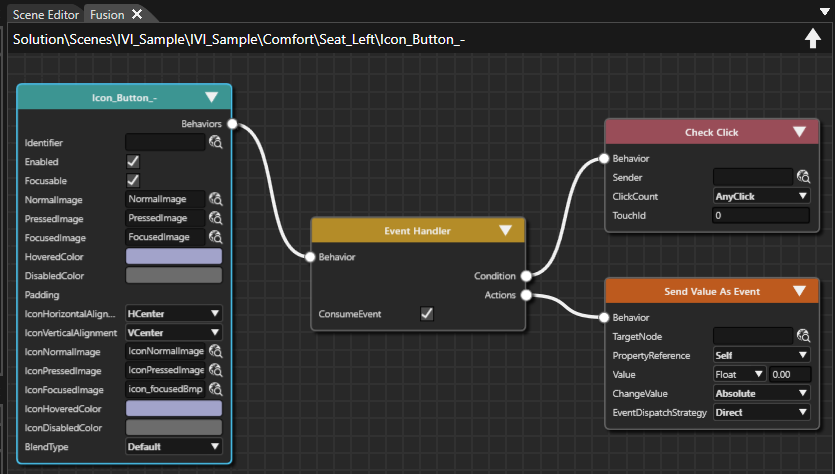
DragIn Fusion drag theIcon_Button'Fusion Node's Behaviors connector to the right and release the mouse button.
- The Select
ItemBehavior dialog will open.
- The Select
- Find the "Event Handler" behavior and double-click it.
- A Fusion node for the Event Handler behavior is created.
- A Fusion node for the Event Handler behavior is created.
- Using the Event Handler's Condition connector connect a Check Click condition.
- A Fusion node for the Check Click condition is created.
- A Fusion node for the Check Click condition is created.
- Using the Event Handler's Actions connector, connect a Send Value As Event behavior.
- A Fusion node for the Send Value As Event behavior is created.
- The Fusion diagram will look like in the image below.
- Select the 3 Fusion Nodes you have just created (Event Handler, Check Click, Send Value As Event) and copy them either using the context menu "Copy" or via the keyboard shortcut <Ctrl + C>.
- Fusion Nodes are copied and ready to be pasted into another Fusion diagram.
- Fusion Nodes are copied and ready to be pasted into another Fusion diagram.
- Select the IconButtons in the table below one by one and paste these Fusion Nodes into their Fusion diagrams either using the context menu "Paste" or via the keyboard shortcut <Ctrl + P>.
- EventHandler, Check Click condition and Send Value As Event behavior have been created for all 4 seat heating Icon_Buttons.
Path IVI_Sample > IVI_Sample > Comfort> Seat_Right > Icon_Button_+ Path IVI_Sample > IVI_Sample > Comfort> Seat_Left > Icon_Button_- Path IVI_Sample > IVI_Sample > Comfort> Seat_Left > Icon_Button_+
- EventHandler, Check Click condition and Send Value As Event behavior have been created for all 4 seat heating Icon_Buttons.
Configuring Value Behaviors
When pressing Icon_Button_-, the value should be decreased (-1,00) and when pressing Icon_Button_+, the value should be increased (+1,00). These value changes need to be reflected in the corresponding ProgressBar, which will be set as TargetNode.
- In Scene Tree panel select the Icon_Buttons of Seat_Right and Seat_Left one by one. In Fusion configure their Send Value As Event Nodes that you created in "Creating fusion nodes" as in the table below.
- The Send Value As Event Nodes are fully configured and functional.
Seat_Right Icon_Button_- Icon_Button_+ TargetNode Seat_Right > ProgressBar Seat_Right > ProgressBar Value -1,00 1,00 Change Value Relative Relative
Seat_Left Icon_Button_- Icon_Button_+ TargetNode Seat_Left > ProgressBar Seat_Left > ProgressBar Value -1,00 1,00 Change Value Relative Relative
- The Send Value As Event Nodes are fully configured and functional.
- In the Scene Tree panel select the Seat_Right > ProgressBar. In Fusion drag the ProgressBar's Behaviors connector to the right and release the mouse button.
- The Select
ItemBehavior dialog box will open.
- The Select
- Find the "ForwardValue" behavior and double-click it.
- A Fusion node for ForwardValue behavior is created.
- A Fusion node for ForwardValue behavior is created.
- Configure the ForwardValue behavior's TargetNode to the Seat_Right's TextValue_Temperature node.
- The ProgressBar is configured to forward its value to the respective TextValue_Temperature node.
Seat_Right > ProgressBar --> Fusion ForwardValue Node TargetNode IVI_Sample > IVI_Sample > Comfort> Seat_Right > TextValue_Temperature
- The ProgressBar is configured to forward its value to the respective TextValue_Temperature node.
- Repeat steps 2 - 4 with Seat_Left > ProgressBar configure the TargetNode as in the table below.
- The ProgressBar is configured to forward its value to the respective TextValue_Temperate node.
Seat_Left > ProgressBar --> Fusion ForwardValue Node TargetNode IVI_Sample > IVI_Sample > Comfort> Seat_Left > TextValue_Temperature
- The ProgressBar is configured to forward its value to the respective TextValue_Temperate node.
Checking the Configuration in Player
Use the Player to check the functionality of the behaviors configured in Fusion.
Checking the Behavior's Functionality
In the Player you can test the interactivity between the music Slider and the numeric display of the playback time.
- Save your solution and click the [Play selected scenario...] icon on the toolbar to start the Player.
- Three windows will open, and you can see that the simulation display shows the IVI_Sample scene,
- Three windows will open, and you can see that the simulation display shows the IVI_Sample scene,
- In the simulation display drag the slider's knob below the "Song Title".
- While dragging you can watch the digital playback time, which is displayed below the slider, increase and decrease accordingly.
- While dragging you can watch the digital playback time, which is displayed below the slider, increase and decrease accordingly.
-
In the scene's lower "Comfort" part click on the [+] and [-] buttons for seat heating.
- The progress bar will change its value
- The numeric temperature displayed above the progress bar will be updated according to your operation.