Part 3: Configure Behaviors
TheThis followingpage interactionsexplains canhow beto configuredconfigure interaction between various components of the scene with Behaviors using Fusion.
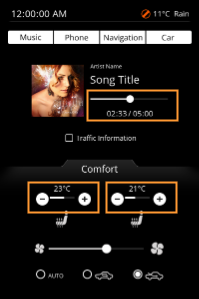
Configuring the Music's Playback Time Slider
- In the Scene Tree panel navigate to and select the Slider control, which can be found following the path below.
- The Slider Control is selected.
Scene Tree Path IVI_Sample > IVI_Sample > Music > Slider
- The Slider Control is selected.
- In the Menu select [View > Fusion > Fusion].
- The Fusion editor will be opened, hiding the Scene Editor.
- The Slider Fusion Node is displayed as Top node with a set of properties.
- In the [Slider] Fusion Node drag the Behaviors connector circle to the right and release the mouse.
- A Select Behavior dialog will be opened.
- This dialog has an input field on top and a list of behaviors organized as a tree on the bottom.
- This list of behaviors is similar to the one in the Toolbox panel's [Behaviors] section.
- In the Select Behavior dialogue's input field start typing "Forward Value".
- While you are typing the list of behaviors gets smaller as the content of the input field serves as a filter.
- While you are typing the list of behaviors gets smaller as the content of the input field serves as a filter.
- In the Select Behaviors dialog double-click the Forward Value behavior.
- In Fusion a new [Forward Value] node is created, which is connected to the Slider's Behaviors connector.
- In Fusion a new [Forward Value] node is created, which is connected to the Slider's Behaviors connector.
- In the [Forward Value] node click the search icon next to the property "Target Node".
- The Choose Item dialog will be opened.
- The Choose Item dialog will be opened.
- Select the IVI_Sample scene's DigitalClock_Time control, which can be found following the path below and click [OK].
- DigitalClock_Time is set as Forward Value's TargetNode.
- When the Slider's value is changed, the value will be forwarded to DigitalClock_Time.
Path IVI_Sample > IVI_Sample > Music > DigitalClock_Time
Configuring Seat Heater Setting
Creating Fusion Nodes
- In the Scene Tree panel select the Seat_Right's "Icon_Button_-", which can be found following the path below.
- Fusion displays the Fusion Node for "Icon_Button_-".
Path IVI_Sample > IVI_Sample > Comfort> Seat_Right > Icon_Button_-
- Fusion displays the Fusion Node for "Icon_Button_-".
- Drag the Icon_Button's Behaviors connector to the right and release the mouse button.
- The Select Item dialog will open.
- The Select Item dialog will open.
- Find the "Event Handler" behavior and double-click it.
- A Fusion node for the Event Handler behavior is created.
- A Fusion node for the Event Handler behavior is created.
- Using the Event Handler's Condition connector connect a Check Click condition.
- A Fusion node for the Check Click condition is created.
- A Fusion node for the Check Click condition is created.
- Using the Event Handler's Actions connector, connect a Send Value As Event behavior.
- A Fusion node for the Send Value As Event behavior is created.
- A Fusion node for the Send Value As Event behavior is created.
- Select the 3 Fusion Nodes you have just created (Event Handler, Check Click, Send Value As Event) and copy them either using the context menu "Copy" or via the keyboard shortcut <Ctrl + C>.
- Fusion Nodes are copied and ready to be pasted into another Fusion diagram.
- Fusion Nodes are copied and ready to be pasted into another Fusion diagram.
- Select the
followingIconButtonsIconButtonsin the table below one by one and paste these Fusion Nodes into their Fusion diagrams either using the context menu "Paste" or via the keyboard shortcut <Ctrl + P>.- EventHandler, Check Click condition and Send Value As Event behavior have been created for all 4 seat heating Icon_Buttons.
Path IVI_Sample > IVI_Sample > Comfort> Seat_Right > Icon_Button_+ Path
IVI_Sample > IVI_Sample > Comfort> Seat_Left > Icon_Button_- Path
IVI_Sample > IVI_Sample > Comfort> Seat_Left > Icon_Button_+
- EventHandler, Check Click condition and Send Value As Event behavior have been created for all 4 seat heating Icon_Buttons.
Configuring FusionValue NodesBehaviors
When pressing Icon_Button_-, the value should be decreased (-1,00) and when pressing Icon_Button_+, the value should be increased (+1,00). These value changes need to be reflected in the corresponding ProgressBar, which will be set as TargetNode.
- In Scene Tree panel select the Icon_Buttons of Seat_Right and Seat_Left one by one. In Fusion configure
thetheir Send Value As Event Nodes that you created in "Creating fusion nodes" as in the table below.- The Send Value As Event Nodes are fully configured and functional.
Seat_Right Icon_Button_- Icon_Button_+ TargetNode Seat_Right > ProgressBar Seat_Right > ProgressBar Value -1,00 1,00 Change Value Relative Relative
Seat_Left Icon_Button_- Icon_Button_+ TargetNode Seat_Left > ProgressBar Seat_Left > ProgressBar Value -1,00 1,00 Change Value Relative Relative
- The Send Value As Event Nodes are fully configured and functional.
- In the Scene Tree panel select the Seat_Right > ProgressBar. In Fusion drag the ProgressBar's Behaviors connector to the right and release the mouse button.
- The Select Item dialog box will open.
Configure the ForwardValue behavior's TargetNode to the Seat_Right's TextValue_Temperature node.
Seat_Right > ProgressBar --> Fusion ForwardValue Node
TargetNode IVI_Sample > IVI_Sample > Comfort> Seat_Right > TextValue_Temperature
Repeat steps 2 - 4 with Seat_Left > ProgressBar configure the TargetNode as in the table below.
Seat_Left > ProgressBar --> Fusion ForwardValue Node TargetNode IVI_Sample > IVI_Sample > Comfort> Seat_Left > TextValue_Temperature
Checking the Configuration in Player
Next,Use wethe will add a Forward Value behaviorPlayer to the ProgressBars of Seat_Right and Seat_Left. Drag and Drop a ForwardValue behavior fromcheck the ToolBox onto the ProgressBar. Select the Forward Value Behavior to view the behavior's Properties in the Properties panel. Configure the TargetNode to the TextValue_Temperaturefunctionality of the respectivebehaviors group.configured (Ifin itFusion. is
Checking ProgressBarthe Behavior's Functionality
In the Player you can test the interactivity between the music Slider and the numeric display of Seat_Right, set the TextValue_Temperatureplayback of Seat_Right.)time.

Run in Player

InThreethewindowsMusicwillsection:open,Clickandonto the progress bar below the Song title or drag it around. Youyou can see that theprogresssimulationtimedisplayisshowschangedtheaccordingIVI_Sampletoscene,
In the scene's lower "Comfort" part click on the [+] and [-] buttons for seat heating.