
Docs Agent
The Docs Agent is an AI-powered chatbot designed to accelerate your search within the CGI Studio documentation. The conversational assistant can:
- Summarize long documentation pages
- Connect concepts across different pages
- Point you to specific tutorials
How to Access
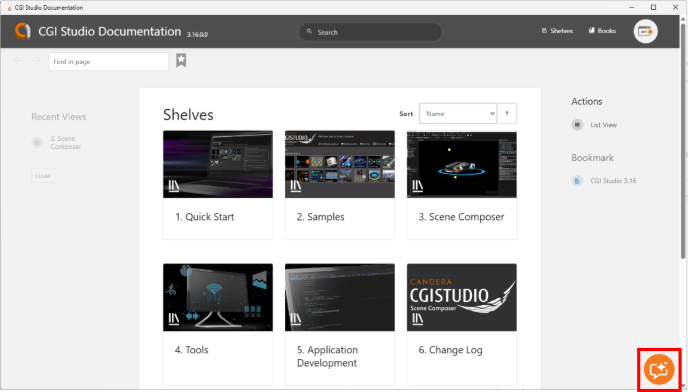
Click the Docs Agent icon at the bottom right of the screen (red box in the figure) to open the chat window (orange box).
How to use
Clicking the Docs Agent icon described above opens a chat window on the documentation page. Here, we explain the UI of the initial screen shown immediately after launch and the screen where an answer is displayed after you submit a question.
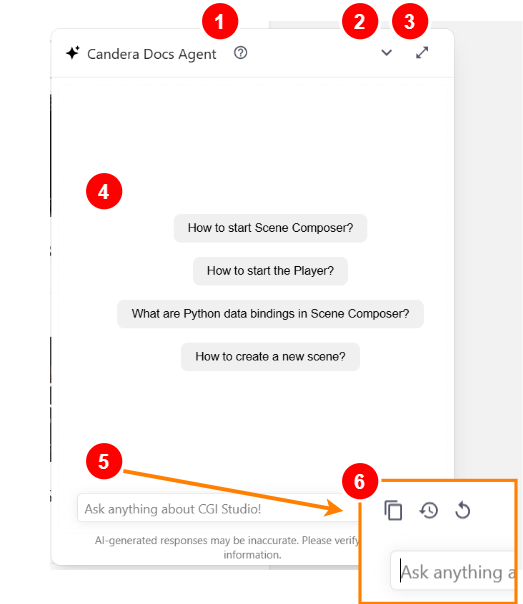
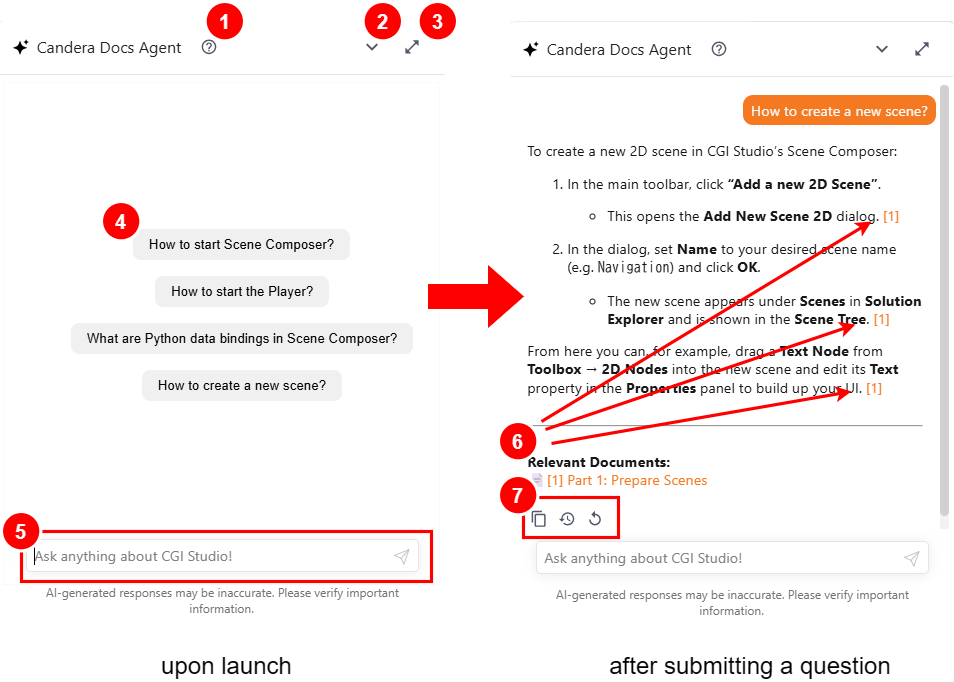
| 1 | Help button |
A Help menu is available in the top bar of the Docs Agent window. From there, you can open the following information:
|
| 2 | Minimize button |
Clicking this button closes the Docs Agent window. |
| 3 | Maximize / Restore button |
Clicking this button maximizes the Docs Agent window. Click it again to restore the window to its original size. |
| 4 | Suggested prompts | Before you enter a custom prompt, suggested prompts are displayed. Clicking a suggested prompt inserts its content so you can ask a question immediately. |
| 5 | Chat input field |
Enter your question in the chat input field and press ENTER to receive a response from Docs Agent. |
| 6 | Relevant Documents |
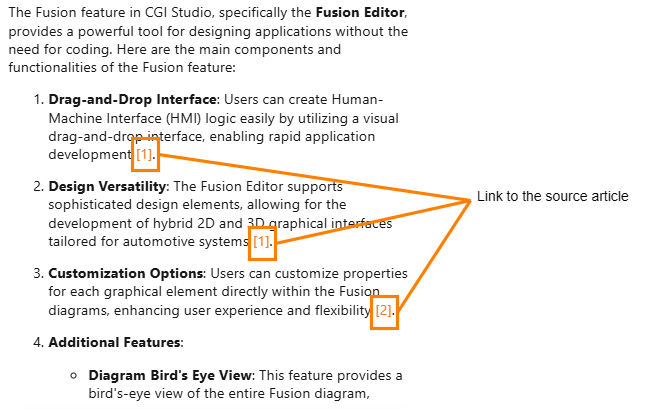
Links to the documentation pages that Docs Agent referenced when generating the answer are shown. The numbers at the end of the answer indicate the corresponding source links as reference numbers. Clicking a number opens the associated source link and displays the referenced documentation page.
7 Action button
Action buttons are displayed below the response from Docs Agent.
-
Copy to clipboard: Copies the response to the clipboard.
-
Clear history: Clears the chat history.
-
Retry last response: Re-runs the most recent question.
Important Note
While the agent is optimized for accuracy, AI responses can occasionally be incorrect or misleading. Before proceeding with any implementation, always use the source links (see figure) to review the original article.
Troubleshooting
If the Docs Agent icon is not visible, please check your internet connection or firewall settings. Occasionally, temporary service interruptions may also prevent the agent from loading.
Privacy
For privacy-related information, open Privacy Policy from the Help menu at the top of Docs Agent. When you launch Docs Agent for the first time, you will be asked to agree to the privacy policy. Unless you agree, no user data will be sent for external processing.