
OpenGL Gradient Brush Effects
The CGI-Studio gradient brush paints an area with two colors that blend into each other along an axis. You can use a gradient brush to create impressions of light and shadow, giving your controls a feeling of 3D. You can also use them to simulate smooth surfaces like glass, chrome, or water. CGI-Studio provides two types of gradient brushes: GlLinearGradientBrushBlend and GlRadialGradientBrushBlend. Note that the Gradient Brush Effects are OpenGL effects that are only available on platforms supporting OpenGL.
GlLinearGradientBrushBlend
The GlLinearGradientBrushBlend paints an area with a gradient defined along a line, the Gradient Direction. Additionally to common blend effect properties, you can define the size of the painted area, the gradient’s two colors as well as the center, the direction and the magnitude of the gradient.
Size
The filled size (width and height) in pixel.

Gradient Center
This 2D coordinate value defines the center of the gradient effect. This is the position where both colors are half opaque. The gradient center coordinate is relative to a bounding box: 0 indicates 0% of the bounding box and 1 indicates 100% of the bounding box.
Gradient Direction
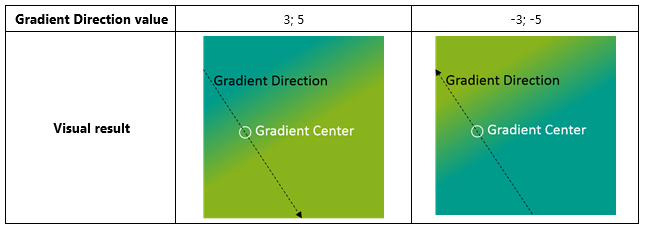
This 2D vector value defines the direction of the gradient effect. The colors of the gradient can be switched by changing the direction of this vector.
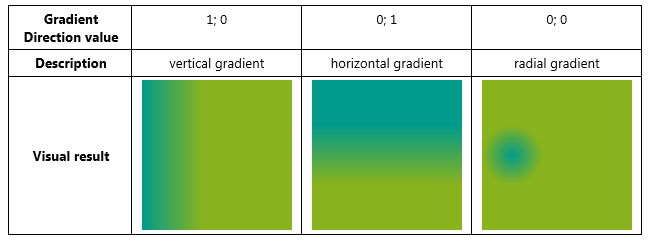
There are three special gradient directions that need to be addressed:
Gradient Magnitude
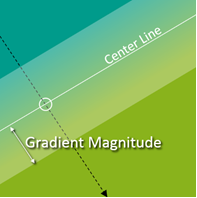
Defines the magnitude of the gradient effect. The magnitude is the distance from the center line to the closest parallel line where the ’positive’ color is fully opaque in the Gradient Direction and the ‘negative’ color is fully opaque in the opposite direction.
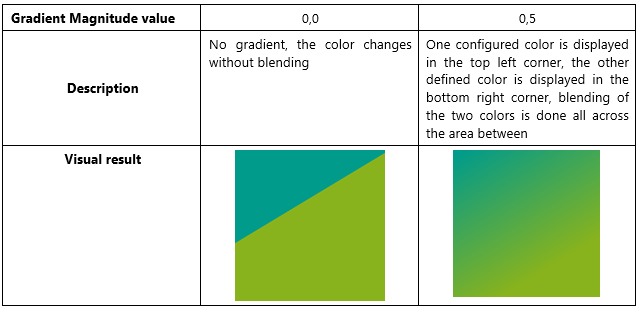
Two special values should be noted:
Positive Color
Defines the positive color. The opacity of the positive color increases in the Gradient Direction.
Negative Color
Defines the negative color. The opacity of the negative color decreases in the Gradient Direction.
GlLinearGradientBitmapBrushBlend
The GlLinearGradientBitmapBrushBlend effect blends a specified bitmap image with a linear gradient to create a combined visual output. The gradient's configuration is identical to the GlLinearGradientBrushBlend effect. The image configuration is the same as for the BitmapBrushBlend effect.
GlRadialGradientBrushBlend
Like the GlLinearGradientBrushBlend, the GlRadialGradientBrushBlend paints an area of a defined size with a generated radial gradient between a Center Color and a Radial Color. The gradient layout can be defined by the Gradient Center and the Gradient Magnitude.
Size
The filled size (width and height) in pixel.

Gradient Center
This 2D coordinate value defines the center of the gradient effect. This is the position where the 'center' color is fully opaque and can also be configured to be outside of the node (e.g. -0,25; -0,25). The gradient center coordinate is relative to a bounding box: 0 indicates 0% of the bounding box and 1 indicates 100% of the bounding box.
Gradient Magnitude
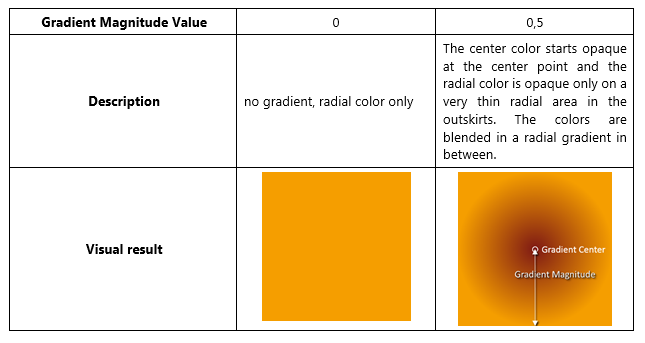
Defines the magnitude of the gradient effect. The magnitude is the distance from the center point to the closest point where the radial color is fully opaque and the center color is fully transparent.
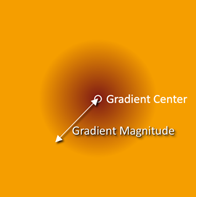
There are two special values for the Gradient Magnitude:
Center Color
Defines the center color. The opacity of the center color decreases from the center point to the outlying area.
Radial Color
Defines the radial color. The opacity of the radial color increases from the center point to the outlying area.