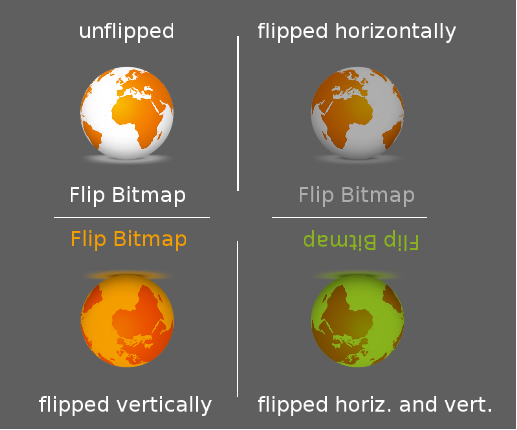
OpenGL Flip Effects
Note that the OpenGL Flip Bitmap Brush Effect is an OpenGL effect and only available on platforms supporting OpenGL.
GlFlipBitmapBrushBlend
With this effect a bitmap can be defined that can be flipped horizontally or vertically.
Image
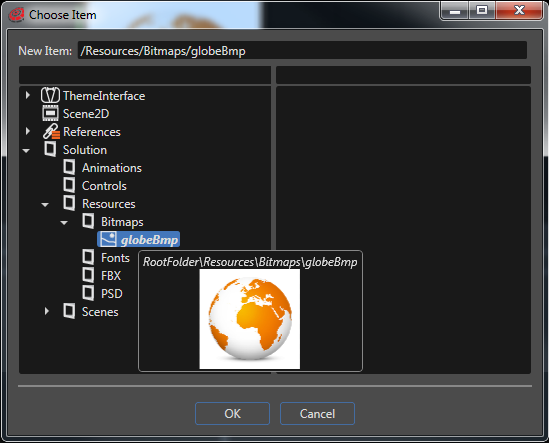
An image can be defined for this effect that can be flipped in the desired direction using the flip properties. The image can be selected from the list of imported images in a dialog as follows:

MipMapFilter
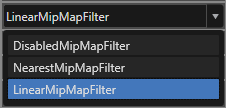
MipMapping is used to save filtering work during texture minification by prefiltering the texture and storing it in smaller sizes. The applied MipMapFilter algorithm can be selected here. You can choose from no filtering at all, nearest neighbor filtering or linear filtering.

Flip
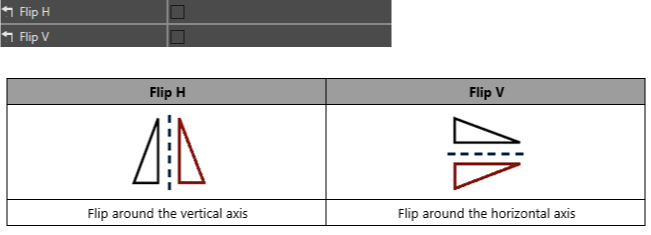
With the properties Flip H (flip horizontally) and Flip V (flip vertically) you can configure in which direction the image should be flipped. Flipping in both directions is also possible, which makes the image appear upside down.

Example
Here is an example on horizontal and vertical flipping using the GlFlipBitmapBrushBlend effect.

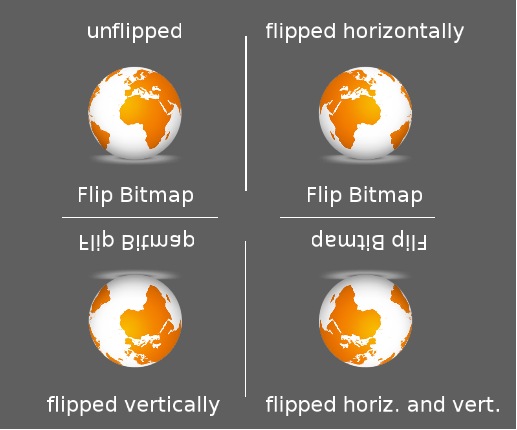
GlFlipBitmapBrushColorBlend
The GlFlipBitmapBrushColorBlend effect is similar to the GlFlipBitmpaBrushBlend effect with the additional possibility to define a color to be blended with.
Color
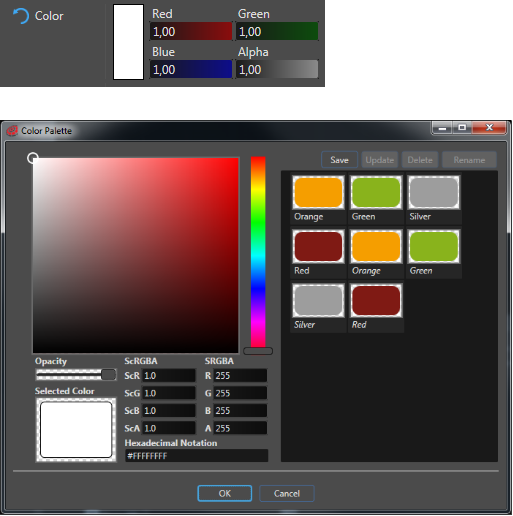
The color can be chosen in the color palette dialog where you can also define and save the custom colors you need for your project. The default blending color after applying this effect is white.

Example
Vertical and horizontal flipping using the GlFlipBitmapColorBrushBlend effect can look as follows: