# Build and Run Sample Applications

This page gives an overview and explanations on how to build and execute sample applications for different host or target systems.

---

#### **Host Environment**

##### Build Application WarpingSample1 for Windows Host

The source code of the warping sample application *WarpSample1* is stored in directory apps/WarpSample.

Depending on your needs, run the batch file *run\_cmake\_&lt;device-platform&gt;\_&lt;MSVC-version&gt;\_build.bat* in a windows console window to make CMake generate the project files and build environment for the WarpSample application into directory *build/WarpSample1/&lt;device-platform&gt;Win32*.

For starting the build environment, open the project file *WarpSample1.sln*. Building the project will – if necessary – create the required <span style="color: rgb(230, 126, 35);">[*Candera*](http://dev.doc.cgistudio.at/APILINK/namespace_candera.html)</span> libraries, link in the Warping Library and for a successful build create the executable *WarpSample\_x86\_Win32\_&lt;device-platform&gt;\_Simulation\_MSVC.exe* into the directory <span style="color: rgb(0, 0, 0);">*bin/WarpSample/&lt;device-platform&gt;Win32/Debug*</span>.

##### Run Application WarpingSample on Windows Host

<div class="contents" id="bkmrk-before-you-continue%2C"><div class="contents"><div class="textblock"><dl class="note"><dd><p class="callout info">Before you continue, please make sure that the computer satisfies the hardware requirements (e.g. concerning graphics card) and software requirements (e.g. needed graphic driver version) of CGI Studio/Candera Framework.</p>

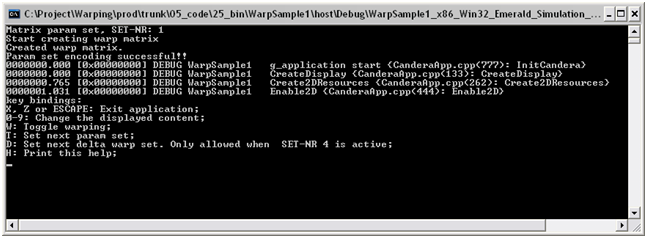
</dd></dl></div></div></div>For starting the WarpingSample1 application, open a MS Windows command shell window and change to the directory of the executable (*bin/WarpSample/*&lt;device-platform&gt;*Win32/Debug*). Start the WarpingSample application by calling *WarpSample\_x86\_Win32\_*&lt;device-platform&gt;*\_Simulation\_MSVC.exe* from the command line. Another option to start the WarpingSample application is to start a debugging session directly from the MSVS2010/MSVS2013 environment.

<div class="contents" id="bkmrk--0"><div class="contents"><div class="textblock"><div drawio-diagram="2117"><img src="https://doc316en.candera.eu/uploads/images/drawio/2023-02/drawing-7-1676965147.png" alt=""/></div>

</div></div></div>  
The last lines show the key bindings for handling the WarpingSample1 test software:

<div class="contents" id="bkmrk-x%2C-z-or-escape%3A-exit"><div class="contents"><div class="textblock">- *X, Z or ESCAPE: Exit application:* These keys have to be used to terminate the test software.
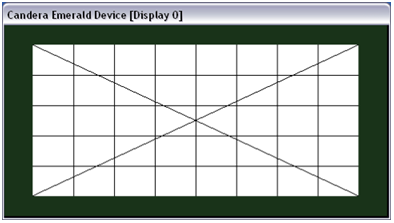
- *0-9: Change the displayed content:* The number keys are used to switch between different test scenes. Key 0 activates a scene implemented with <span style="color: rgb(230, 126, 35);">[Candera](http://dev.doc.cgistudio.at/APILINK/namespace_candera.html "[DataBinding_RefTypeSample]")</span> 2D rendering a predefined text, keys 1 and 2 activate scenes implemented in <span style="color: rgb(230, 126, 35);">[Candera](http://dev.doc.cgistudio.at/APILINK/namespace_candera.html "[DataBinding_RefTypeSample]")</span> 3D displaying fixed bitmaps. Keys 3 to 9 are reserved for future use.
- *W: Toggle warping:* This key switches warping on/off.
- *T: Set next param set:* Pressing this key will cycle the screen through 4 different used warping parameter sets. 
    - SET-NR 1: Input parameter set without rotation and distortion.
    - SET-NR 2: Input parameter set with rotation and without distortion.
    - SET-NR 3: Input parameter set without rotation and with distortion.
    - SET-NR 4: Same parameter set as SET-NR 1, this is the base parameter set for the delta adjusting.
- *D: Set next delta warp set:* Pressing the D key will cycle the screen through all different delta adjusting modes in combination with each possible direction. This possibility is only enabled when the parameter set *SET-NR 4* is active.
- *H: Print this help:* The H key prints the overview of selectable keys on the command line.
</div></div></div>##### Example Scenes

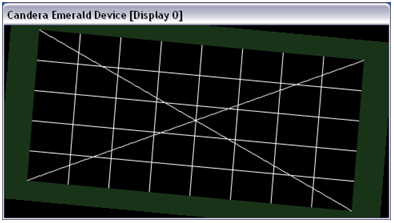
The following figures show example scenes with applied parameter sets:

<div class="contents" id="bkmrk--1"><div class="contents"><div class="contents"><div class="textblock"><div drawio-diagram="2118"><img src="https://doc316en.candera.eu/uploads/images/drawio/2023-02/drawing-7-1676965200.png" alt=""/></div>

</div></div></div></div>*Scene #1 with Parameter Set 1*

<div class="contents" id="bkmrk--2"><div class="contents"><div class="contents"><div class="textblock"><div drawio-diagram="2119"><img src="https://doc316en.candera.eu/uploads/images/drawio/2023-02/drawing-7-1676965233.png" alt=""/></div>

</div></div></div></div>*Scene #2 with Parameter Set 2*

<div class="contents" id="bkmrk--3"><div class="contents"><div class="contents"><div class="textblock"><div drawio-diagram="2120"><img src="https://doc316en.candera.eu/uploads/images/drawio/2023-02/drawing-7-1676965272.png" alt=""/></div>

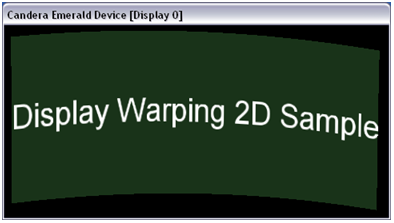
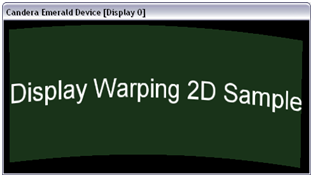
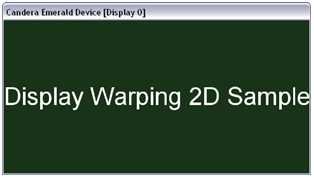
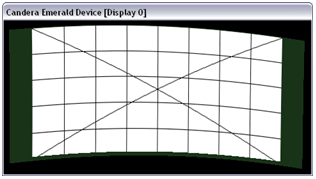
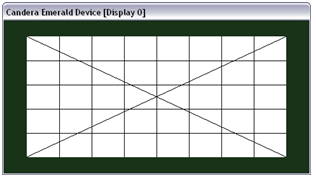
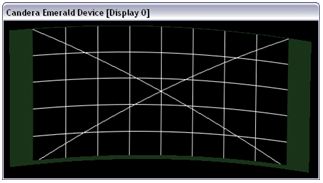
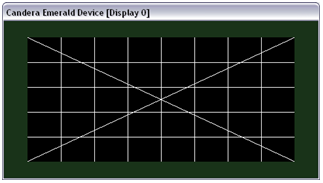
</div></div></div></div><div class="contents" id="bkmrk-scene-%232-with-parame-0"><div class="textblock">Scene #2 with Parameter Set 2</div></div>Further, the following screenshots show the effect of warping in comparison to the original image for the 3 scenes already used in the examples above when warping parameter set *SET-NR 3* is applied:

<div class="contents" id="bkmrk-scene-%230-warped-orig"><div class="contents"><div class="textblock">- **Scene #0**<table border="0" style="width: 88.874%; height: 241.391px;"><tbody><tr style="height: 29.7969px;"><th class="align-center" style="width: 49.9246%; height: 29.7969px;">warped</th><th class="align-center" style="width: 49.9246%; height: 29.7969px;">original</th></tr><tr style="height: 211.594px;"><td style="width: 49.9246%; height: 211.594px;"><div class="image"><div drawio-diagram="2121"><img src="https://doc316en.candera.eu/uploads/images/drawio/2023-02/drawing-7-1676965335.png" alt=""/></div>
    
    </div></td><td style="width: 49.9246%; height: 211.594px;"><div class="image"><div drawio-diagram="2122"><img src="https://doc316en.candera.eu/uploads/images/drawio/2023-02/drawing-7-1676965348.png" alt=""/></div>
    
    </div></td></tr></tbody></table>
- **Scene #1**<table border="0"><tbody><tr><th class="align-center">warped</th><th class="align-center">original</th></tr><tr><td><div class="image"><div drawio-diagram="2123"><img src="https://doc316en.candera.eu/uploads/images/drawio/2023-02/drawing-7-1676965880.png" alt=""/></div>
    
    </div></td><td><div class="image"><div drawio-diagram="2124"><img src="https://doc316en.candera.eu/uploads/images/drawio/2023-02/drawing-7-1676965898.png" alt=""/></div>
    
    </div></td></tr></tbody></table>
- **Scene #2**<table border="0"><tbody><tr><th class="align-center">warped</th><th class="align-center">original</th></tr><tr><td><div class="image"><div drawio-diagram="2125"><img src="https://doc316en.candera.eu/uploads/images/drawio/2023-02/drawing-7-1676965943.png" alt=""/></div>
    
    </div></td><td><div class="image"><div drawio-diagram="2126"><img src="https://doc316en.candera.eu/uploads/images/drawio/2023-02/drawing-7-1676965958.png" alt=""/></div>
    
    </div></td></tr></tbody></table>

</div></div></div>