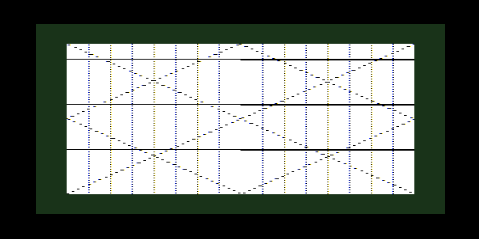
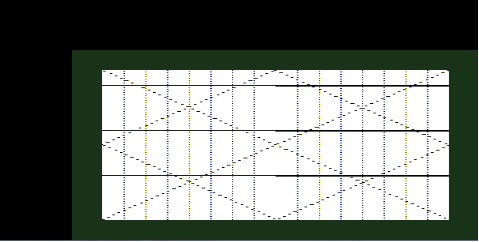
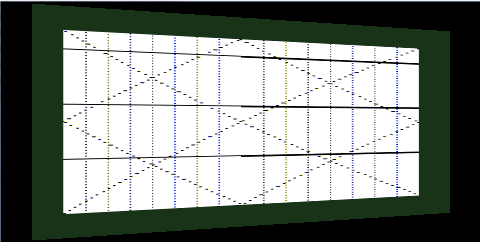
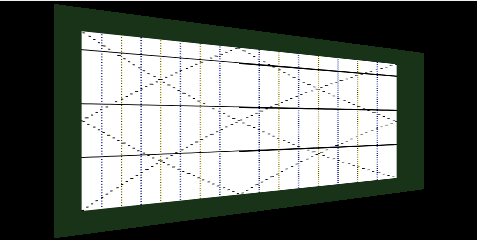
# Warping Library

# Warping Overview

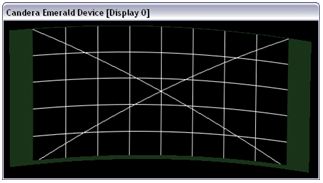
This section explains the implementation of the Warping Library. It is used to adjust the image to be displayed so that it can be projected to a windscreen (which in the end shall result in a non-distorted image presented to the user).  
  
Additionally, the Warping Library can apply graphic transformations like flipping and rotation to the image during the warping process.

# Introduction

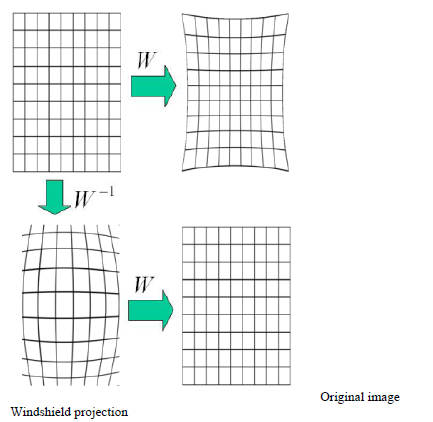
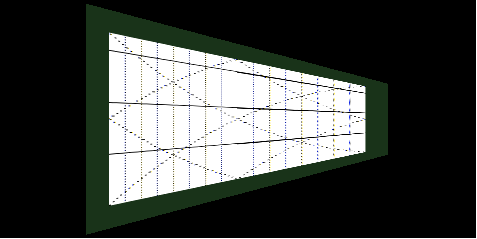
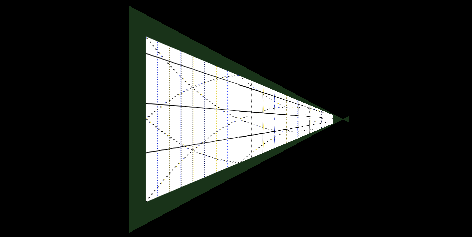
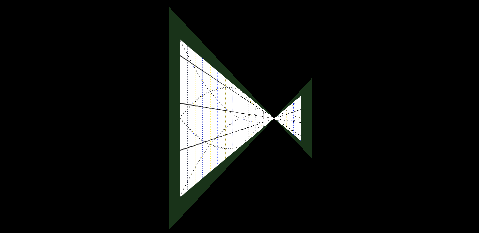
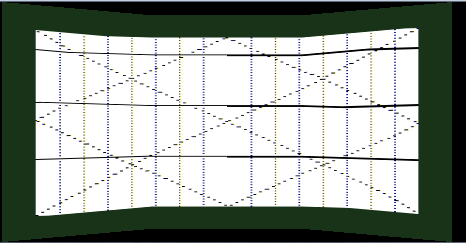
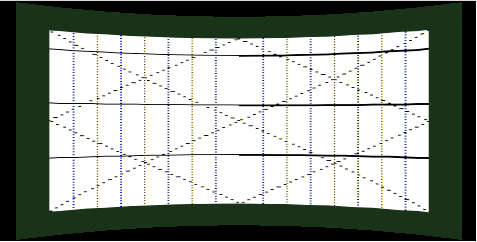
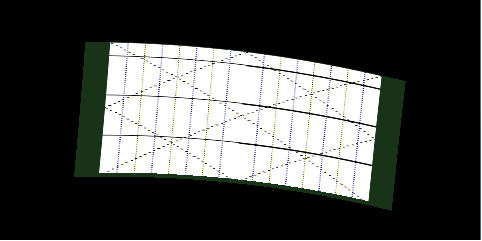
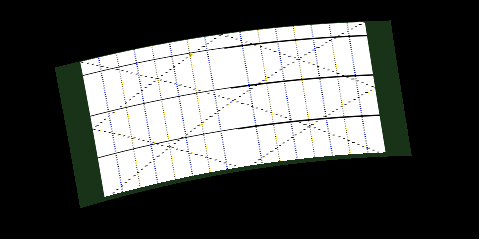
The Head-up display (HUD) projects information onto the windscreen glass. An image projected to the windscreen is distorted because the glass is not flat. For correcting this image distortion, warping process shall be used and the original image shall be prepared so that the driver can observe it on the windscreen linearly.

The basic principle of the Warping Library is to map a texture onto a grid, which's form compensates for the deformation of the windscreen when the information is projected on the HUD. The texture that is used is the readily rendered content for the HUD.

<div drawio-diagram="1990"><img src="https://doc316en.candera.eu/uploads/images/drawio/2023-02/drawing-7-1676948061.png" alt=""/></div>

<div class="contents" id="bkmrk--0"><div class="contents"><div class="textblock">  
</div></div></div>CGI Studio Warping is intended to be used for correcting such image distortions. The following two components are involved in the process:

<div class="contents" id="bkmrk-warping-library%3A-use"><div class="contents"><div class="textblock">- **Warping Library**: used for computing of the warping matrix
- <span style="color: rgb(230, 126, 35);">**[Candera](http://dev.doc.cgistudio.at/APILINK/namespace_candera.html "[DataBinding_RefTypeSample]")**</span>: used to map a displays image (or part of it) as texture to a mesh created from the warping matrix information and displays the correspondingly distorted result.

</div></div></div>#### CGI Studio Controller Integration Tool

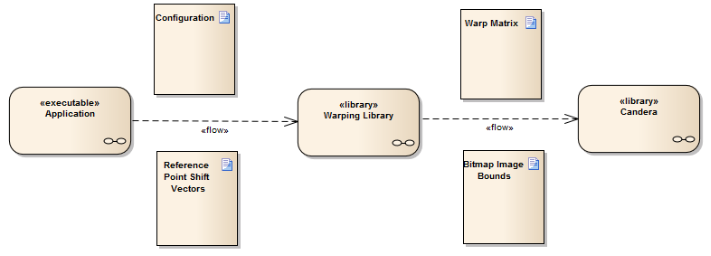
The presented figure shows an overview of the information flow when using the CGI Studio Warping components.

<div drawio-diagram="1993"><img src="https://doc316en.candera.eu/uploads/images/drawio/2023-02/drawing-7-1676948130.png" alt=""/></div>

<div class="contents" id="bkmrk--3"><div class="contents"><div class="textblock">  
</div></div></div>Three components can be identified, that together, implement the warping:

<div class="contents" id="bkmrk-application%3A-control"><div class="contents"><div class="contents"><div class="textblock">- **Application**: Controls execution, prepares and passes information between the other two components
- **Warping Library**: Computes the warping matrix and image bounds of the are to be warped
- <span style="color: rgb(230, 126, 35);">**[Candera](http://dev.doc.cgistudio.at/APILINK/namespace_candera.html "[DataBinding_RefTypeSample]")**</span>: Applies the warping matrix and image bounds to the image rendered to a display, thus warping the desired portion of the overall display content.

</div></div></div></div>#### System View

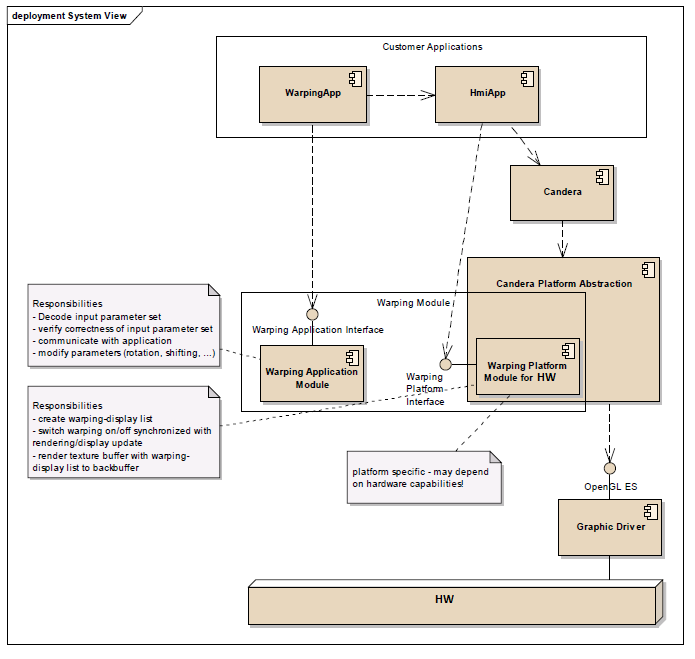
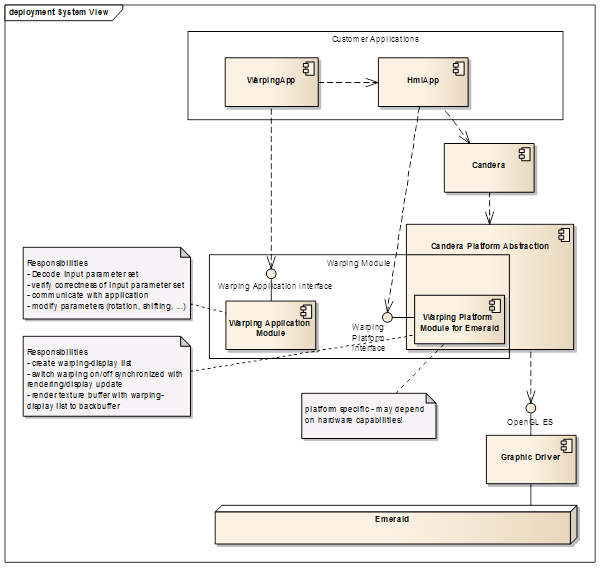
Below figure shows the location of the warping library in the system and which other components use it. Globally, the warping library consists of two parts, the warping application module and a warping platform module. The platform module is platform dependent - a version for Windows host platform and a version for target hardware are available (although several platforms share the same implementation). Responsibility for each part is described in the system view.

<div class="contents" id="bkmrk--4"><div class="contents"><div class="textblock"><div drawio-diagram="1995"><img src="https://doc316en.candera.eu/uploads/images/drawio/2023-02/drawing-7-1676948161.png" alt=""/></div>

---

</div></div></div>

# Warping Functionality

The Warping Library supports the following functionality:

<div class="contents" id="bkmrk-warp-matrix-computat"><div class="contents"><div class="textblock">- Warp matrix computation
- Warp matrix adjustment
- Reference Point Shift Vector encoding and retrieval
- Warp image bounds computation

</div></div></div>---

#### Warp Matrix Computation

##### Input:  


<div class="contents" id="bkmrk-shift-vectors-config"><div class="contents"><div class="textblock">- Shift Vectors
- Configuration information (please refer to <span style="color: rgb(230, 126, 35);">[Configuration of warping parameters](https://doc316en.candera.eu/link/423#bkmrk-page-title)</span>)

</div></div></div>##### Output:  


<div class="contents" id="bkmrk-warp-matrix"><div class="contents"><div class="textblock">- Warp Matrix

</div></div></div>##### Algorithm:  


<div class="contents" id="bkmrk-decode-and-cache-the"><div class="contents"><div class="textblock">- Decode and cache the reference point shift vectors.
- Computation of warp matrix from reference points and corresponding shift vectors. The reference points are distributed over the whole bitmap area according to the specifications in the parameter list.
- Rotation of warp matrix. The rotation of the warped reference points take place aroung the center point of the warped bitmap. (please refer to [<span style="color: rgb(230, 126, 35);">Rotation and Scale</span>](https://doc316en.candera.eu/link/447#bkmrk-page-title))
- Scaling of warp matrix to illuminated area, if outside of illuminated area. (please refer to [<span style="color: rgb(230, 126, 35);">Rotation and Scale</span>](https://doc316en.candera.eu/link/447#bkmrk-page-title))
- Normalize of warp matrix. <span style="color: rgb(230, 126, 35);">[Candera](http://dev.doc.cgistudio.at/APILINK/namespace_candera.html "[DataBinding_RefTypeSample]")</span> uses normalized coordinates in range \[0..1\] for rendering, therefore the warp matrix data has to be normalized in this range.

</div></div></div>##### Interface:

CalculateWarpMatrix(const stc\_warp\_configuration\_parameter\_t\* const pstcWarpConfigParams, const stc\_warp\_parameter\_set\_t\* const pstcWarpRefPoints, stc\_warp\_matrix\_t\* pstcWarpMatrix)

---

#### Warp Matrix Adjustment

##### Input:  


<div class="contents" id="bkmrk-configuration-inform"><div class="contents"><div class="textblock">- Configuration information.
- Adjustment configuration (please refer to [<span style="color: rgb(230, 126, 35);">Adjustments</span>](https://doc316en.candera.eu/link/427#bkmrk-page-title))<span style="color: rgb(230, 126, 35);">.</span>

</div></div></div>##### Output:  


<div class="contents" id="bkmrk-warp-matrix-0"><div class="contents"><div class="textblock">- Warp Matrix

</div></div></div>##### Algorithm:  


<div class="contents" id="bkmrk-adjustment-of-refere"><div class="contents"><div class="textblock">- Adjustment of reference point shift vectors according to the specified adjustment configuration structure using the according mathematical formulas.
- Computation of warp matrix from reference points and corresponding shift vectors.
- Rotation of warp matrix.
- Scaling of warp matrix to illuminated area, if outside of illuminated area.
- Normalize of warp matrix.

</div></div></div>##### Interface:

AdjustWarpMatrix(const stc\_warp\_configuration\_parameter\_t\* const pstcWarpConfigParams, const stc\_warp\_adjust\_parameter\_t\* const pstcWarpAdjustParams, en\_warp\_bool\_t\* pbRefPointsChanged, stc\_warp\_matrix\_t\* pstcWarpMatrix)

---

#### Reference Points Encoding and Retrieval

##### Input:  


<div class="contents" id="bkmrk-internally-cached-co"><div class="contents"><div class="textblock">- Internally cached configuration
- Internally cached shift vectors

</div></div></div>##### Output:  


<div class="contents" id="bkmrk-encoded-bitmap-image"><div class="contents"><div class="textblock">- Encoded bitmap image shift vectors

</div></div></div>##### Algorithm:  


<div class="contents" id="bkmrk-encode-shift-vectors"><div class="contents"><div class="textblock">- Encode shift vectors.
- Write shift vectors to application supplied memory location.

</div></div></div>The current active reference point shift vector set is retrieved from the warping library. Shift vectors are encoded according to the provided configuration.

##### Interface:

GetRefPoints(stc\_warp\_parameter\_set\_t\* pstcWarpRefPoints)

---

#### Warp Image Bounds Computation

##### Input:  


<div class="contents" id="bkmrk-configuration-inform-0"><div class="contents"><div class="textblock">- Configuration information.

</div></div></div>##### Output:  


<div class="contents" id="bkmrk-bitmap-image-area-bo"><div class="contents"><div class="textblock">- Bitmap image area bounds in normalized coordinates

</div></div></div>##### Algorithm:  


<div class="contents" id="bkmrk-calculate-area-bound"><div class="contents"><div class="textblock">- Calculate area bounds based on the provided configuration information: 
    - x = (bitmapAreaShiftX - bitmapAreaX/2) / displaySizeX
    - y = (bitmapAreaShiftY - bitmapAreaY/2) / displaySizeY
    - width = bitmapAreaX / displaySizeX
    - height = bitmapAreaY / displaySizeY

</div></div></div>The image area bounds are normalized as required by <span style="color: rgb(230, 126, 35);">[Candera](http://dev.doc.cgistudio.at/APILINK/namespace_candera.html "[DataBinding_RefTypeSample]")</span>, as it uses normalized coordinates in range \[0..1\] for rendering.

##### Interface:

ComputeWarpImageBoundsFromConfig(stc\_warp\_configuration\_parameter\_t\* config, WRP\_SFLOAT\* x, WRP\_SFLOAT\* y, WRP\_SFLOAT\* width, WRP\_SFLOAT\* height)

---

# Using Warping with Candera

Following are the display properties that required adjustment to use warping with <span style="color: rgb(230, 126, 35);">[Candera](http://dev.doc.cgistudio.at/APILINK/namespace_candera.html "[DataBinding_RefTypeSample]")</span>:

<div class="contents" id="bkmrk-enable-warping---thi"><div class="contents"><div class="textblock">- Enable warping - this should be done before the native handle is available
- Set warp matrix
- Set warp image bounds (optional)
- Apply display settings

</div></div></div>Candera::Display class uses a transaction based execution model for setting properties. Several changes can be queued. Changes have to be applied explicitly via a call to <span style="color: rgb(230, 126, 35);">[Display::ApplyChanges()](http://dev.doc.cgistudio.at/APILINK/group___behaviors_animation.html#ggac925ef0f693402018942162bb4843ca1ac689a0da569384cac91c50abcbfef8d3)</span>. Warping matrix data from the warping library can be used directly in <span style="color: rgb(230, 126, 35);">[Candera](http://dev.doc.cgistudio.at/APILINK/namespace_candera.html "[DataBinding_RefTypeSample]")</span>.

#### Execution Overview

Warping is executed in the following steps:

<div class="contents" id="bkmrk-warping-mesh-creatio"><div class="contents"><div class="textblock">- Warping mesh creation
- Rendering of display image to texture
- Texture mapping of rendered image aperture specified by warp images bounds to the warping mesh

</div></div></div>Display content is rendered to a texture. This texture is clipped according to the warp image bounds and the resulting texture is mapped to the warp mesh and rendered in 3D using OpenGL and a very simple shader program.

#### Mesh and Texture Creation

Upon rendering of a displays content, <span style="color: rgb(230, 126, 35);">[Candera](http://dev.doc.cgistudio.at/APILINK/namespace_candera.html "[DataBinding_RefTypeSample]")</span> checks, if:

<div class="contents" id="bkmrk-warping-has-been-en-"><div class="contents"><div class="textblock">- Warping has been en- or disabled
- Warp matrix has changed
- Image bounds have changed

</div></div></div>If any of these conditions holds, the currently used warping mesh is unloaded. A new warping mesh is computed from the warp matrix as well as the image bounds and uploaded. Vertices in the warp mesh directly map to the corresponding values in the warp matrix. Texture coordinates for vertices are computed from warp mesh vertices as well as warp image bounds. The texture is mapped to the warping mesh and distorted corresponding to the position of the of the warping mesh vertices.

---

# Configuration of warping parameters

The configuration information passed to the warping library is used to check constraints and as basis for computations.

#### Overall configuration parameter structure

The following table details the overall configuration parameter structure and their limits.

<div class="contents" id="bkmrk-name-range-descripti"><div class="contents"><div class="textblock"><table border="1" cellpadding="5" cellspacing="0" style="height: 2624.48px;" width="800"><tbody><tr bgcolor="#d4d4d4" style="height: 29.7969px;"><th style="background-color: rgb(255, 255, 255); height: 29.7969px;" width="25%">**Name**</th><th style="background-color: rgb(255, 255, 255); height: 29.7969px;" width="10%">**Range**</th><th style="background-color: rgb(255, 255, 255); height: 29.7969px;" width="50%">**Description**</th><th style="background-color: rgb(255, 255, 255); height: 29.7969px;" width="15%">**Example Value**</th></tr><tr style="height: 46.5938px;"><td style="height: 46.5938px;" valign="top">NumBitsPerParam</td><td style="height: 46.5938px;" valign="top">1..16</td><td style="height: 46.5938px;" valign="top">Number of bits used for each parameter (bit length of each parameter, contains pixel fractions)</td><td style="height: 46.5938px;" valign="top">12</td></tr><tr style="height: 171.75px;"><td style="height: 171.75px;" valign="top">PixResolution</td><td style="height: 171.75px;" valign="top">0: <sup>1</sup>/<sub>16</sub> px   
**1**: <sup>1</sup>/<sub>8</sub> px   
**2**: <sup>1</sup>/<sub>4</sub> px   
**3**: <sup>1</sup>/<sub>2</sub> px   
**4**: 1 px   
**5**: 2 px   
**6**: 4 px   
**7**: 8 px   
</td><td style="height: 171.75px;" valign="top">Resolution of warping parameters.</td><td style="height: 171.75px;" valign="top">0 (<sup>1</sup>/<sub>16</sub> px)</td></tr><tr style="height: 29.7969px;"><td style="height: 29.7969px;" valign="top">DisplaySizeX</td><td style="height: 29.7969px;" valign="top">0..655535</td><td style="height: 29.7969px;" valign="top">Display size in horizontal direction (in pixel).</td><td style="height: 29.7969px;" valign="top">480</td></tr><tr style="height: 29.7969px;"><td style="height: 29.7969px;" valign="top">DisplaySizeY</td><td style="height: 29.7969px;" valign="top">0..655535</td><td style="height: 29.7969px;" valign="top">Display size in vertical direction (in pixel).</td><td style="height: 29.7969px;" valign="top">240</td></tr><tr style="height: 102.562px;"><td style="height: 102.562px;" valign="top">BitmapAreaX</td><td style="height: 102.562px;" valign="top">0..655535</td><td style="height: 102.562px;" valign="top">Number of Bitmap-pixels in horizontal direction. Reference points are equally distributed over this range in x-direction.

**Condition:**   
BitmapAreaX ≤ DisplaySizeX

</td><td style="height: 102.562px;" valign="top">480</td></tr><tr style="height: 102.562px;"><td style="height: 102.562px;" valign="top">BitmapAreaY</td><td style="height: 102.562px;" valign="top">0..655535</td><td style="height: 102.562px;" valign="top">Number of Bitmap-pixels in vertical direction. Reference points are equally distributed over this range in y-direction.

**Condition:**   
BitmapAreaY ≤ DisplaySizeY

</td><td style="height: 102.562px;" valign="top">240</td></tr><tr style="height: 102.562px;"><td style="height: 102.562px;" valign="top">BitmapAreaShiftX</td><td style="height: 102.562px;" valign="top">0..655535</td><td style="height: 102.562px;" valign="top">Shift of the bitmap area center point in horizontal direction.

**Condition:**   
(BitmapAreaX/2+BitmapAreaShiftX≤DisplaySizeX) AND (BitmapAreaX/2– BitmapAreaShiftX ≥0)

</td><td style="height: 102.562px;" valign="top">240</td></tr><tr style="height: 102.562px;"><td style="height: 102.562px;" valign="top">BitmapAreaShiftY</td><td style="height: 102.562px;" valign="top">0..655535</td><td style="height: 102.562px;" valign="top">Shift of the bitmap area center point in vertical direction.

**Condition:**   
(BitmapAreaY/2+BitmapAreaShiftY≤DisplaySizeY) AND (BitmapAreaY/2– BitmapAreaShiftY ≥0)

</td><td style="height: 102.562px;" valign="top">120</td></tr><tr style="height: 80.1719px;"><td style="height: 80.1719px;" valign="top">IlluminatedDisplayAreaX</td><td style="height: 80.1719px;" valign="top">0..655535</td><td style="height: 80.1719px;" valign="top">Number of illuminated pixels in horizontal direction

**Condition:**   
IlluminatedDisplayAreaX ≤DisplaySizeY

</td><td style="height: 80.1719px;" valign="top">480</td></tr><tr style="height: 80.1719px;"><td style="height: 80.1719px;" valign="top">IlluminatedDisplayAreaY</td><td style="height: 80.1719px;" valign="top">0..655535</td><td style="height: 80.1719px;" valign="top">Number of illuminated pixels in vertical direction

**Condition:**   
IlluminatedDisplayAreaY ≤DisplaySizeY

</td><td style="height: 80.1719px;" valign="top">220</td></tr><tr style="height: 124.953px;"><td style="height: 124.953px;" valign="top">IlluminatedDisplayAreaShiftX</td><td style="height: 124.953px;" valign="top">0..655535</td><td style="height: 124.953px;" valign="top">Shift of the illuminated display area center point in horizontal direction.

**Condition:**   
(IllDisplayAreaX/2+IllDisplayAreaShiftX≤DisplaySizeX) AND (IllDisplayAreaX/2– IllDisplayAreaShiftX ≥0)

</td><td style="height: 124.953px;" valign="top">480</td></tr><tr style="height: 124.953px;"><td style="height: 124.953px;" valign="top">IlluminatedDisplayAreaShiftY</td><td style="height: 124.953px;" valign="top">0..655535</td><td style="height: 124.953px;" valign="top">Shift of the illuminated display area center point in vertical direction.

**Condition:**   
(IllDisplayAreaY/2+IllDisplayAreaShiftY≤DisplaySizeY) AND (IllDisplayAreaY/2– IllDisplayAreaShiftY ≥0)

</td><td style="height: 124.953px;" valign="top">220</td></tr><tr style="height: 193.734px;"><td style="height: 193.734px;" valign="top">WarpingAreaX</td><td style="height: 193.734px;" valign="top">0..655535</td><td style="height: 193.734px;" valign="top">Number of pixels used for warping in horizontal direction.

**Condition:**   
WarpingAreaX≤IlluminatedDisplayAreaX

<dl class="note"><dd><p class="callout info">This parameter is present for historical reasons and is not used during computation/adjustment. Its validity is still checked, though.</p>

</dd></dl></td><td style="height: 193.734px;" valign="top">470</td></tr><tr style="height: 171.344px;"><td style="height: 171.344px;" valign="top">WarpingAreaY</td><td style="height: 171.344px;" valign="top">0..655535</td><td style="height: 171.344px;" valign="top">Number of pixels used for warping in vertical direction.

**Condition:**   
WarpingAreaY≤IlluminatedDisplayAreaY

<dl class="note"><dd></dd><dd><p class="callout info">This parameter is present for historical reasons and is not used during computation/adjustment. Its validity is still checked, though.</p>

</dd></dl></td><td style="height: 171.344px;" valign="top">120</td></tr><tr style="height: 143.359px;"><td style="height: 143.359px;" valign="top">WarpedAreaShiftX</td><td style="height: 143.359px;" valign="top">0..655535</td><td style="height: 143.359px;" valign="top">Shift of the warped area center point in horizontal direction.

<dl class="note"><dt>  
</dt><dd><p class="callout info">This parameter is present for historical reasons and is not used during computation/adjustment. Its validity is still checked, though.</p>

</dd></dl></td><td style="height: 143.359px;" valign="top">220</td></tr><tr style="height: 126.562px;"><td style="height: 126.562px;" valign="top">WarpedAreaShiftY</td><td style="height: 126.562px;" valign="top">0..655535</td><td style="height: 126.562px;" valign="top">Shift of the warped area center point in vertical direction.

<dl class="note"><dt></dt><dd><p class="callout info">This parameter is present for historical reasons and is not used during computation/adjustment. Its validity is still checked, though.</p>

</dd></dl></td><td style="height: 126.562px;" valign="top">110</td></tr><tr style="height: 46.5938px;"><td style="height: 46.5938px;" valign="top">RotationValue</td><td style="height: 46.5938px;" valign="top">-18000 .. +18000</td><td style="height: 46.5938px;" valign="top">Rotation value in grad \* 100</td><td style="height: 46.5938px;" valign="top">-150 // rotate 1.5°</td></tr><tr style="height: 130.578px;"><td style="height: 130.578px;" valign="top">ParamSet</td><td style="height: 130.578px;" valign="top">Data   
</td><td style="height: 130.578px;" valign="top">Set of reference point shift vectors row-major ordered(left to right, top to bottom).  
Each reference point in x/y direction is represented as a signed integer value in range –32,768 .. 32,767 (2 bytes).</td><td style="height: 130.578px;" valign="top">(X0, Y0)   
(X0, Y1)   
…   
(XM, YN)   
  
M: #RefPointsX   
N: #RefPointsY   
</td></tr><tr style="height: 63.3906px;"><td style="height: 63.3906px;" valign="top">ParamSetLength</td><td style="height: 63.3906px;" valign="top">0..655535</td><td style="height: 63.3906px;" valign="top">Length of parameter set in bytes calculated using the following formula:   
2 \* NumRefPointsX \* NumRefPointsY \* NumBitsPerParam / 8</td><td style="height: 63.3906px;" valign="top">825 // 2\*25\*11\*12/8</td></tr><tr style="height: 29.7969px;"><td style="height: 29.7969px;" valign="top">RotationLimit</td><td style="height: 29.7969px;" valign="top">0..180</td><td style="height: 29.7969px;" valign="top">Maximal rotation angle in grad (+/- value)</td><td style="height: 29.7969px;" valign="top">5 // +/- 5°</td></tr><tr style="height: 46.5938px;"><td style="height: 46.5938px;" valign="top">TrapezoidLimitX</td><td style="height: 46.5938px;" valign="top">0..655535</td><td style="height: 46.5938px;" valign="top">Maximum value for trapezoid transformation in horizontal direction (+/- value)</td><td style="height: 46.5938px;" valign="top">50</td></tr><tr style="height: 46.5938px;"><td style="height: 46.5938px;" valign="top">TrapezoidLimitY</td><td style="height: 46.5938px;" valign="top">0..655535</td><td style="height: 46.5938px;" valign="top">Maximum value for trapezoid transformation in vertical direction (+/- value)</td><td style="height: 46.5938px;" valign="top">50</td></tr><tr style="height: 46.5938px;"><td style="height: 46.5938px;" valign="top">ParallelogramLimitX</td><td style="height: 46.5938px;" valign="top">0..655535</td><td style="height: 46.5938px;" valign="top">Maximum value for parallelogram transformation in horizontal direction (+/- value)</td><td style="height: 46.5938px;" valign="top">50</td></tr><tr style="height: 46.5938px;"><td style="height: 46.5938px;" valign="top">ParallelogramLimitY</td><td style="height: 46.5938px;" valign="top">0..655535</td><td style="height: 46.5938px;" valign="top">Maximum value for parallelogram transformation in vertical direction (+/- value)</td><td style="height: 46.5938px;" valign="top">50</td></tr><tr style="height: 46.5938px;"><td style="height: 46.5938px;" valign="top">PinbalanceLimitX</td><td style="height: 46.5938px;" valign="top">0..655535</td><td style="height: 46.5938px;" valign="top">Maximum value for pin balance transformation in horizontal direction (+/- value)</td><td style="height: 46.5938px;" valign="top">50</td></tr><tr style="height: 46.5938px;"><td style="height: 46.5938px;" valign="top">PinbalanceLimitY</td><td style="height: 46.5938px;" valign="top">0..655535</td><td style="height: 46.5938px;" valign="top">Maximum value for pin balance transformation in vetical direction (+/- value)</td><td style="height: 46.5938px;" valign="top">50</td></tr><tr style="height: 46.5938px;"><td style="height: 46.5938px;" valign="top">PincushionLimitX</td><td style="height: 46.5938px;" valign="top">0..655535</td><td style="height: 46.5938px;" valign="top">Maximum value for pincushion transformation in horizontal direction (+/- value)</td><td style="height: 46.5938px;" valign="top">50</td></tr><tr style="height: 46.5938px;"><td style="height: 46.5938px;" valign="top">PincushionLimitY</td><td style="height: 46.5938px;" valign="top">0..655535</td><td style="height: 46.5938px;" valign="top">Maximum value for pincushion transformation in vetical direction (+/- value)</td><td style="height: 46.5938px;" valign="top">50</td></tr><tr style="height: 46.5938px;"><td style="height: 46.5938px;" valign="top">WidthLimit</td><td style="height: 46.5938px;" valign="top">0..655535</td><td style="height: 46.5938px;" valign="top">Maximum value for width transformation in horizontal direction (+/- value)</td><td style="height: 46.5938px;" valign="top">50</td></tr><tr style="height: 46.5938px;"><td style="height: 46.5938px;" valign="top">HeightLimit</td><td style="height: 46.5938px;" valign="top">0..655535</td><td style="height: 46.5938px;" valign="top">Maximum value for height transformation in vetical direction (+/- value)</td><td style="height: 46.5938px;" valign="top">50</td></tr><tr style="height: 124.953px;"><td style="height: 124.953px;" valign="top">ScaleMode</td><td style="height: 124.953px;" valign="top">0 or 1</td><td style="height: 124.953px;" valign="top">0 - scale factor is 1. Scaling might occur if image does not fit inside illuminated area

1 - scale factor is calculated based on RotationLimit value, such that, when rotated at maximum, the image will fit inside illuminated area

</td><td style="height: 124.953px;" valign="top">0</td></tr></tbody></table>

</div></div></div>Please refer to the following chapters for details on how the parameters influence the result of the warped image.

---

# Warping Areas

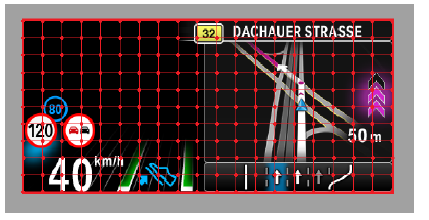
The display area comprises the whole image including the grey border, as depicted in the figure below.

The bitmap image area is the area within the grey border. This is the area of interest and which should be warped. The reference points are evenly distributed over the bitmap image area.

The illuminated display area is the part of the display, which is backlit and projected to the windshield. This is the area where the warped image will be rendered into. If the bitmap image area is larger than the specified illuminated display area, then the warp image will be scaled to fit into the illuminated area boundaries.

<div class="contents" id="bkmrk-"><div class="contents"><div class="textblock"><div drawio-diagram="2010"><img src="https://doc316en.candera.eu/uploads/images/drawio/2023-02/drawing-7-1676953032.png" alt=""/></div>

</div></div></div>The Warping Library needs the following parameters to be configured which are related to the warping areas:

<div class="contents" id="bkmrk-display-size-x%2Fy%3A-ar"><div class="contents"><div class="textblock">- Display Size X/Y: area of the display size
- Bitmap Area X/Y: area for the warping screen
- Bitmap Shift Area X/Y: shift values of bitmap area center point
- Illuminated Area X/Y: area of the illuminated area
- Illuminated Shift Area X/Y: shift value of illuminated area center point
- Warping Area (parameter is no longer used in the calculation of the warp image, but the values are checked for boundary correctness - use same values as for illumination area).
- Warping Shift Area (parameter is no longer used in the calculation of the warp image, but the values are checked for boundary correctness - use same values as for illumination shift area).

</div></div></div>The Bitmap Shift Area describes the connection vector between the origin of the bitmap coordinate system (0,0) and the center point of the bitmap image - the Bitmap Area Center Point. This center point represents the center point of the image area.

#### Example

Warp image is influenced by the size of bitmap area and illuminated area.

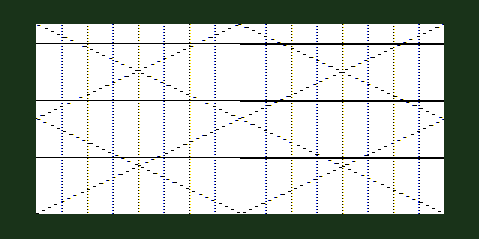
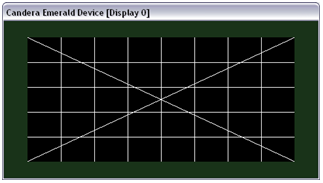
**Reference points are distributed over display area** Display Area: 480x240   
BitmapArea: 480x240 | BitmapShiftArea: 240x120  
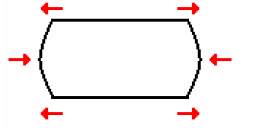
IlluminatedArea: 480x240 | IlluminatedShiftArea: 240x120
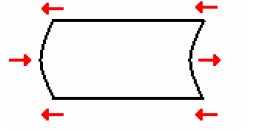
<div drawio-diagram="2011"><img src="https://doc316en.candera.eu/uploads/images/drawio/2023-02/drawing-7-1676953116.png" alt=""/></div>

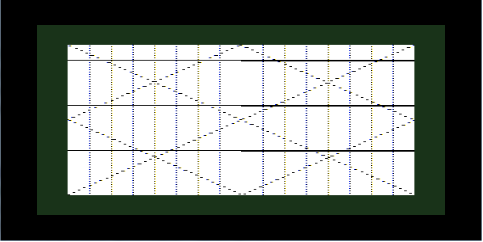
**Content shrinks to fit inside illuminated area**  
Display Area: 480x240   
BitmapArea: 480x240 | BitmapShiftArea: 240x120  
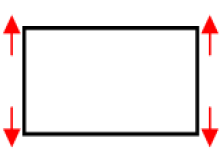
IlluminatedArea: 409x190 | IlluminatedShiftArea: 240x120

<div drawio-diagram="2012"><img src="https://doc316en.candera.eu/uploads/images/drawio/2023-02/drawing-7-1676953143.png" alt=""/></div>

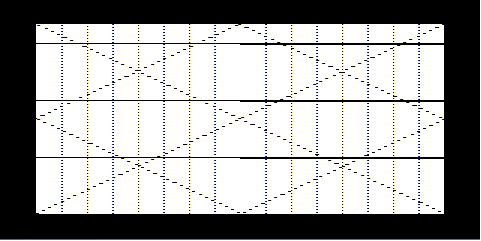
**Bitmap area changes, content shrinks even more to fit inside illuminated area**  
Display Area: 480x240   
BitmapArea: 409x190 | BitmapShiftArea: 240x120  
IlluminatedArea: 480x240 | IlluminatedShiftArea: 240x120

<div drawio-diagram="2013"><img src="https://doc316en.candera.eu/uploads/images/drawio/2023-02/drawing-7-1676953163.png" alt=""/></div>

Position of the warp image inside the illuminated area can by influenced by the corresponding BitmapShiftArea parameters. Similarly, the position of the illuminated area is given by the IlluminatedShiftArea. For better visualizing this, no pre-distortion was applied.

**Top left aligned**  
Display Area: 480x240   
BitmapArea: 409x190 | BitmapShiftArea: 205x95  
IlluminatedArea: 480x240 | IlluminatedShiftArea: 240x120

<div drawio-diagram="2014"><img src="https://doc316en.candera.eu/uploads/images/drawio/2023-02/drawing-7-1676953201.png" alt=""/></div>

**Center aligned**  
Display Area: 480x240   
BitmapArea: 409x190 | BitmapShiftArea: 240x120  
IlluminatedArea: 480x240 | IlluminatedShiftArea: 240x120

<div drawio-diagram="2015"><img src="https://doc316en.candera.eu/uploads/images/drawio/2023-02/drawing-7-1676953234.png" alt=""/></div>

**Bottom right aligned**  
Display Area: 480x240   
BitmapArea: 409x190 | BitmapShiftArea: 276x145  
IlluminatedArea: 480x240 | IlluminatedShiftArea: 240x120

<div drawio-diagram="2016"><img src="https://doc316en.candera.eu/uploads/images/drawio/2023-02/drawing-7-1676953260.png" alt=""/></div>

<div class="contents" id="bkmrk--11"><div class="contents"><div class="textblock">  
</div></div></div><div class="contents" id="bkmrk-for-the-presented-us"><div class="textblock"><dl class="note"><dd><p class="callout info">For the presented use cases, the warp image bounds were not specified. (see <span style="color: rgb(230, 126, 35);">[Warp Image Bounds](https://doc316en.candera.eu/link/456#bkmrk-page-title)</span> for more details)</p>

</dd></dl>---

<dl class="note"></dl></div></div>

# Pixel Resolution and Number of Bits per Parameter

#### Pixel Resolution

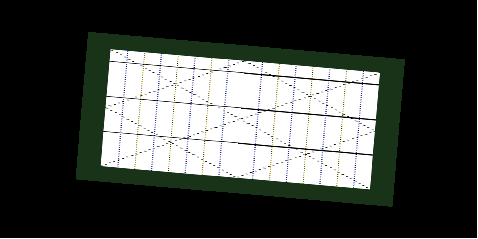
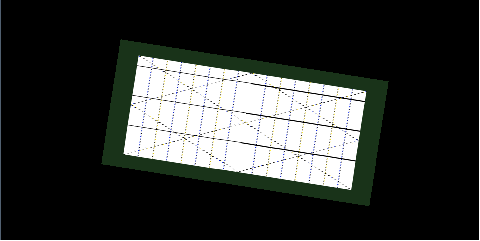
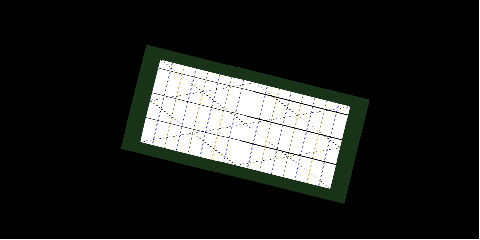
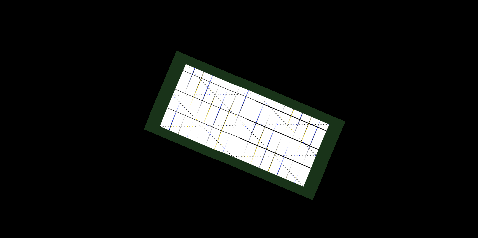
The pixel resolution determines the warping accuracy. The final displacement of a reference point is the product of the warping parameter by parameter resolution. A warping parameter is therefore given by the desired displacement divided by resolution.

The resolution values supported by the warping library are: 0: <sup>1</sup>/<sub>16</sub> px, **1**: <sup>1</sup>/<sub>8</sub> px, **2**: <sup>1</sup>/<sub>4</sub> px, **3**: <sup>1</sup>/<sub>2</sub> px, **4**: 1 px, **5**: 2 px, **6**: 4 px, **7**: 8 px.

##### Example

**PixResolution: 0**   
Factor for multiplying: 0.0625f

<div drawio-diagram="2019"><img src="https://doc316en.candera.eu/uploads/images/drawio/2023-02/drawing-7-1676953501.png" alt=""/></div>

  
**PixResolution: 1**   
Factor for multiplying: 0.125f

<div drawio-diagram="2020"><img src="https://doc316en.candera.eu/uploads/images/drawio/2023-02/drawing-7-1676953527.png" alt=""/></div>

  
**PixResolution: 2**   
Factor for multiplying: 0.25f

<div drawio-diagram="2021"><img src="https://doc316en.candera.eu/uploads/images/drawio/2023-02/drawing-7-1676953546.png" alt=""/></div>

  
**PixResolution: 3**   
Factor for multiplying: 0.5f

<div drawio-diagram="2022"><img src="https://doc316en.candera.eu/uploads/images/drawio/2023-02/drawing-7-1676953579.png" alt=""/></div>

  
**PixResolution: 4**   
Factor for multiplying: 1.0f

<div drawio-diagram="2023"><img src="https://doc316en.candera.eu/uploads/images/drawio/2023-02/drawing-7-1676953593.png" alt=""/></div>

  
**PixResolution &gt; 4**  
WarpMatrix is no longer computed since delta calculation leads to "out of trapezoid limit" error

<div class="contents" id="bkmrk--4"><div class="contents"><div class="textblock"></div></div></div>#### Number of Bits per Parameter

The configuration parameter "NumOfBitsPerParam" gives the allowed range for the warping parameter data. Therefore, each parameter is represented as a signed integer value of the given bit width.

If **n** is the number of bits, then the allowed range is: -(2<sup>n-1</sup>) .. + (2<sup>n-1</sup>- 1).

Maximum possible value for "NumOfBitsPerParam" is 16. Considering this, the maximum allowed range for the warping parameter data is: −32 768 .. 32 767.

The length of the parameter data is given by the following formula: 2 \* NumOfRefPointsX \* NumOfRefPointsY \* NumOfBitsPerParam / 8.

##### Example

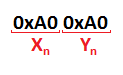
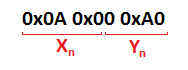
<div class="contents" id="bkmrk-if-%22numofbitsperpara"><div class="contents"><div class="textblock">- if "NumOfBitsPerParam" is 8, the warping parameter corresponding to point X<sub>n</sub>Y<sub>n</sub> is represented as: 0xA0 0xA0
- if "NumOfBitsPerParam" is 12, the warping parameter corresponding to point X<sub>n</sub>Y<sub>n</sub> is represented as: 0x0A 0x00 0xA0

</div></div></div>**NumOfBitsPerParam: 8**

<div drawio-diagram="2017"><img src="https://doc316en.candera.eu/uploads/images/drawio/2023-02/drawing-7-1676953439.png" alt=""/></div>

**NumOfBitsPerParam: 12**

<div drawio-diagram="2018"><img src="https://doc316en.candera.eu/uploads/images/drawio/2023-02/drawing-7-1676953455.png" alt=""/></div>

---

<div class="contents" id="bkmrk--8"><div class="textblock"></div></div>

# Reference Points and the Warp Matrix

The warping parameters are based on reference points. These points are mapped by a 2D array containing coordinates inside the bitmap area to be warped.

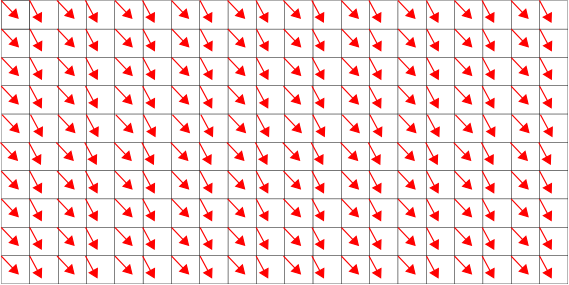
For each reference point, a shift vector is stored by the application. Every shift vector determines the amount of distortion to be applied to the corresponding point in x- and y-direction. The warping parameter correspond to the shift vectors (in pixels) of warping interpolation point in warped images, in comparison to reference points in non-warped images (divided by the specified pixel resolution). To save memory space and computing time, the absolute coordinates are not saved as warping parameters, but rather only the distance from the reference points (without rotation and shifting).

The figure below shows a reference point grid with corresponding shift vectors.

<div class="contents" id="bkmrk-"><div class="contents"><div class="textblock"><div drawio-diagram="2024"><img src="https://doc316en.candera.eu/uploads/images/drawio/2023-02/drawing-7-1676953789.png" alt=""/></div>

</div></div></div>CGI Studio Warping Library used row-major data ordering for area shift vector sets.

The warp matrix is a two-dimensional matrix computed by the warping library. Each point corresponds to a bitmap image reference point that has been shifted. The value of each point is the vector-addition of the reference point and the corresponding shift vector with regards to pixel resolution. All values of the warp matrix are normalized to the range \[0..1\] at the end of warp matrix computation or adjustment in order to be used by <span style="color: rgb(230, 126, 35);">[Candera](http://dev.doc.cgistudio.at/APILINK/namespace_candera.html "[DataBinding_RefTypeSample]")</span>.

<div class="contents" id="bkmrk-the-warping-library-"><div class="contents"><div class="textblock"><dl class="note"><dd><p class="callout info">The Warping Library does not provide an interface that supports the usage of "final shifted" points instead of the shift vectors. In such case, the library cannot be used. These "final shifted" points can serve as entry point in calculating the Candera::WarpMatrix data.</p>

</dd></dl></div></div></div>##### Example

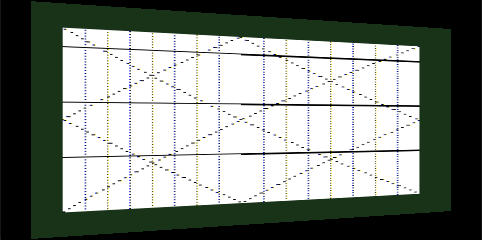
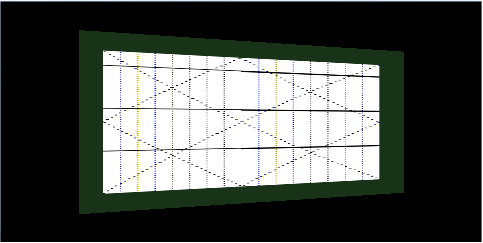
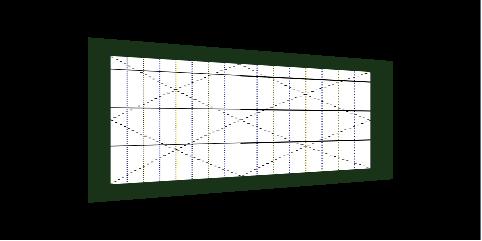
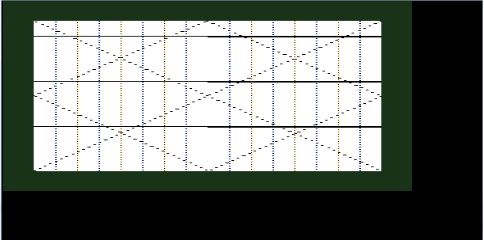
The number of reference points influence the output of the warp matrix. The points should be chosen, proportionally, with regards to the size of the bitmap area. The larger the value, the more accurate and smooth the result of the warp image.

**NumOfRefPointsX: 4 | NumOfRefPointsY: 2**

<div drawio-diagram="2025"><img src="https://doc316en.candera.eu/uploads/images/drawio/2023-02/drawing-7-1676953828.png" alt=""/></div>

  
**NumOfRefPointsX: 2 | NumOfRefPointsY: 4**

<div drawio-diagram="2026"><img src="https://doc316en.candera.eu/uploads/images/drawio/2023-02/drawing-7-1676953856.png" alt=""/></div>

 **NumOfRefPointsX: 4 | NumOfRefPointsY: 4**

<div drawio-diagram="2027"><img src="https://doc316en.candera.eu/uploads/images/drawio/2023-02/drawing-7-1676953885.png" alt=""/></div>

  
**NumOfRefPointsX: 11 | NumOfRefPointsY: 5**

<div drawio-diagram="2028"><img src="https://doc316en.candera.eu/uploads/images/drawio/2023-02/drawing-7-1676953906.png" alt=""/></div>

<div class="contents" id="bkmrk--4"><div class="contents"><div class="textblock">---

</div></div></div>

# Adjustments

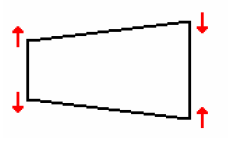
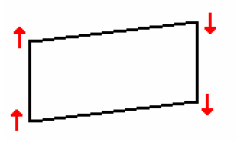
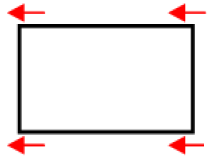
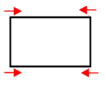
An adjustment is specified by a **mode**, a **direction** and a **delta**. For each reference point and corresponding shift vector, the adjustment is computed and applied. The resulting shift vector is again cached in the warping library. This way of implementation allows incremental adjustments.

**Mode** defines the way of the distortion. Following modes are available:

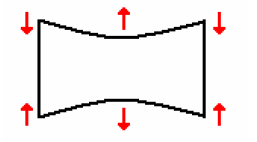
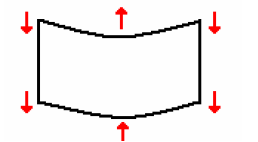
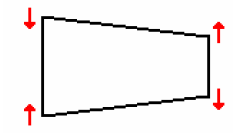
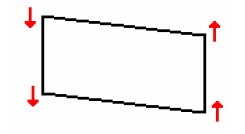
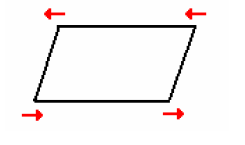
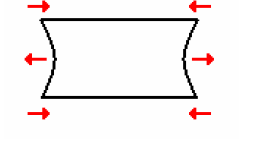
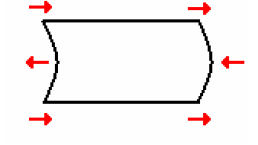
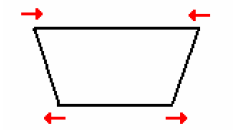
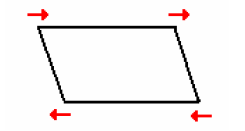
<div class="contents" id="bkmrk-parallelogram-trapez"><div class="contents"><div class="textblock">- Parallelogram
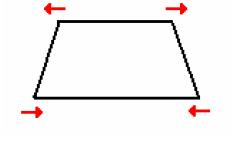
- Trapezoid
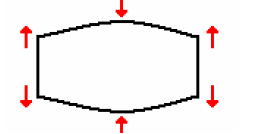
- Pin balance
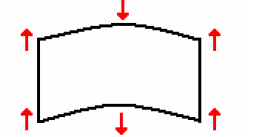
- Pincushion
- Shift
- Size
- Rotation (around bitmap image center point)

</div></div></div>**Direction** specifies the direction in which the distortion is applied. Following directions are available:

<div class="contents" id="bkmrk-up-down-left-right"><div class="contents"><div class="textblock">- Up
- Down
- Left
- Right

</div></div></div>**Delta** specifies the amount of distortion that is applied. Delta is an unsigned integer value in range 0..255 (1 byte). The delta is added to the existing offset of the corresponding reference points.

#### Predefined Adjustments

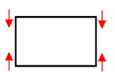
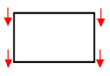
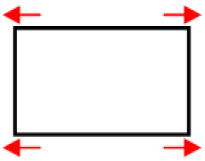
Based on mode and direction, the following transformations are possible:

<div class="contents" id="bkmrk-modedirection-trapez"><div class="contents"><div class="textblock"><table border="1" cellpadding="5" cellspacing="0" width="600"><tbody><tr bgcolor="#d4d4d4"><td class="align-center" style="background-color: rgb(255, 255, 255); width: 119.797px; vertical-align: top;">**Mode**  
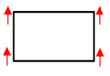
**Direction**</td><td class="align-center" style="background-color: rgb(255, 255, 255); width: 119.797px; vertical-align: top;">**Trapezoid**</td><td class="align-center" style="background-color: rgb(255, 255, 255); width: 119.797px; vertical-align: top;">**Parallelogram**</td><td class="align-center" style="background-color: rgb(255, 255, 255); width: 119.797px; vertical-align: top;">**Pincushion**</td><td class="align-center" style="background-color: rgb(255, 255, 255); width: 119.812px; vertical-align: top;">**Pin balance**</td></tr><tr><td align="center" style="width: 119.797px; vertical-align: top;" valign="middle">Up</td><td style="width: 119.797px; vertical-align: top;"><div class="image"><div drawio-diagram="2029"><img src="https://doc316en.candera.eu/uploads/images/drawio/2023-02/drawing-7-1676954059.png" alt=""/></div>

</div></td><td style="width: 119.797px; vertical-align: top;"><div class="image"><div drawio-diagram="2033"><img src="https://doc316en.candera.eu/uploads/images/drawio/2023-02/drawing-7-1676954316.png" alt=""/></div>

</div></td><td style="width: 119.797px; vertical-align: top;"><div class="image"><div drawio-diagram="2037"><img src="https://doc316en.candera.eu/uploads/images/drawio/2023-02/drawing-7-1676954403.png" alt=""/></div>

</div></td><td style="width: 119.812px; vertical-align: top;"><div class="image"><div drawio-diagram="2041"><img src="https://doc316en.candera.eu/uploads/images/drawio/2023-02/drawing-7-1676954492.png" alt=""/></div>

</div></td></tr><tr><td align="center" style="width: 119.797px; vertical-align: top;" valign="middle">Down</td><td style="width: 119.797px; vertical-align: top;"><div class="image"><div drawio-diagram="2030"><img src="https://doc316en.candera.eu/uploads/images/drawio/2023-02/drawing-7-1676954095.png" alt=""/></div>

</div></td><td style="width: 119.797px; vertical-align: top;"><div class="image"><div drawio-diagram="2034"><img src="https://doc316en.candera.eu/uploads/images/drawio/2023-02/drawing-7-1676954336.png" alt=""/></div>

</div></td><td style="width: 119.797px; vertical-align: top;"><div class="image"><div drawio-diagram="2038"><img src="https://doc316en.candera.eu/uploads/images/drawio/2023-02/drawing-7-1676954419.png" alt=""/></div>

</div></td><td style="width: 119.812px; vertical-align: top;"><div class="image"><div drawio-diagram="2042"><img src="https://doc316en.candera.eu/uploads/images/drawio/2023-02/drawing-7-1676954511.png" alt=""/></div>

</div></td></tr><tr><td align="center" style="width: 119.797px; vertical-align: top;" valign="middle">Left</td><td style="width: 119.797px; vertical-align: top;"><div class="image"><div drawio-diagram="2031"><img src="https://doc316en.candera.eu/uploads/images/drawio/2023-02/drawing-7-1676954115.png" alt=""/></div>

</div></td><td style="width: 119.797px; vertical-align: top;"><div class="image"><div drawio-diagram="2035"><img src="https://doc316en.candera.eu/uploads/images/drawio/2023-02/drawing-7-1676954356.png" alt=""/></div>

</div></td><td style="width: 119.797px; vertical-align: top;"><div class="image"><div drawio-diagram="2039"><img src="https://doc316en.candera.eu/uploads/images/drawio/2023-02/drawing-7-1676954442.png" alt=""/></div>

</div></td><td style="width: 119.812px; vertical-align: top;"><div class="image"><div drawio-diagram="2043"><img src="https://doc316en.candera.eu/uploads/images/drawio/2023-02/drawing-7-1676954527.png" alt=""/></div>

</div></td></tr><tr><td align="center" style="width: 119.797px; vertical-align: top;" valign="middle">Right</td><td style="width: 119.797px; vertical-align: top;"><div class="image"><div drawio-diagram="2032"><img src="https://doc316en.candera.eu/uploads/images/drawio/2023-02/drawing-7-1676954131.png" alt=""/></div>

</div></td><td style="width: 119.797px; vertical-align: top;"><div class="image"><div drawio-diagram="2036"><img src="https://doc316en.candera.eu/uploads/images/drawio/2023-02/drawing-7-1676954376.png" alt=""/></div>

</div></td><td style="width: 119.797px; vertical-align: top;"><div class="image"><div drawio-diagram="2040"><img src="https://doc316en.candera.eu/uploads/images/drawio/2023-02/drawing-7-1676954457.png" alt=""/></div>

</div></td><td style="width: 119.812px; vertical-align: top;"><div class="image"><div drawio-diagram="2044"><img src="https://doc316en.candera.eu/uploads/images/drawio/2023-02/drawing-7-1676954547.png" alt=""/></div>

</div></td></tr></tbody></table>

</div></div></div><div class="contents" id="bkmrk-modedirection-size-r"><div class="contents"><div class="textblock"><table border="1" cellpadding="5" cellspacing="0" width="600"><tbody><tr bgcolor="#d4d4d4"><th style="background-color: rgb(255, 255, 255); width: 149.75px;">**Mode**  
**Direction**</th><th style="background-color: rgb(255, 255, 255); width: 149.75px;">**Size**</th><th style="background-color: rgb(255, 255, 255); width: 149.75px;">**Rotation**</th><th style="background-color: rgb(255, 255, 255); width: 149.75px;">**Shift**</th></tr><tr><td align="center" class="align-center" style="vertical-align: top; width: 149.75px;" valign="middle">Up</td><td class="align-center" style="width: 149.75px; vertical-align: middle;"><div class="image"><div drawio-diagram="2045"><img src="https://doc316en.candera.eu/uploads/images/drawio/2023-02/drawing-7-1676954601.png" alt=""/></div>

</div></td><td class="align-center" style="width: 149.75px; vertical-align: middle;">  
</td><td class="align-center" style="width: 149.75px; vertical-align: middle;"><div class="image"><div drawio-diagram="2051"><img src="https://doc316en.candera.eu/uploads/images/drawio/2023-02/drawing-7-1676955044.png" alt=""/></div>

</div></td></tr><tr><td align="center" class="align-center" style="vertical-align: top; width: 149.75px;" valign="middle">Down</td><td class="align-center" style="width: 149.75px; vertical-align: middle;"><div class="image"><div drawio-diagram="2046"><img src="https://doc316en.candera.eu/uploads/images/drawio/2023-02/drawing-7-1676954905.png" alt=""/></div>

</div></td><td class="align-center" style="width: 149.75px; vertical-align: middle;">  
</td><td class="align-center" style="width: 149.75px; vertical-align: middle;"><div class="image"><div drawio-diagram="2052"><img src="https://doc316en.candera.eu/uploads/images/drawio/2023-02/drawing-7-1676955092.png" alt=""/></div>

</div></td></tr><tr><td align="center" class="align-center" style="vertical-align: top; width: 149.75px;" valign="middle">Left</td><td class="align-center" style="width: 149.75px; vertical-align: middle;"><div class="image"><div drawio-diagram="2047"><img src="https://doc316en.candera.eu/uploads/images/drawio/2023-02/drawing-7-1676954925.png" alt=""/></div>

</div></td><td class="align-center" style="width: 149.75px; vertical-align: middle;"><div class="image"><div drawio-diagram="2049"><img src="https://doc316en.candera.eu/uploads/images/drawio/2023-02/drawing-7-1676954990.png" alt=""/></div>

</div></td><td class="align-center" style="width: 149.75px; vertical-align: middle;"><div class="image"><div drawio-diagram="2053"><img src="https://doc316en.candera.eu/uploads/images/drawio/2023-02/drawing-7-1676955117.png" alt=""/></div>

</div></td></tr><tr><td align="center" class="align-center" style="vertical-align: top; width: 149.75px;" valign="middle">Right</td><td class="align-center" style="width: 149.75px; vertical-align: middle;"><div class="image"><div drawio-diagram="2048"><img src="https://doc316en.candera.eu/uploads/images/drawio/2023-02/drawing-7-1676954948.png" alt=""/></div>

</div></td><td class="align-center" style="width: 149.75px; vertical-align: middle;"><div class="image"><div drawio-diagram="2050"><img src="https://doc316en.candera.eu/uploads/images/drawio/2023-02/drawing-7-1676955009.png" alt=""/></div>

</div></td><td class="align-center" style="width: 149.75px; vertical-align: middle;"><div class="image"><div drawio-diagram="2054"><img src="https://doc316en.candera.eu/uploads/images/drawio/2023-02/drawing-7-1676955136.png" alt=""/></div>

</div></td></tr></tbody></table>

</div></div></div>#### Formulas for adjustments

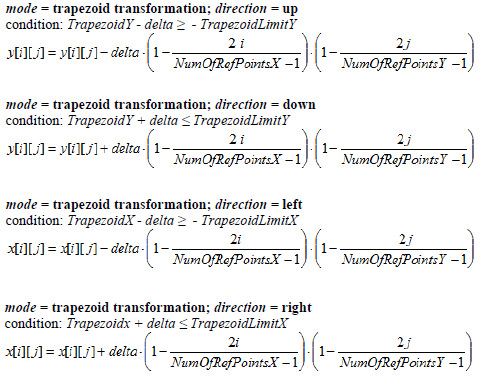
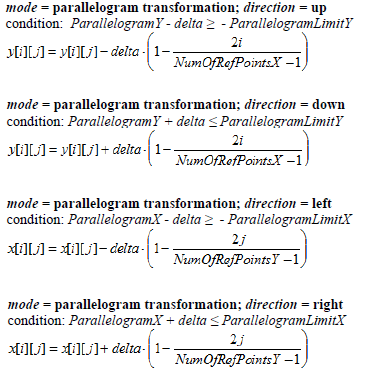
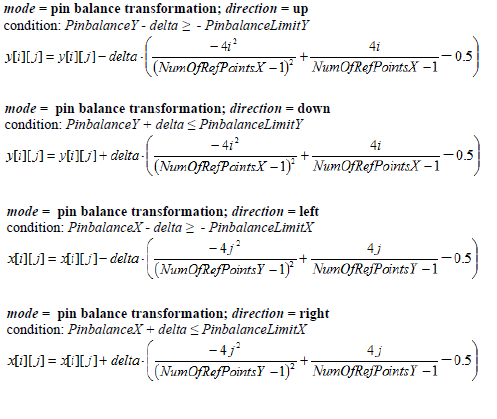
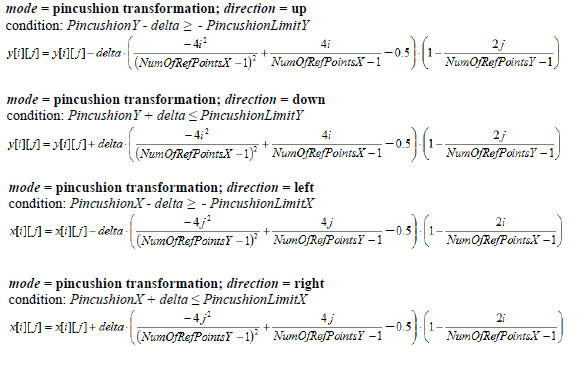
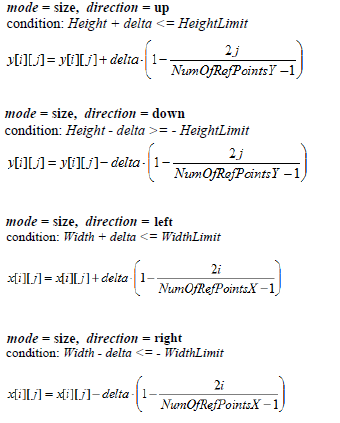
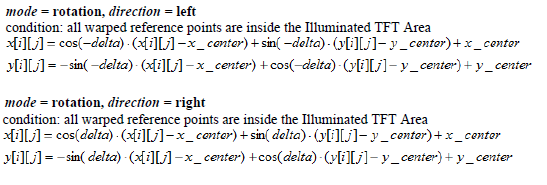
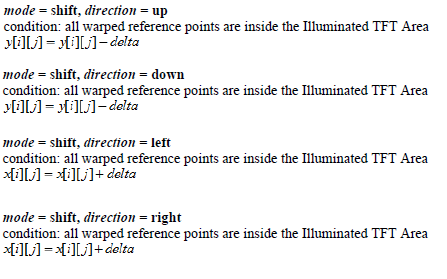
The following formulas describe the mathematically necessary adjustments of the reference points. If the requested adjustment exceeds the limit, no calculation shall be done and the previous status will be kept.

##### Trapezoid mode

<div class="contents" id="bkmrk--0"><div class="contents"><div class="textblock"><div drawio-diagram="2055"><img src="https://doc316en.candera.eu/uploads/images/drawio/2023-02/drawing-7-1676955237.png" alt=""/></div>

</div></div></div>##### Parallelogram mode

<div class="contents" id="bkmrk--1"><div class="contents"><div class="textblock"><div drawio-diagram="2056"><img src="https://doc316en.candera.eu/uploads/images/drawio/2023-02/drawing-7-1676955457.png" alt=""/></div>

</div></div></div>##### Pinbalance mode

<div class="contents" id="bkmrk--2"><div class="contents"><div class="textblock"><div drawio-diagram="2057"><img src="https://doc316en.candera.eu/uploads/images/drawio/2023-02/drawing-7-1676955477.png" alt=""/></div>

</div></div></div>##### Pincushion mode

<div class="contents" id="bkmrk--3"><div class="contents"><div class="textblock"><div drawio-diagram="2058"><img src="https://doc316en.candera.eu/uploads/images/drawio/2023-02/drawing-7-1676955492.png" alt=""/></div>

</div></div></div>##### Size mode

<div class="contents" id="bkmrk--4"><div class="contents"><div class="textblock"><div drawio-diagram="2062"><img src="https://doc316en.candera.eu/uploads/images/drawio/2023-02/drawing-7-1676955650.png" alt=""/></div>

</div></div></div>##### Rotation mode

<div class="contents" id="bkmrk--5"><div class="contents"><div class="textblock"><div drawio-diagram="2060"><img src="https://doc316en.candera.eu/uploads/images/drawio/2023-02/drawing-7-1676955526.png" alt=""/></div>

</div></div></div>##### Shift mode

<div class="contents" id="bkmrk-numofrefpointsx---nu"><div class="textblock"><div drawio-diagram="2061"><img src="https://doc316en.candera.eu/uploads/images/drawio/2023-02/drawing-7-1676955542.png" alt=""/></div>

<dl class="note"><dd><p class="callout info">NumOfRefPointsX - number of reference points in horizontal direction  
NumOfRefPointsY - number of reference points in vertical direction  
x\[i\]\[j\] - x-coordinate of reference point, a 2-dimensional array of floating point variables  
y\[i\]\[j\] - y-coordinate of reference point, a 2-dimensional array of floating point variables</p>

</dd></dl>---

</div></div>

# Rotation and Scale

#### Rotation

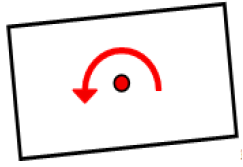
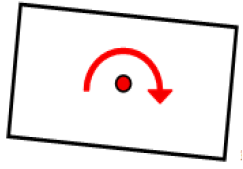
The rotation takes place around the warped center point of the bitmap area.   
  
If an uneven number of reference points in x/y direction is specified, the warped center point coincides with the middle reference grid point and the coordinates of the rotation axis are present. If an even number of reference grid points is use, the coordinates of the warped center point are calculated.   
  
An initial RotationValue and the RotationLimit are specified through the configuration parameter structure:

<div class="contents" id="bkmrk-initial-rotation-val"><div class="contents"><div class="textblock">- Initial Rotation value is represented in **grad\*100**. This is the default rotation value that is applied to the warp image prior to rendering.
- RotationLimit represents the maximum rotation angle in grad that the warped image will be rotated to. Both positive and negative values are accepted.

</div></div></div>Warp image rotation at run-time is achieved through the adjustments supported by the Warping Library. Subsequent calls of warp matrix adjustments result in incremental rotation of the warp image with an incremental step equal to the specified delta value.

<div class="contents" id="bkmrk-if-the-initial-rotat"><div class="contents"><div class="textblock"><dl class="note"><dd><p class="callout info">If the initial RotationValue exceeds the specified RotationLimit a WarpResultErrorConfigInvalidValue will be thrown and the calculation of the warp matrix will be aborted.  
Scaling of the warp image occurs when the RotationLimit value is chosen such that at maximum rotation point, the image will extend beyond the illuminated area. More details related to image scaling is presented in the next section.</p>

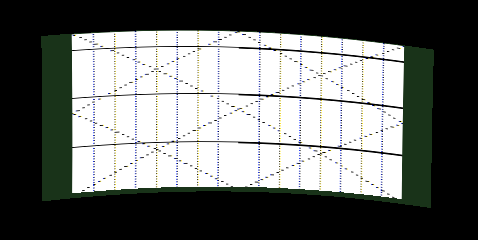
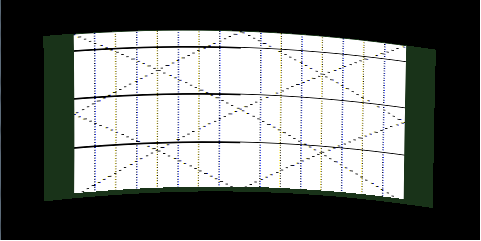
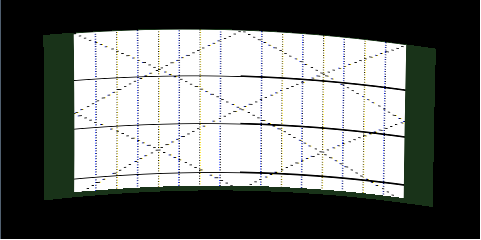
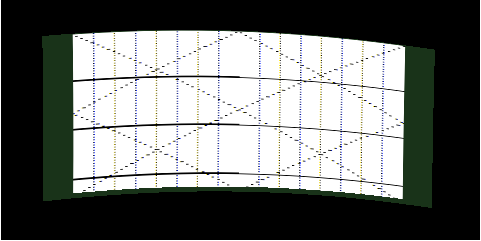
</dd></dl></div></div></div>##### Example

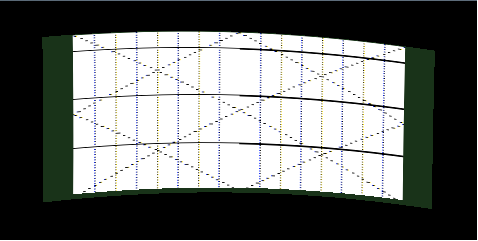
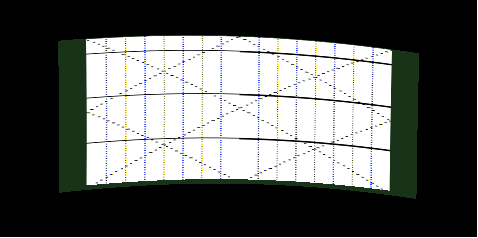
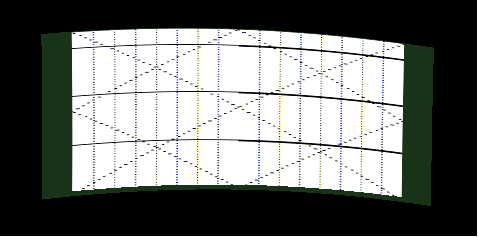
<table border="1" id="bkmrk-rotationvalue%3A-500-%7C" style="border-collapse: collapse; width: 100%;"><colgroup><col style="width: 50%;"></col><col style="width: 50%;"></col></colgroup><tbody><tr><td>****RotationValue: 500 | Rotate 5° to right**** <div drawio-diagram="2105"><img src="https://doc316en.candera.eu/uploads/images/drawio/2023-02/drawing-7-1676962027.png" alt=""/></div>

</td><td>****RotationValue: -1000 | Rotate 10° to left**** <div drawio-diagram="2106"><img src="https://doc316en.candera.eu/uploads/images/drawio/2023-02/drawing-7-1676962039.png" alt=""/></div>

</td></tr><tr><td>****RotationValue: 3000 | Rotate 30° to right**** <div drawio-diagram="2107"><img src="https://doc316en.candera.eu/uploads/images/drawio/2023-02/drawing-7-1676962049.png" alt=""/></div>

</td><td>****RotationValue: -4500 | Rotate 45° to left**** <div drawio-diagram="2108"><img src="https://doc316en.candera.eu/uploads/images/drawio/2023-02/drawing-7-1676962063.png" alt=""/></div>

</td></tr></tbody></table>

<span style="color: rgb(34, 34, 34); font-size: 1.666em; font-weight: 400;">Scaling</span>

The warping library performs automatic rescaling of the resulting warping matrix whenever it overlaps or exceeds the boundaries of the illuminated area. It is possible to identify two cases in which rescaling will be done:

<div class="contents" id="bkmrk-if-the-configured-il"><div class="contents"><div class="textblock">- If the configured illuminated area is smaller than the bitmap area, the resulting warp matrix will be rescaled to the specified illuminated area.
- If the RotationLimit value is chosen such that at maxim rotation point, the warp image will extend beyond illuminated area boundaries.

</div></div></div>  
The ScaleMode parameter influences the behavior of scaling by modifying the internal scale factor:

<div class="contents" id="bkmrk-0---scale-factor-is-"><div class="contents"><div class="textblock">- 0 - scale factor is 1. Scaling occurs only if the image does not fit inside illuminated area. Rotating the warp image at run-time will rescale the resulted rotated image if it falls outside illuminated area boundaries.
- 1 - scale factor is calculated based on RotationLimit value. The warp image will be scaled down to the size that fits inside the illuminated area when a rotation equal to RotationLimit is applied.

</div></div></div>##### Example

<table border="1" id="bkmrk-no-scaling-occursbit" style="border-collapse: collapse; width: 100%;"><colgroup><col style="width: 50.0618%;"></col><col style="width: 50.0618%;"></col></colgroup><tbody><tr><td>**No Scaling occurs**  
BitmapArea: 408x190 | Illuminated Area: 480x190  
  
<div drawio-diagram="2094"><img src="https://doc316en.candera.eu/uploads/images/drawio/2023-02/drawing-7-1676961634.png" alt=""/></div>

</td><td>**Scaling occurs because bitmap area exceeds illuminated area**  
BitmapArea: 408x190 | Illuminated Area: 375x190  
<div drawio-diagram="2093"><img src="https://doc316en.candera.eu/uploads/images/drawio/2023-02/drawing-7-1676961611.png" alt=""/></div>

</td></tr><tr><td style="width: 410px;">**No Scaling occurs since warp image does not exceed illuminated area**  
BitmapArea: 408x190 | Illuminated Area: 480x190  
RotationValue: 0° | RotationLimit: 45°  
ScaleMode: 0  
<div class="image"><div drawio-diagram="2095"><img src="https://doc316en.candera.eu/uploads/images/drawio/2023-02/drawing-7-1676961696.png" alt=""/></div>

</div></td><td style="width: 412px;">**Scaling occurs because of specified RotationLimit and ScaleMode**  
BitmapArea: 408x190 | Illuminated Area: 480x190  
RotationValue: 0° | RotationLimit: 45°  
ScaleMode: 1  
<div class="image"><div drawio-diagram="2096"><img src="https://doc316en.candera.eu/uploads/images/drawio/2023-02/drawing-7-1676961721.png" alt=""/></div>

</div></td></tr><tr><td style="width: 410px;">**Scaling down during incremental rotation**  
BitmapArea: 408x190 | Illuminated Area: 480x190  
ScaleMode: 0  
<div class="image"><div drawio-diagram="2097"><img src="https://doc316en.candera.eu/uploads/images/drawio/2023-02/drawing-7-1676961751.png" alt=""/></div>

</div></td><td style="width: 412px;">**Scaling down during incremental rotation**  
BitmapArea: 408x190 | Illuminated Area: 480x190  
ScaleMode: 0  
<div class="image"><div drawio-diagram="2098"><img src="https://doc316en.candera.eu/uploads/images/drawio/2023-02/drawing-7-1676961773.png" alt=""/></div>

</div></td></tr><tr><td style="width: 410px;">**Scaling down during incremental rotation**  
BitmapArea: 408x190 | Illuminated Area: 480x190  
ScaleMode: 0  
<div class="image"><div drawio-diagram="2099"><img src="https://doc316en.candera.eu/uploads/images/drawio/2023-02/drawing-7-1676961780.png" alt=""/></div>

</div></td><td style="width: 412px;">**Scaling down during incremental rotation**  
BitmapArea: 408x190 | Illuminated Area: 480x190  
ScaleMode: 0  
<div class="image"><div drawio-diagram="2100"><img src="https://doc316en.candera.eu/uploads/images/drawio/2023-02/drawing-7-1676961789.png" alt=""/></div>

</div></td></tr><tr><td style="width: 410px;">**No scaling during incremental rotation**  
BitmapArea: 408x190 | Illuminated Area: 480x190  
ScaleMode: 1  
<div class="image"><div drawio-diagram="2101"><img src="https://doc316en.candera.eu/uploads/images/drawio/2023-02/drawing-7-1676961799.png" alt=""/></div>

</div></td><td style="width: 412px;">**No scaling during incremental rotation**  
BitmapArea: 408x190 | Illuminated Area: 480x190  
ScaleMode: 1  
<div class="image"><div drawio-diagram="2102"><img src="https://doc316en.candera.eu/uploads/images/drawio/2023-02/drawing-7-1676961810.png" alt=""/></div>

</div></td></tr><tr><td style="width: 410px;">**No scaling during incremental rotation**  
BitmapArea: 408x190 | Illuminated Area: 480x190  
ScaleMode: 1  
<div class="image"><div drawio-diagram="2103"><img src="https://doc316en.candera.eu/uploads/images/drawio/2023-02/drawing-7-1676961820.png" alt=""/></div>

</div></td><td style="width: 412px;">**No scaling during incremental rotation**  
BitmapArea: 408x190 | Illuminated Area: 480x190  
ScaleMode: 1  
<div class="image"><div drawio-diagram="2104"><img src="https://doc316en.candera.eu/uploads/images/drawio/2023-02/drawing-7-1676961828.png" alt=""/></div>

</div></td></tr></tbody></table>

<div class="textblock" id="bkmrk-"></div>---

<div class="textblock" id="bkmrk--1"></div><div class="textblock" id="bkmrk--2"></div><div class="textblock" id="bkmrk--4"></div>

# Image Flipping

Flipping transforms the content prior to warping the image on screen. Flipping is supported only when warping is enabled. The following orientations are supported:

<div class="contents" id="bkmrk-candera%3A%3Adisplayorie"><div class="contents"><div class="textblock">- Candera::DisplayOrientation::Unchanged
- Candera::DisplayOrientation::HorizontallyFlipped
- Candera::DisplayOrientation::VerticallyFlipped
- Candera::DisplayOrientation::VerticallyAndHorizontallyFlipped

</div></div></div>Changing the image orientation is achieved through the public interface of Candera::Display class using Candera::Display::SetWarpOrientation, like in the following snippet.

```
    // flip the image vertically and horizontally
    display->SetWarpOrientation(Candera::DisplayOrientation::VerticallyAndHorizontallyFlipped);
```

##### Example

<div class="contents" id="bkmrk-unchanged-horizontal"><div class="contents"><div class="textblock"><table border="0" cellpadding="5" cellspacing="0" style="width: 764px;" width="600"><tbody><tr><td style="width: 340.5px;">**Unchanged**   
<div class="image"><div drawio-diagram="2109"><img src="https://doc316en.candera.eu/uploads/images/drawio/2023-02/drawing-7-1676962188.png" alt=""/></div>

</div></td><td style="width: 340.5px;">**HorizontallyFlipped**   
<div class="image"><div drawio-diagram="2110"><img src="https://doc316en.candera.eu/uploads/images/drawio/2023-02/drawing-7-1676962198.png" alt=""/></div>

</div></td></tr><tr><td style="width: 340.5px;">**VerticallyFlipped**   
<div class="image"><div drawio-diagram="2111"><img src="https://doc316en.candera.eu/uploads/images/drawio/2023-02/drawing-7-1676962217.png" alt=""/></div>

</div></td><td style="width: 340.5px;">**VerticallyAndHorizontallyFlipped**   
<div class="image"><div drawio-diagram="2112"><img src="https://doc316en.candera.eu/uploads/images/drawio/2023-02/drawing-7-1676962226.png" alt=""/></div>

</div></td></tr></tbody></table>

---

</div></div></div>

# Warp Image Bounds

Warp image bounds comprise upper left corner point of the bitmap image area, its width, and height (normalized to the range \[0..1\]).

They are used to specify to <span style="color: rgb(230, 126, 35);">[Candera](http://dev.doc.cgistudio.at/APILINK/namespace_candera.html "[DataBinding_RefTypeSample]")</span> which part of the rendered display image shall be mapped to the warping mesh computed from the warp matrix. If not specified, then the complete display image will be mapped.

The following code snippet shows how to retrieve the warp image bounds from the Warping library. These can be further passed to <span style="color: rgb(230, 126, 35);">[Candera](http://dev.doc.cgistudio.at/APILINK/namespace_candera.html "[DataBinding_RefTypeSample]")</span> through the public interface of Candera::Display class using Candera::Display::SetWarpImageBounds.

```
    WRP_SFLOAT textureOriginX; 
    WRP_SFLOAT textureOriginY;
    WRP_SFLOAT textureWidth;
    WRP_SFLOAT textureHeight;
    
    // retrieve warpTextureBounds
    ComputeWarpImageBoundsFromConfig(&stcWarpConfigParams, &textureOriginX, &textureOriginY, &textureWidth, &textureHeight);
    <a class="code" href="http://dev.doc.cgistudio.at/APILINK/class_candera_1_1_rectangle.html" title="Represents a rectangle.">Candera::Rectangle</a> warpTextureBounds(textureOriginX, textureOriginY, textureWidth, textureHeight);
      
    // set the bounds of the warping texture  
    display->SetWarpImageBounds(warpTextureBounds);
```

##### Example

<div class="contents" id="bkmrk-warping-is-disabled-"><div class="contents"><div class="textblock"><table border="0" cellpadding="5" cellspacing="0" style="width: 809px;" width="600"><tbody><tr><td style="width: 404px;">**Warping is disabled**   
Display Area: 480x240   
BitmapArea: 408x190  
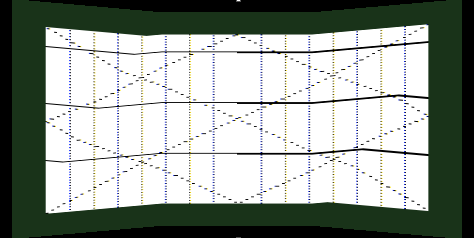
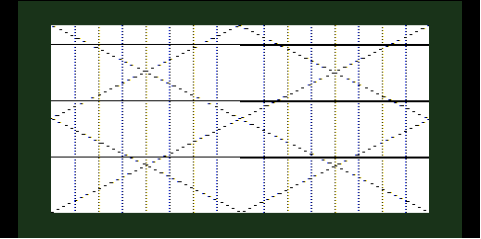
<div class="image"><div drawio-diagram="2113"><img src="https://doc316en.candera.eu/uploads/images/drawio/2023-02/drawing-7-1676962315.png" alt=""/></div>

</div></td></tr><tr><td style="width: 404px;">**Warping is enabled, image bounds are not specified**   
Display Area: 480x240   
BitmapArea: 408x190 | Illuminated Area: 480x240  
<div class="image"><div drawio-diagram="2114"><img src="https://doc316en.candera.eu/uploads/images/drawio/2023-02/drawing-7-1676962331.png" alt=""/></div>

</div></td><td style="width: 404px;">**Warping is enabled, image bounds are specified**   
Display Area: 480x240   
BitmapArea: 408x190 | Illuminated Area: 480x240  
<div class="image"><div drawio-diagram="2115"><img src="https://doc316en.candera.eu/uploads/images/drawio/2023-02/drawing-7-1676962355.png" alt=""/></div>

</div></td></tr></tbody></table>

---

</div></div></div>

# Appendix A: Sample code

Please refer to the following code snippets for information on how to the Warping Library and <span style="color: rgb(230, 126, 35);">[Candera](http://dev.doc.cgistudio.at/APILINK/namespace_candera.html "[DataBinding_RefTypeSample]")</span> are used in order to calculate the warped output that will be rendered on display.

#### Create Warp Matrix

```
    en_warp_result_t enResult = WarpResultSuccess;          // Enumeration for possible return values of warping library functions.
    stc_warp_configuration_parameter_t stcWarpConfigParams; // Warping configuration parameters and limit parameters.
    stc_warp_parameter_set_t stcWarpParamSet;               // Structure of the encoded input parameter set for the reference points.
    stc_warp_matrix_t stcWarpMatrix;                        // Structure for the calculated matrix vertex points.
    
    ... // Specify the configuration parameters and the input parameter set according the project needs
    
    // generate the warp matrix based on provided input configuration data
    enResult = CalculateWarpMatrix(&stcWarpConfigParams, &stcWarpParamSet, &stcWarpMatrix);

    // check return error of previous call
    if (enResult == WarpResultSuccess) {
        <a class="code" href="http://dev.doc.cgistudio.at/APILINK/group___f_e_a_t_s_t_d___d_i_a_g_n_o_s_t_i_c_s.html#ga1fc8f6fbe760498d4d2ea7e9760c6576">FEATSTD_LOG_DEBUG</a>("Warp matrix succsessfully created.\n");
    } else {
        <a class="code" href="http://dev.doc.cgistudio.at/APILINK/group___f_e_a_t_s_t_d___d_i_a_g_n_o_s_t_i_c_s.html#ga1fc8f6fbe760498d4d2ea7e9760c6576">FEATSTD_LOG_DEBUG</a>("Failed to create warp matrix.\n");
    }
```

#### Warp Matrix Adjustments

```
    en_warp_result_t enResult = WarpResultSuccess;          // Enumeration for possible return values of warping library functions.
    stc_warp_configuration_parameter_t stcWarpConfigParams; // Warping configuration parameters and limit parameters.
    stc_warp_adjust_parameter_t stcWarpAdjustParams;        // Structure with all parameters for delta calculation.
    stc_warp_matrix_t stcWarpMatrix;                        // Structure for the calculated matrix vertex points.
    en_warp_bool_t bSuccess;
    
    ... // Specify the configuration parameters
    
    // Specify parameters for delta calculation (example)
    stcWarpAdjustParams.WarpAdjustMode = WarpAdjustModeTrapezoid;
    stcWarpAdjustParams.WarpAdjustDirection = WarpAdjustDirectionDown;
    stcWarpAdjustParams.WarpDelta = 100;
    
    enResult = AdjustWarpMatrix(&stcWarpConfigParams, &stcWarpAdjustParams, &bSuccess, &stcWarpMatrix);

    if (enResult == WarpResultSuccess) {
        <a class="code" href="http://dev.doc.cgistudio.at/APILINK/group___f_e_a_t_s_t_d___d_i_a_g_n_o_s_t_i_c_s.html#ga1fc8f6fbe760498d4d2ea7e9760c6576">FEATSTD_LOG_DEBUG</a>("Adjusted warp matrix.\n");
    } else {
        <a class="code" href="http://dev.doc.cgistudio.at/APILINK/group___f_e_a_t_s_t_d___d_i_a_g_n_o_s_t_i_c_s.html#ga1fc8f6fbe760498d4d2ea7e9760c6576">FEATSTD_LOG_DEBUG</a>("Failed to adjust warp matrix.\n");
    }
```

#### Create the Candera WarpMatrix from the previously calculated warp matrix

<div class="contents" id="bkmrk-"><div class="contents"><div class="textblock"><div class="fragment">  
</div></div></div></div>```
      // Create warp matrix. This is a proof of the disposer concept.
      // The matrix data doesn't need to be copied, since it is static and can
      // be simply set into the warp matrix without a disposer.
      Candera::Float* matrixData = CANDERA_NEW_ARRAY(Candera::Float, 2 * stcWarpMatrix.usNumRefPointsX * stcWarpMatrix.usNumRefPointsY);
      if (matrixData == 0) {
        FEATSTD_LOG_ERROR("failed to allocate matrix data");
        return;
      }
      Candera::MemoryPlatform::Copy(matrixData, FeatStd::Internal::PointerToPointer<void*>(stcWarpMatrix.pVertex), 2 * stcWarpMatrix.usNumRefPointsX * stcWarpMatrix.usNumRefPointsY * sizeof(Candera::Float));
      typedef <a class="code" href="http://dev.doc.cgistudio.at/APILINK/class_feat_std_1_1_memory_management_1_1_adapted_array_disposer.html" title="A native FeatStd Array Disposer which calls FEATSTD_DELETE_ARRAY in Dispose, but first casts...">Candera::MemoryManagement::AdaptedArrayDisposer<Candera::WarpMatrix::ConstData, const Candera::Float*></a> MatrixDataDisposer;
      Candera::WarpMatrix warpMatrix(stcWarpMatrix.usNumRefPointsX, stcWarpMatrix.usNumRefPointsY, matrixData, &MatrixDataDisposer::Dispose);
```

#### Calculate Warp Texture Bounds

```
      WRP_SFLOAT textureOriginX; 
      WRP_SFLOAT textureOriginY;
      WRP_SFLOAT textureWidth;
      WRP_SFLOAT textureHeight;
      
      ComputeWarpImageBoundsFromConfig(&stcWarpConfigParams, &textureOriginX, &textureOriginY, &textureWidth, &textureHeight);
      <a class="code" href="http://dev.doc.cgistudio.at/APILINK/class_candera_1_1_rectangle.html" title="Represents a rectangle.">Candera::Rectangle</a> warpTextureBounds(textureOriginX, textureOriginY, textureWidth, textureHeight);
```

#### Render Warped Image to Display

```
      // define display parameters
      Candera::Display::CommonSettings params;
      Candera::MemoryPlatform::Set(&params, 0, sizeof(params));

      params.width =          800;
      params.hps =            832;
      params.hpe =            976;
      params.hpt =            1008;
      
      params.height =         600; 
      params.vps =            612; 
      params.vpe =            618; 
      params.vpt =            631;
        
      params.refreshRate =    60;
      params.colorBits =      32;
      
      // create display
      Candera::Display *display = Candera::DevicePackageInterface::CreateDisplay(0);
      if (display == 0) {
          FEATSTD_LOG_ERROR("Failed to create display.");
          return false;
      }
      
      //enable warping
      display->SetWarpingEnabled(true);
      
      // pass previously created Candera warpMatrix to display
      display->SetWarpMatrix(warpMatrix);          
      
      // optionally, set the warp texture bounds
      display->SetWarpImageBounds(warpTextureBounds);
      
      // ApplyChanges() has to be called for the changes to be taken into account
      display->ApplyChanges(); 
      
      //upload display
      if (!display->Upload(params)) {
          FEATSTD_LOG_ERROR("Failed to upload display.");
          return false;
      }
```

<p class="callout info">Warping should be enabled before the NativeHandle is attached to the display (attached either by AttachNativeHandle or created at display upload).  
</p>

#### Create a Default WarpMatrix Data

```
      // retrieve display
      Candera::Display *display = Candera::DevicePackageInterface::GetDisplay(0);
      
      if (display == 0) {
        FEATSTD_LOG_ERROR("Failed to retrieve display.");
        return false;
      }      
      
      // default warpMatrix data
      static const Candera::Float data[] = {
                0.0F, 0.0F,
                1.0F, 0.0F,
                0.0F, 1.0F,
                1.0F, 1.0F,
            };
      
      Candera::WarpMatrix warpMatrix(2, 2, data);
      display->SetWarpMatrix(warpMatrix);
      
      <a class="code" href="http://dev.doc.cgistudio.at/APILINK/class_candera_1_1_rectangle.html" title="Represents a rectangle.">Candera::Rectangle</a> defaultImageBounds(0.F, 0.F, 1.F, 1.F);
      display->SetWarpImageBounds(defaultImageBounds);
```

<div class="contents" id="bkmrk--0"><div class="contents"><div class="textblock"><div class="fragment">---

</div></div></div></div>

# Warping Library User Guide

This guide gives an overview on development and build folder as well as of the warping library's source code structure.  
The goal is to guide users from build environment preparation through generation of warping component sample applications to the execution of these applications.

# Overview

The system view shows the location of the warping library in the system as well as connections to other components.

<div class="contents" id="bkmrk-"><div class="contents"><div class="textblock"><div drawio-diagram="2116"><img src="https://doc316en.candera.eu/uploads/images/drawio/2023-02/drawing-7-1676963083.png" alt=""/></div>

</div></div></div>Globally, the warping library consists of two parts, the warping application module and a warping platform module. The platform module is platform dependent – a version for Windows host platform and a version for iMX6 target hardware are available. Responsibility of each part is described in the system view model.

#### Directory Overview

The directory structure of the delivery package consist of the code *code* and the document *doc* sub directory.   
The *code* directory structure in detail:

- *bin*: Output directory for the host and target "WarpingLibrary" library file (sub directory *WarpingLibrary*) and the executable file for the "WarpSample" application (sub directory *WarpSample*).
- *build*: This sub directory contains the build scripts for all supported host and target variants for "WarpingLibrary" (sub directory *WarpingLibrary*) and the "WarpSample" application (sub directory *WarpSample*).
- *sample*: Storage of the "WarpSample" application source code files.
- *src*: Contains matrix calculation source code needed for the warping library (sub directory \\3rdParty) and the source code for the warping library (sub directory *WarpingLibrary*).   
    The doc directory structure in detail:
- *UserDocumentation*: Location of this user’s guide.
- *ReferenceMaterial* (optional): This sub directory contains the product requirement document (versions) being the base for the software requirements.

<div class="contents" id="bkmrk--0"><div class="contents">  
</div></div>#### Integration Overview

Integration of the <span style="color: rgb(230, 126, 35);">[Candera](http://dev.doc.cgistudio.at/APILINK/namespace_candera.html "[DataBinding_RefTypeSample]")</span> Warping Library is performed in the following steps:

<div class="contents" id="bkmrk-apply-delivery%3A-copy"><div class="contents"><div class="textblock">1. **Apply Delivery:** Copy the delivery contents to the installation directory of the CGI Studio base release package on your hard disk (for further reference, we call the path to this directory ***warp\_base\_path***). The ***warp\_base\_path*** should reside on the same level as the folder ***cgi\_studio\_candera***, containing the <span style="color: rgb(230, 126, 35);">[Candera](http://dev.doc.cgistudio.at/APILINK/namespace_candera.html "[DataBinding_RefTypeSample]")</span> source code, to make CMake auto-detecting of related <span style="color: rgb(230, 126, 35);">[Candera](http://dev.doc.cgistudio.at/APILINK/namespace_candera.html "[DataBinding_RefTypeSample]")</span> source code work. Besides <span style="color: rgb(230, 126, 35);">[Candera](http://dev.doc.cgistudio.at/APILINK/namespace_candera.html "[DataBinding_RefTypeSample]")</span>, also *cgi\_studio\_3psw* and *featstd* folders are needed. The build scripts delivered expect the <span style="color: rgb(230, 126, 35);">[Candera](http://dev.doc.cgistudio.at/APILINK/namespace_candera.html "[DataBinding_RefTypeSample]")</span> sources in these directories – in case on your machine these locations are different, please adapt the paths in the build scripts accordingly.
2. **Create Warping Library:** Building the <span style="color: rgb(230, 126, 35);">[Candera](http://dev.doc.cgistudio.at/APILINK/namespace_candera.html "[DataBinding_RefTypeSample]")</span> independent Warping Library needs to be done in a first step as this is not integrated into the <span style="color: rgb(230, 126, 35);">[Candera](http://dev.doc.cgistudio.at/APILINK/namespace_candera.html "[DataBinding_RefTypeSample]")</span> build scripts. For detailed instruction about this step please refer to chapter 2. Note that in case of binary delivery of Warping Library, there are pre-built libraries provided for all supported host and target variants.
3. **Build and Run Sample:** To build the <span style="color: rgb(230, 126, 35);">[Candera](http://dev.doc.cgistudio.at/APILINK/namespace_candera.html "[DataBinding_RefTypeSample]")</span> Warping sample application, follow the instructions described in 3. For running the sample application in the host environment, please make sure that your machine satisfies Candera’s hardware and software requirements (especially concerning graphic hardware and graphic drivers).

---

</div></div></div>

# Creation

#### Library for Host Environment

The source code for building the Warping Application Module (aka Warping library) is located in the *src/WarpingLibrary* sub directory.

In a console window, run one of the batch files referring to Visual Studio (example: *run\_cmake\_VS2010\_build.bat*) to generate the Microsoft Visual Studio 2010 or 2013 solution and project files for starting the build environment. A successful CMake run will generate these files into directory *build/WarpingLibrary/&lt;device\_platform&gt;Win32*.

To build the warping library, open *WarpingLibrary.sln* with MSVS2010/MSVS2013 and build the library either in Debug or Release mode. After successful build the library file *WarpingLibrary.lib* will be stored in a sub directory of *bin/WarpingLibrary/&lt;device\_platform&gt;Win32*, depending on the build mode selected in MSVS.

#### Library for Integrity Target Environment

Open a MS Windows console window and run the batch file *run\_cmake\_&lt;device\_platform&gt;\_integrity\_build.bat* (located in directory *src/WarpingLibrary*) to generate the device-specific Integrity solution and project files for starting the build environment.   
A successful CMake run will generate these files into directory *build/WarpingLibrary/&lt;device\_platform&gt;Integrity*. The build process is started automatically. If necessary, the path to the MinGW compiler has to be adapted in the batch file.

After successful build the library file *libWarpingLibrary.a* will be stored in directory *bin/WarpingLibrary/&lt;device\_platform&gt;Integrity*.

#### Library for Linux Target Environment  


Use a native Linux based operating system (e.g. Ubuntu) or a version in a virtual environment (e.g. Oracle VirtualBox) to build the Warping Library for the device-specific Linux target environment.

In a Linux terminal, run the shell script “run\_cmake\_&lt;device\_platform\_linux\_build” (located in directory *src/WarpingLibrary*) to generate the project files for starting the build environment (these files will be generated by CMake into directory *build/WarpingLibrary/&lt;device\_platform&gt;Linux*).

After successful build the library file *libWarpingLibrary.a* will be stored in directory *bin/WarpingLibrary/&lt;device\_platform&gt;Linux*.

---

# Build and Run Sample Applications

This page gives an overview and explanations on how to build and execute sample applications for different host or target systems.

---

#### **Host Environment**

##### Build Application WarpingSample1 for Windows Host

The source code of the warping sample application *WarpSample1* is stored in directory apps/WarpSample.

Depending on your needs, run the batch file *run\_cmake\_&lt;device-platform&gt;\_&lt;MSVC-version&gt;\_build.bat* in a windows console window to make CMake generate the project files and build environment for the WarpSample application into directory *build/WarpSample1/&lt;device-platform&gt;Win32*.

For starting the build environment, open the project file *WarpSample1.sln*. Building the project will – if necessary – create the required <span style="color: rgb(230, 126, 35);">[*Candera*](http://dev.doc.cgistudio.at/APILINK/namespace_candera.html)</span> libraries, link in the Warping Library and for a successful build create the executable *WarpSample\_x86\_Win32\_&lt;device-platform&gt;\_Simulation\_MSVC.exe* into the directory <span style="color: rgb(0, 0, 0);">*bin/WarpSample/&lt;device-platform&gt;Win32/Debug*</span>.

##### Run Application WarpingSample on Windows Host

<div class="contents" id="bkmrk-before-you-continue%2C"><div class="contents"><div class="textblock"><dl class="note"><dd><p class="callout info">Before you continue, please make sure that the computer satisfies the hardware requirements (e.g. concerning graphics card) and software requirements (e.g. needed graphic driver version) of CGI Studio/Candera Framework.</p>

</dd></dl></div></div></div>For starting the WarpingSample1 application, open a MS Windows command shell window and change to the directory of the executable (*bin/WarpSample/*&lt;device-platform&gt;*Win32/Debug*). Start the WarpingSample application by calling *WarpSample\_x86\_Win32\_*&lt;device-platform&gt;*\_Simulation\_MSVC.exe* from the command line. Another option to start the WarpingSample application is to start a debugging session directly from the MSVS2010/MSVS2013 environment.

<div class="contents" id="bkmrk--0"><div class="contents"><div class="textblock"><div drawio-diagram="2117"><img src="https://doc316en.candera.eu/uploads/images/drawio/2023-02/drawing-7-1676965147.png" alt=""/></div>

</div></div></div>  
The last lines show the key bindings for handling the WarpingSample1 test software:

<div class="contents" id="bkmrk-x%2C-z-or-escape%3A-exit"><div class="contents"><div class="textblock">- *X, Z or ESCAPE: Exit application:* These keys have to be used to terminate the test software.
- *0-9: Change the displayed content:* The number keys are used to switch between different test scenes. Key 0 activates a scene implemented with <span style="color: rgb(230, 126, 35);">[Candera](http://dev.doc.cgistudio.at/APILINK/namespace_candera.html "[DataBinding_RefTypeSample]")</span> 2D rendering a predefined text, keys 1 and 2 activate scenes implemented in <span style="color: rgb(230, 126, 35);">[Candera](http://dev.doc.cgistudio.at/APILINK/namespace_candera.html "[DataBinding_RefTypeSample]")</span> 3D displaying fixed bitmaps. Keys 3 to 9 are reserved for future use.
- *W: Toggle warping:* This key switches warping on/off.
- *T: Set next param set:* Pressing this key will cycle the screen through 4 different used warping parameter sets. 
    - SET-NR 1: Input parameter set without rotation and distortion.
    - SET-NR 2: Input parameter set with rotation and without distortion.
    - SET-NR 3: Input parameter set without rotation and with distortion.
    - SET-NR 4: Same parameter set as SET-NR 1, this is the base parameter set for the delta adjusting.
- *D: Set next delta warp set:* Pressing the D key will cycle the screen through all different delta adjusting modes in combination with each possible direction. This possibility is only enabled when the parameter set *SET-NR 4* is active.
- *H: Print this help:* The H key prints the overview of selectable keys on the command line.

</div></div></div>##### Example Scenes

The following figures show example scenes with applied parameter sets:

<div class="contents" id="bkmrk--1"><div class="contents"><div class="contents"><div class="textblock"><div drawio-diagram="2118"><img src="https://doc316en.candera.eu/uploads/images/drawio/2023-02/drawing-7-1676965200.png" alt=""/></div>

</div></div></div></div>*Scene #1 with Parameter Set 1*

<div class="contents" id="bkmrk--2"><div class="contents"><div class="contents"><div class="textblock"><div drawio-diagram="2119"><img src="https://doc316en.candera.eu/uploads/images/drawio/2023-02/drawing-7-1676965233.png" alt=""/></div>

</div></div></div></div>*Scene #2 with Parameter Set 2*

<div class="contents" id="bkmrk--3"><div class="contents"><div class="contents"><div class="textblock"><div drawio-diagram="2120"><img src="https://doc316en.candera.eu/uploads/images/drawio/2023-02/drawing-7-1676965272.png" alt=""/></div>

</div></div></div></div><div class="contents" id="bkmrk-scene-%232-with-parame-0"><div class="textblock">Scene #2 with Parameter Set 2</div></div>Further, the following screenshots show the effect of warping in comparison to the original image for the 3 scenes already used in the examples above when warping parameter set *SET-NR 3* is applied:

<div class="contents" id="bkmrk-scene-%230-warped-orig"><div class="contents"><div class="textblock">- **Scene #0**<table border="0" style="width: 88.874%; height: 241.391px;"><tbody><tr style="height: 29.7969px;"><th class="align-center" style="width: 49.9246%; height: 29.7969px;">warped</th><th class="align-center" style="width: 49.9246%; height: 29.7969px;">original</th></tr><tr style="height: 211.594px;"><td style="width: 49.9246%; height: 211.594px;"><div class="image"><div drawio-diagram="2121"><img src="https://doc316en.candera.eu/uploads/images/drawio/2023-02/drawing-7-1676965335.png" alt=""/></div>
    
    </div></td><td style="width: 49.9246%; height: 211.594px;"><div class="image"><div drawio-diagram="2122"><img src="https://doc316en.candera.eu/uploads/images/drawio/2023-02/drawing-7-1676965348.png" alt=""/></div>
    
    </div></td></tr></tbody></table>
- **Scene #1**<table border="0"><tbody><tr><th class="align-center">warped</th><th class="align-center">original</th></tr><tr><td><div class="image"><div drawio-diagram="2123"><img src="https://doc316en.candera.eu/uploads/images/drawio/2023-02/drawing-7-1676965880.png" alt=""/></div>
    
    </div></td><td><div class="image"><div drawio-diagram="2124"><img src="https://doc316en.candera.eu/uploads/images/drawio/2023-02/drawing-7-1676965898.png" alt=""/></div>
    
    </div></td></tr></tbody></table>
- **Scene #2**<table border="0"><tbody><tr><th class="align-center">warped</th><th class="align-center">original</th></tr><tr><td><div class="image"><div drawio-diagram="2125"><img src="https://doc316en.candera.eu/uploads/images/drawio/2023-02/drawing-7-1676965943.png" alt=""/></div>
    
    </div></td><td><div class="image"><div drawio-diagram="2126"><img src="https://doc316en.candera.eu/uploads/images/drawio/2023-02/drawing-7-1676965958.png" alt=""/></div>
    
    </div></td></tr></tbody></table>

</div></div></div>