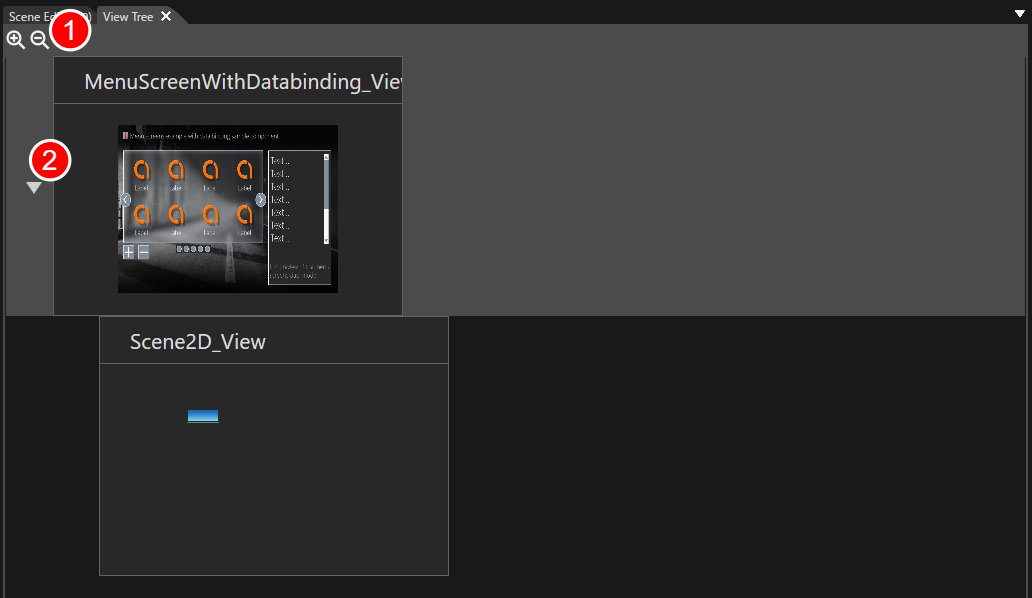
# View Tree
**View Tree** is the editor for arranging [**View**](https://doc316en.candera.eu/books/view-editor/page/view) in the solution as a tree and composing screen transition logic based on that structure. When you define transition relationships between Views on the tree, that information is exported as the **Global State Machine** at asset generation and becomes available as destination candidates for the [**JumpToView** action behavior](https://doc316en.candera.eu/link/582#bkmrk-jump-to-view).
When you set a parent–child relationship between Views, the child View is activated in sync when the parent View becomes active, allowing you to manage groups of screen elements that should always be shown together. In addition, by associating an Action Chain created in the [**Action Chain Editor**](https://doc316en.candera.eu/books/view-editor/page/action-chain-editor) with each View, you can define that View’s event logic and conditional transitions.
### View Tree panel UI
The **View Tree** panel is hidden by default. To show the panel, do either of the following:
- Select **View** > **View Editor** > **View Tree** from the toolbar menu.
- In **Solution Explorer**, double-click [an existing **View Tree**](#bkmrk-create-a-new-conditi).
| 1 | **Zoom icon** | Zooms the previews of Views in the View Tree. |
| 2 | **Expand/Collapse icon** | Appears when a View has child Views. Click to toggle the visibility of the child Views.
|
### Basic operations
#### Create a new View Tree
Follow these steps to create a new **View Tree**:
1. In **Solution Explorer**, open the context menu at the desired location.
2. Choose **Add > New Item**.
- The **Add New Item** dialog opens.
3. In the dialog’s left pane, select **View Tree**, then click **OK**.
- The value you enter in **Name** becomes the new View Tree’s name.
4. A new **View Tree** is created in **Solution Explorer**.
5. Double-click the newly created View Tree to launch the **Condition Editor**.
For the View Tree you created, you can use [the standard operations](https://doc316en.candera.eu/link/46#bkmrk-copy%2C-clone%2C-rename-) in **Solution Explorer** to **copy**, **duplicate**, **delete**, and **rename** it.
#### Place Views
Drag and drop Views that you have defined beforehand in the [**View Definition Editor**](https://doc316en.candera.eu/books/view-editor/page/view-definition-editor) onto the View Tree panel.
- Dropping onto a blank area of the View Tree panel places the Views side by side (as peers).
- Dropping onto an existing View places the dropped View as that View’s child.
When a parent–child relationship is set between Views, the child View’s event logic is activated in sync when the parent View becomes active.
#### Configuring in Action Chain Editor
For each View placed on the **View Tree**, you can configure its event logic in the [**Action Chain Editor**](https://doc316en.candera.eu/books/view-editor/page/action-chain-editor). You can launch the Action Chain Editor in either of the following ways:
- Double-click the View you want to configure.
- Select the View and choose **Open Action Chain Editor** from the context menu.
#### Exported as a Global State Machine
- The information you build on the View Tree (relationships between Views and their transition logic) is exported as a **Global State Machine** when assets are generated.
- The exported state machine is then executed on the engine side via [**JumpToView**](https://doc316en.candera.eu/link/582#bkmrk-jump-to-view)-related events/actions to control the actual screen transitions.