# JPEG Decoder Behavior
##### Feature Description
The JPEG Decoder behavior allows the user to decode JPEG images at runtime using the hardware decoder. This means that the pre-decoded bitmaps need not be included in the assets, reducing the overall asset size. JPEG images are compressed, making them smaller in size, and they can be decoded by supported platforms.
##### Supported Platforms
At present, the JPEG decoder is exclusively supported on the Infineon Traveo 2 platform.
##### Limitations
The JPEG Decoder Behavior currently has the following limitations.
- **Preloaded Images in the asset only:** The image must be part of the asset and cannot be dynamically supplied at runtime.
- Check the [JPEG Bitmap Converter](https://doc316en.candera.eu/books/target-setup-for-traveo2/page/jpeg-bitmap-converter) documentation for the supported pixel formats.
##### Enabling the JPEG Decoder feature
If the JPEG Decoder Behavior is being used, ensure that the JPEG Decoder feature has been enabled in the CMAKE options. While generating the project for target, turn on the CMAKE flag CGIDEVICE\_TRAVEO2\_JPEG\_DECODER\_ENABLED or add this flag to the toolchain file.
##### How to use the JPEG Decoder
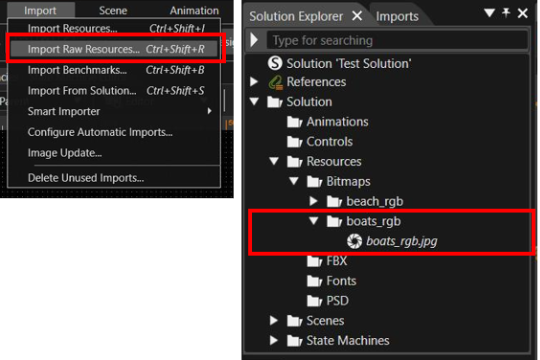
1. **Import the jpeg image as raw resource:** Using the import menu select “Import Raw Resources”. This ensures that the image is available in its original format for further processing
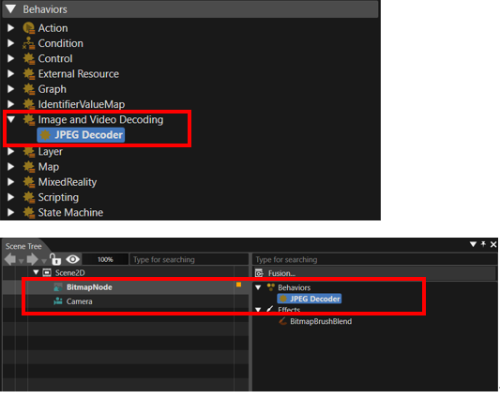
2. **Add the Bitmap node to the scene:** Add a bitmap node to a 2D scene.
3. **Add the Behavior to a Bitmap Node:** Place the JPEG Decoder behavior onto a Bitmap Node in the scene.
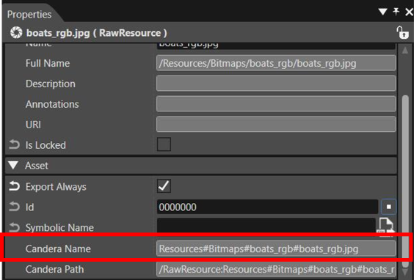
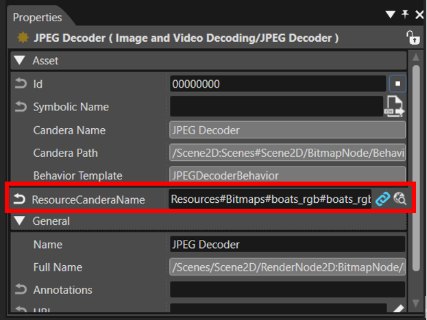
4. **Set the Resource Candera Name:** Paste the Candera Name of the raw JPEG image into the Resource Candera Name property using the steps below.
a. **Step 1:** Copy the Candera Name of the raw JPEG image from the Solution Explorer under the Asset properties of the JPEG resource.
b. **Step 2:** Paste the Candera Name into the ResourceCanderaName property of the JPEG Decoder Behavior in the Properties panel.