# Target setup for Nullws

This document describes the setup required to build and run CGI Studio applications with Nullws device package.  
It is explained how to run the Nullws target demo application part of the release package, how to setup the build environment and how to build own applications for Nullws.

# Nullws BSP

# Nullws:Prerequisites

#### Hardware: R-Car E3

CGI Studio has been tested on **R-Car E3** System Evaluation Board.

##### CMake

In order to build Candera, the Meta build system CMake needs to be installed with at least version mentioned <span style="color: rgb(230, 126, 35);">[here](https://doc316en.candera.eu/books/build-system-setup/page/prerequisites)</span>.  
CMake is able to create the cross compilation make files that can be used with GCC (cross-compile) compiler.

##### Linux Toolchain (BSP)

<div class="contents" id="bkmrk-linux-version-5.4.3-"><div class="contents"><div class="textblock">- Yocto Poky 3.1.11 provided by the customer was used to test this release .
- Image and SDK were prepared by the customer.
- The GCC compiler is not part of the delivery. It is contained in the SDK that has to be provided by the customer.
- Compiler/s used for this release is GCC (GNU 9.3.0).

</div></div></div><p class="callout info">SD Card image, SDK and cross-compiler/s are not part of the delivery and have to be provided by the customer.</p>

#### Hardware: R-Car V4H

CGI Studio has been tested on **R-Car V4H** System Evaluation Board.

##### CMake

In order to build Candera, the Meta build system CMake needs to be installed with at least version mentioned <span style="color: rgb(230, 126, 35);">[here](https://doc316en.candera.eu/books/build-system-setup/page/prerequisites)</span>.  
CMake is able to create the cross compilation make files that can be used with GCC (cross-compile) compiler.

##### Linux Toolchain (BSP)

<div class="contents" id="bkmrk-yocto-poky-3.1.11-pr"><div class="contents"><div class="textblock">- Yocto Poky 3.1.11 provided by the customer was used to test this release .
- Image and SDK were prepared by the customer.
- The GCC compiler is not part of the delivery. It is contained in the SDK that has to be provided by the customer.
- Compiler/s used for this release is GCC (GNU 9.4.0).

</div></div></div><p class="callout info">SD Card image, SDK and cross-compiler/s are not part of the delivery and have to be provided by the customer.</p>

# Running the CGI Player Demo Application on Nullws

Copy the application and the asset to the target. This can be done by copying the filed to the SD card containing the system, via ssh or with an USB flash drive.

#### Loading and running the application

Note that no other application that uses graphics hardware can be running when using the Player, the CourierSampleApp or the CitDemoApp.  
If your Yocto image is built with Weston or X you must shut these down before running the application.

Player can be run by using the command:

```
$ /PathToPlayer/Player /PathToAsset/AssetName.bin


```

<div class="contents" id="bkmrk-if-touch-input-handl"><div class="textblock"><div class="fragment">  
</div><dl class="note"><dt></dt><dd><p class="callout info">If touch input handling is enabled, touch devices must be assigned to seat so that display identifier matches seat number. For example, display-0 must be assigned to seat0. Refer to udev documentation for more information on how to assign devices to seats.</p>

</dd></dl></div></div>

# Building Own Application for Nullws

#### Generate Makefiles with CMake

For general information about CGI Studio Build System and CMake properties available to configure Candera applications refer to <span style="color: rgb(230, 126, 35);">[CGI Studio Build System](https://doc316en.candera.eu/books/build-system-setup/chapter/build-system-overview)</span>

To configure and generate makefiles for compiling the CGI Player, follow below steps:   
  
The first step for cross compiling is to make sure all the environment variables for the Yocto SDK are set!

<div class="contents" id="bkmrk-open-a-terminal.-set"><div class="contents"><div class="textblock">1. Open a terminal.
2. Set the environment. This step is mandatory. Omitting this step will cause building with the host systems compiler instead of cross compiling. ```
    $source /<path to the Yocto SDK installation>/environment-setup-<platform specific suffix e.g. aarch64-poky-linux> 


    ```
3. Important! From the same console with the set environment start the CMake GUI or run the CMake commandline. We will continue with the CMake GUI in this guide.
4. Point CMake to source directory 
    - Folder containing top-level "CMakeLists.txt", e.g. /cmake/Candera/Player <div class="image"><div drawio-diagram="2938"><img src="https://doc316en.candera.eu/uploads/images/drawio/2023-02/drawing-4-1677567539.png" alt=""/></div>

        
          
        </div>
5. Point CMake to binary directory 
    - May not exist, create folder with CMake if necessary
    - Root directory for generated makefiles / solutions
    - Root directory for build artifacts <div class="image"><div drawio-diagram="2939"><img src="https://doc316en.candera.eu/uploads/images/drawio/2023-02/drawing-4-1677567561.png" alt=""/></div>

        
          
        </div>
6. Configure 
    - Specify Unix Makefiles as generator for the project.
    - Specify tool-chain file for cross-compiling. <div class="image"><div drawio-diagram="2940"><img src="https://doc316en.candera.eu/uploads/images/drawio/2023-02/drawing-4-1677567581.png" alt=""/></div>
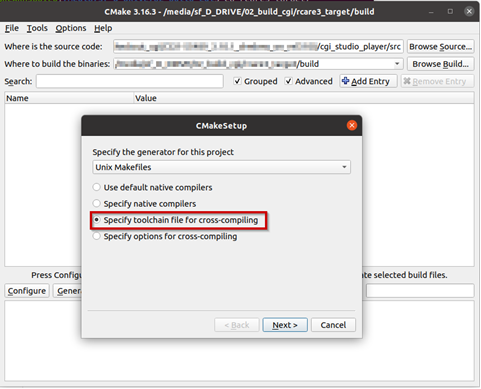
        
          
        </div>
7. Select the toolchain-file from the delivery (adapt for your toolchain installation and application specific needs)  
    cgi\_studio\_devices/src/DrmKms/ToolchainFiles/GCC-toolchain-&lt;platform&gt;-Nullws-Linux.txt
8. Adapt the CMake settings, if necessary, e.g.: 
    - CMAKE\_BUILD\_TYPE-&gt; Debug or Release.
    - Enable/disable features.
    - Press Configure.
9. Press Generate.

</div></div></div>#### Building Application

<div class="contents" id="bkmrk-make-sure-that-the-e"><div class="textblock"><dl class="note"><dd><p class="callout info">Make sure that the environment variables for the Yocto SDK are set in the terminal! Either reuse the terminal used to start CMake for building the Player or call the environment setup script again.</p>

</dd></dl></div></div>```
$source /<path to the Yocto SDK installation>/environment-setup-<platform specific suffix e.g. aarch64-poky-linux> 


```

<div class="contents" id="bkmrk-open-cmake-gui-and-c"><div class="textblock"><div class="fragment">  
</div>1. Open CMake GUI and configure the project (e.g Player, CourierSampleApp, CitDemoApp) according to Generate Makefiles with CMake.
2. After generating your cmake files, navigate to the specified build directory (binary directory created in CMake GUI) and type "make" to start the build or “make -j” to build with multithreading.   
    With some hypervisors, the Linux VM may get unresponsive when using the –j option. Reducing the number of used threads to the number of available cores improves the responsiveness of the VM during the build.

</div></div><div class="contents" id="bkmrk-for-couriersampleapp"><div class="textblock"><dl class="note"><dd><p class="callout info">For CourierSampleApp and CitDemoApp asset file must be created with a matching SCHost.dll as the SCHost.dll for the CourierSampleApp and CitDemoApp contain specialized Widgets.</p>

</dd></dl></div></div>