# Open Solution
#### Open an Existing Solution
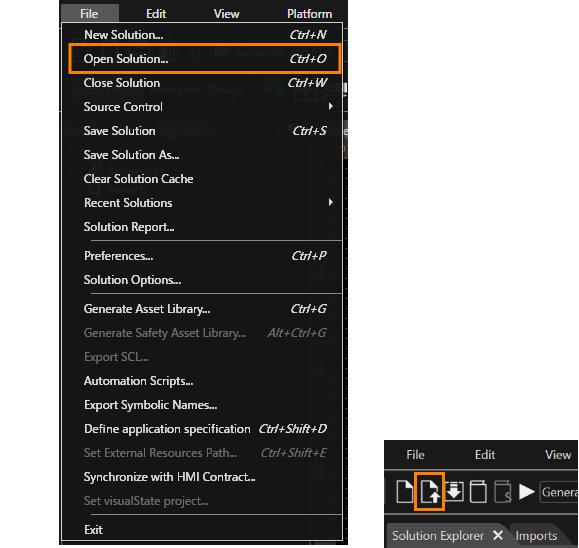
Open an existing solution via menu "File" > "Open Solution" or Toolbar item.
It is possible to open a solution in SceneComposer by dragging the .scs file on "Solution Explorer" or "Scene Tree" panels.
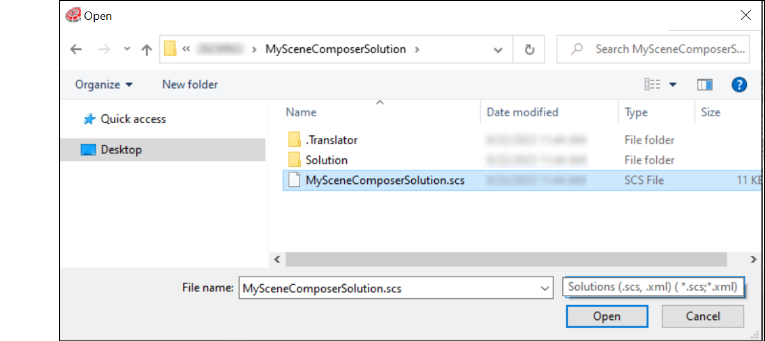
Select the .SCS file associated with the solution in the "Open" dialog.
---
#### Recent Solutions
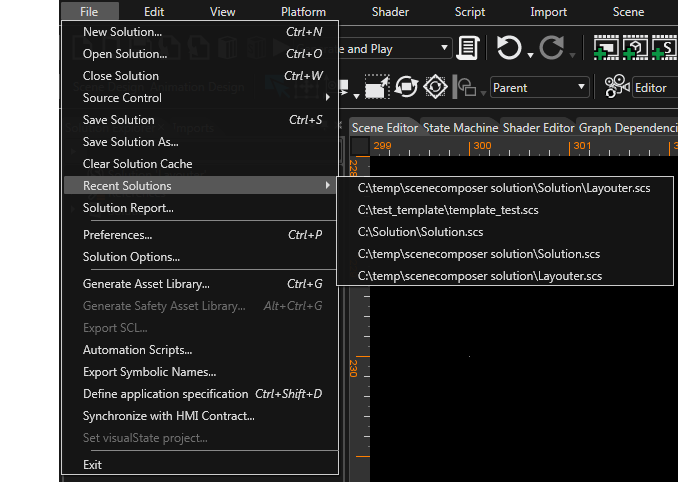
The "File" > "Recent Solutions" menu option contains the last five opened solutions with the most recent displayed first.
---
#### Convert a Solution
Since the format of binary asset files generated by SceneComposer differs from version to version, it is required to convert existing solutions for an upgrade to a new CGI Studio version.
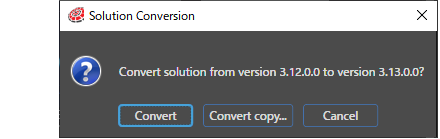
Open a solution to convert it into a new SceneComposer version. The "Solution Conversion" dialog will ask for confirmation before converting the solution:
Confirm the solution conversion by using the "Convert" option and the solution will be converted and placed in the same folder. After selecting the "Converted copy" option, the solution will be saved in a location chosen by the user.
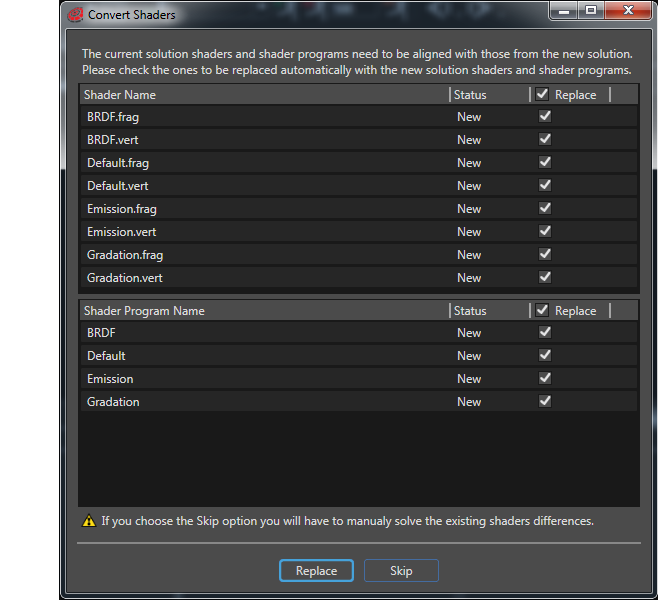
All the old solution shaders need to be aligned with the new solution shaders. The "Convert Shaders" dialog allows the user to choose if the shaders differences will be solved automatically - by using the "Replace" button - or manually - by using the "Skip" button. At the same time, the user has the possibility to select those old shaders - placed in the upper part of the panel - which has to be replaced with the new solution shaders and shader programs - placed in the lower part of the panel.
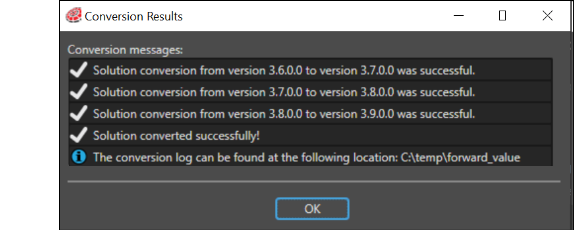
Finally, a message dialog with the result of the conversion is displayed:
If the conversion process encountered some errors, they will be displayed in the "Errors" section of the "Conversion Results" dialog.
**Additional outputs:**
- A conversion log file, named "ConversionLogFile.txt", can be found in the solution folder.
- An archived file named like the solution and the conversion date is created. It can be found in the solution folder and contains the original solution before the conversion.