# New Solution Wizard

When a new Solution is created as shown in the <span style="color: rgb(230, 126, 35);">[previous step](https://doc316en.candera.eu/books/solution-handling/page/new-solution)</span>, it is possible to use the New Solution Wizard. Here, important parts of the solution can be configured:

<div class="contents" id="bkmrk-set-dimension%2C-resol"><div class="contents"><div class="textblock">- Mange the Data binding source.
- Manage the import of .fbx files.
- Manage the import images.

</div></div></div>After clicking "Finish", the solution will be created with a configured Data binding source, including the imported .fbx and image files.

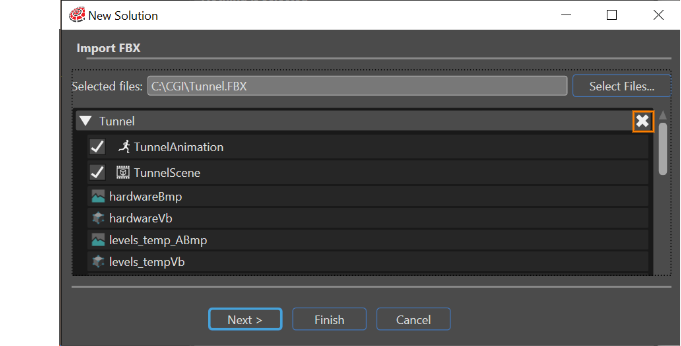
<p class="callout info">In the ImportView of the "New Solution Wizard", it is possible to delete selected items before they are imported.</p>

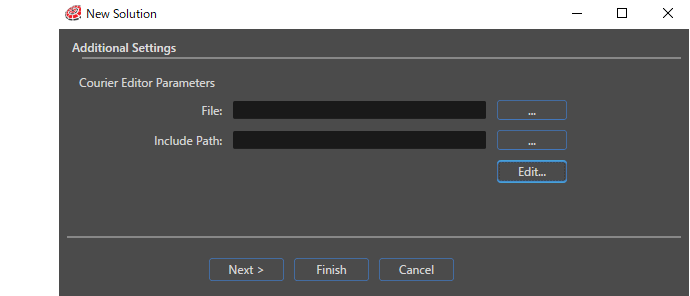
<div class="contents" id="bkmrk-"></div>##### Additional settings

Set the Data binding sources and Include Path to be included in the new solution.

<div drawio-diagram="7139"><img src="https://doc316en.candera.eu/uploads/images/drawio/2024-10/drawing-7-1729757184.png" alt=""/></div>

<p class="callout info">\[File\] is set to the Data binding source that is prepared in advance in CGI Studio Scene Composer. You can also set any file.</p>

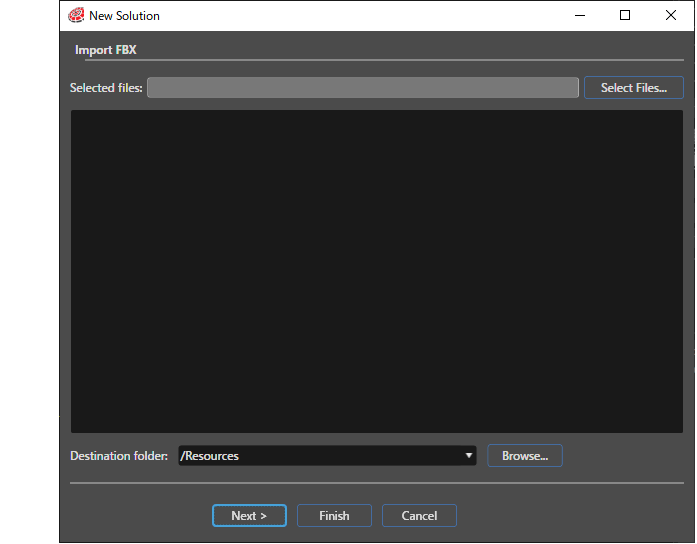
##### Import FBX

Set the FBX file to import when creating a new solution.
<div drawio-diagram="3949"><img src="https://doc316en.candera.eu/uploads/images/drawio/2023-06/drawing-4-1687932145.png" alt=""/></div>

Use the \[Remove from Import\] button to remove the FBX file to be imported.

<div drawio-diagram="7190"><img src="https://doc316en.candera.eu/uploads/images/drawio/2024-10/drawing-7-1730098215.png" alt=""/></div>

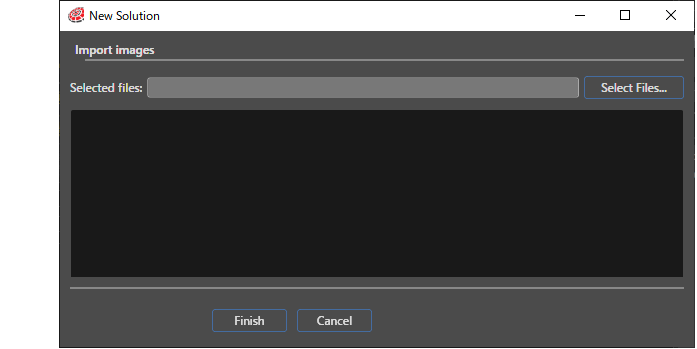
##### Import images

<div class="textblock" id="bkmrk--3"></div><div class="textblock" id="bkmrk-%22new-solution%22---imp-0">Sets the image file to import when creating a new solution.</div><div drawio-diagram="3952"><img src="https://doc316en.candera.eu/uploads/images/drawio/2023-06/drawing-4-1687932433.png" alt=""/></div>

<div class="contents" id="bkmrk--5"><div class="contents">  
</div></div><div class="contents" id="bkmrk--7"><div class="contents">  
</div></div>It is possible to cancel the creation of a new solution at any moment by using the "Cancel" button. There is the possibility to finish the process of creating a new solution with the Wizard at any step by hitting the "Finish" button. If this option is chosen, it will be necessary to do all the successive configuration and importing manually.

Please note that if the name of a file to be imported contains characters that cannot be used in Scene Composer, an alert message will be displayed and the import operation cannot be performed. For more information on character strings that can be used, please refer to "<span style="color: rgb(230, 126, 35);">[SceneComposer Names Validation Rules](https://doc316en.candera.eu/link/8#bkmrk-scenecomposer-names-)</span>".