# Including Solution Items in Scene Explorer
#### Creation
Solution items can be added in the Scene Explorer via copy-paste or drag-and-drop.
The image below exemplify the adding (by drag-and-drop) the Text Control into the Solution Explorer:
When the solution items are copied in Scene Explorer the class is copied, not the instance.
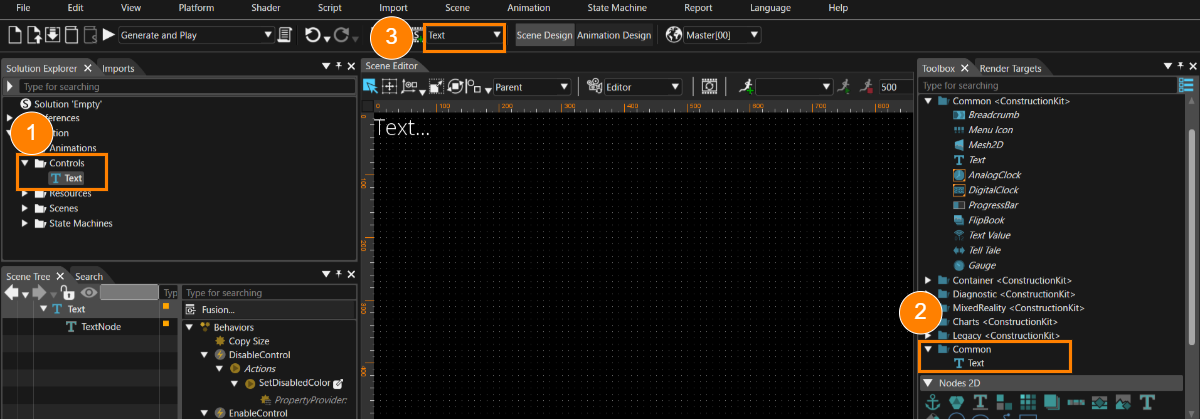
After adding the solution item (Text control, in our case) in the Solution Explorer the newly created copy is shown in the destination folder (1) from Solution Explorer and also in the Controls panel in the Category *Common* (2). Also, in the case of the controls and behavior building blocks, the solution item becomes active (3) and its content is shown in the Scene Tree.
Following solutions items support this feature:
#### Usage
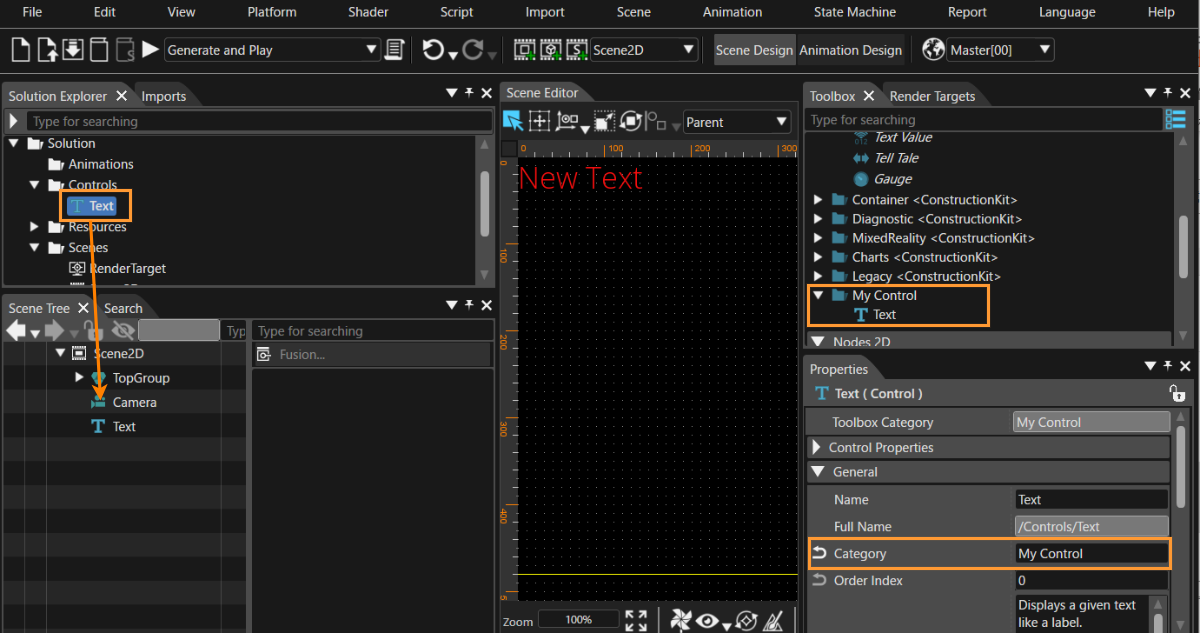
Once the solution item is copied in the Solution Explorer it can be edited and then instantiated in the Scene Tree. As exemplification, the *Category* property was changed to "MyControls" and the control TextNode2D properties were changed to show a different text and color: