# Create a New Scene

#### <a class="anchor" id="bkmrk--15"></a>Create a New Scene

There are several options how to create a scene:

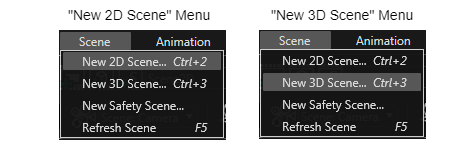
Use the menu item "New Scene" from the "Scene" menu:

<div drawio-diagram="607"><img src="https://doc316en.candera.eu/uploads/images/drawio/2023-02/drawing-4-1676364261.png" alt=""/></div>

<div class="contents" id="bkmrk--0"><div class="contents"><div class="textblock">  
</div></div></div>Use the toolbar button "Add a new scene":

<div drawio-diagram="5998"><img src="https://doc316en.candera.eu/uploads/images/drawio/2024-06/drawing-5-1717746216.png" alt=""/></div>

<div class="contents" id="bkmrk--2"></div>Add a new scene via shortcut:   
&gt; Use "Ctrl+2" for a new 2D scene.   
&gt; Use "Ctrl+3" for a new 3D scene.

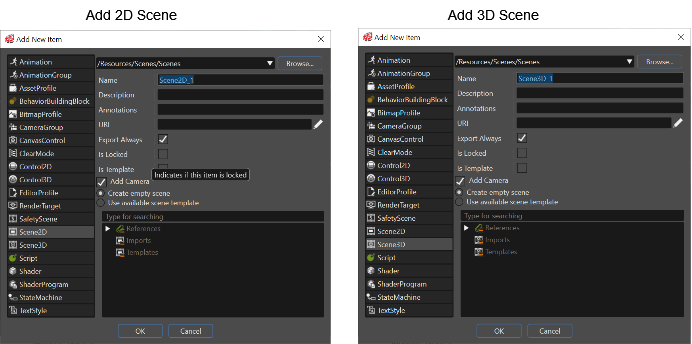
Left click in the Solution Explorer and use the context menu: Select "Add" &gt; "New Item".

<div drawio-diagram="5999"><img src="https://doc316en.candera.eu/uploads/images/drawio/2024-06/drawing-5-1717746350.png" alt=""/></div>

<div class="contents" id="bkmrk--4"><div class="contents"><div class="textblock">  
</div></div></div>---

#### <a class="anchor" id="bkmrk--19"></a>Scene Templates

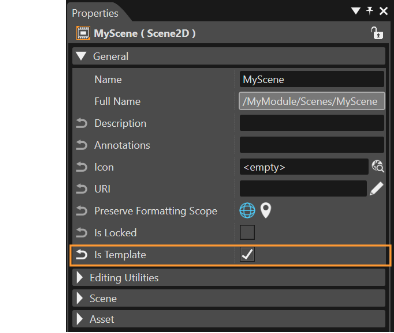
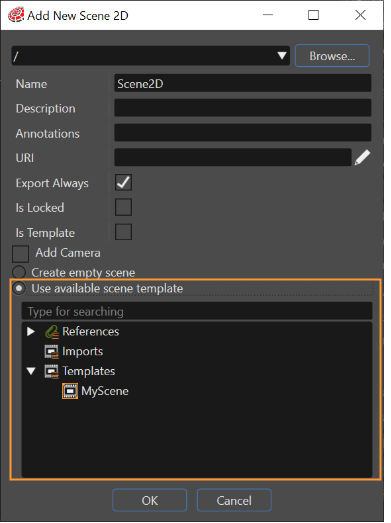
Scene templates are supported in SceneComposer. A scene created by the user can be made template by checking its IsTemplate property. This property is available as a check-box in the Properties panel. The dialogue used to create new scenes allows the user to select an existing template or import.

<div drawio-diagram="6003"><img src="https://doc316en.candera.eu/uploads/images/drawio/2024-06/drawing-5-1717746711.png" alt=""/></div>

<div class="contents" id="bkmrk--7"><div class="contents"><div class="textblock">  
</div></div></div>The dialogue used to create new scenes allows the user to select an existing template or import. If there are many scenes - 2D or 3D - created as templates, any of them can be selected and used as a template.

<div drawio-diagram="6004"><img src="https://doc316en.candera.eu/uploads/images/drawio/2024-06/drawing-5-1717746798.png" alt=""/></div>

<div class="contents" id="bkmrk--9"><div class="contents"><div class="textblock">  
</div></div></div>If necessary, it is possible to save a new perspective layout, which will be based on the current perspective. Also the possibility to delete a perspective was added.

##### <a class="anchor" id="bkmrk--22"></a>Scene Properties

Following properties must be specified for a new Scene:

<div class="contents" id="bkmrk-%22location%22%3A-the-fold"><div class="contents"><div class="textblock">- **"Location":** The folder which will contain the new scene within the solution.
- **"Name":** Scene name
- **"Export Always":** If this option is ticked, the scene will always be exported to the asset during asset generation.

</div></div></div>These properties can be modified in the Properties panel, when the scene is selected in the Solution Explorer or in the Scene Tree.

##### <a class="anchor" id="bkmrk--23"></a>Create a Scene from Template

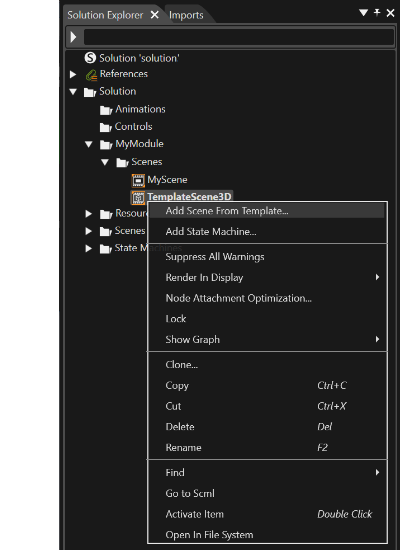
A new **3D Scene** can also be created from template via the "Add Scene From Template" context menu of the imported scene from the "Imports" panel or in the Solution Explorer:

<div drawio-diagram="6008"><img src="https://doc316en.candera.eu/uploads/images/drawio/2024-06/drawing-5-1717747033.png" alt=""/></div>

<div class="contents" id="bkmrk--11"><div class="contents"><div class="textblock">  
</div></div></div>A new scene named after the template scene is created, which can be edited as a user-defined scene.

---

#### <a class="anchor" id="bkmrk--25"></a>Scenes List

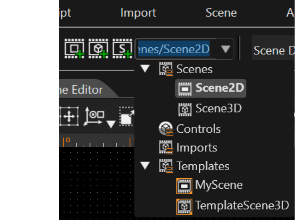
All the scenes part of a solution are listed in the Scenes List.

<div drawio-diagram="6009"><img src="https://doc316en.candera.eu/uploads/images/drawio/2024-06/drawing-5-1717749257.png" alt=""/></div>

<div class="contents" id="bkmrk--14"><div class="contents"><div class="textblock">  
</div></div></div>Select a scene from this list to open the scene in the Scene Editor.

<div class="contents" id="bkmrk-template-scenes-are-"><div class="textblock">- Template scenes are listed in the Imports category
- And user defined scenes in the Scenes category.

</div></div><div class="contents" id="bkmrk-only-user-defined-sc"><div class="textblock"><dl class="note"><dd><p class="callout info">Only user-defined scenes can be edited in SceneComposer.</p>

</dd></dl></div></div>