#### Scoping: Concept
The scope concept supplies selects only specific parts of the scene graph for rendering, depending on the specific situation.
- Scope forms conceptual groups independent of the scene graph.
- Node part of the scene tree can be assigned to several scopes.
Scopes are logical entities defined as bit fields, whereby each scope corresponds to a bit field. The set of scopes associated to a node is called scope mask. By default, the scope mask of all nodes including cameras contains all of the 32 scopes.
#### Scoping: Use Cases
The scope concept is used for:
- Light culling: Only objects part of the scope of a given light will be illuminated
- Visibility culling: Only objects part of the scope of a given camera will be rendered
#### Scope Mask
This option "Show scope mask in hexadecimal format" is available in the Preferences dialog opened from "File" > "Preferences" menu, section Editor.
It ensures that the values for Scope property will be displayed in hex in the Properties panel.
# Manage Scopes in Scopes Panel
#### Scopes Panel
The Scopes Panel (enable from menu "View" > "Libraries" > "Scopes") displays all 32 scopes with default scope names.
#### Rename a Scope
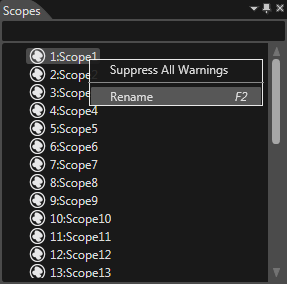
Rename a scope by selecting the option Rename of the context menu in Scopes panel:
#### Assign Single Scope to a Node
Assign a single scope to the scope mask of a node by dragging the scope from the Scopes panel and dropping it over the desired node.
The valid scope is highlighted.
# Edit Scope Mask of a Node
#### Scope Mask of a Node in the Properties Panel
By default, the scope mask of a node contains all 32 scopes available. This can be inspected in:
- Properties Panel, on the item property "Scope Mask"
- Scopes Panel, since all scopes valid for the currently selected node are highlighted.
#### Select specific Scopes for a Node
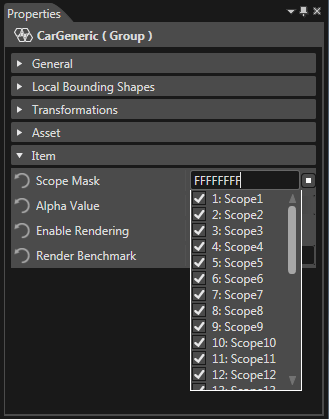
Modify the scope mask of a node from the Properties panel by checking or unchecking the desired scopes from the Scope Mask combo box.
#### Select or Deselect all Scopes for a Node
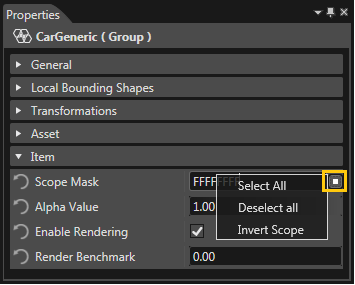
Select all/Deselect all scopes from Properties panel.
#### Invert a Scope Mask
Invert Scope option will perform a bitwise NOT operation on the bits of the selected scope mask.
#### Apply Node Scope on Children
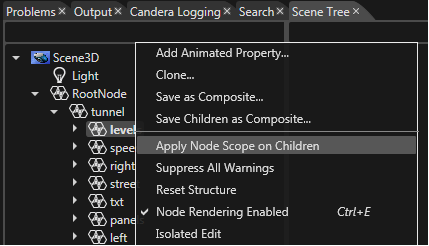
Apply a node scope mask on all children of the node by using the "Apply Node Scope on Children" option from the context menu.