# Properties Panel - Favorites
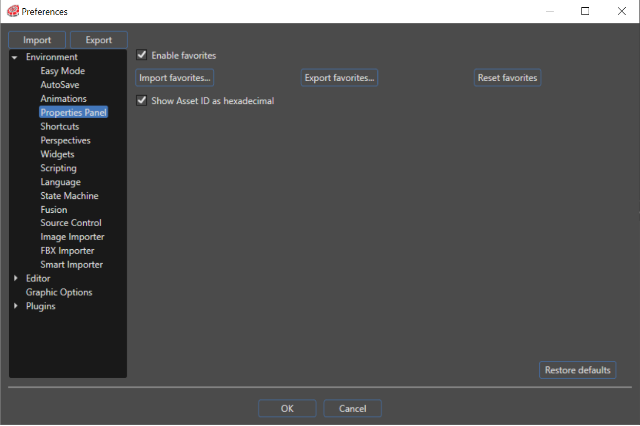
#### Enable favorites
You can save any property as a favorite property.
##### Add / Remove Properties to Favorites
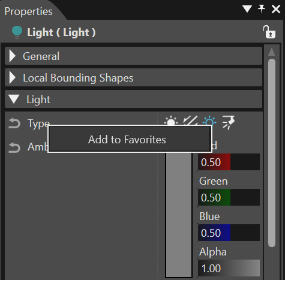
Any property can be saved as a favorite property just by right-clicking on it, after the favorites are enabled. A "Favorites" category will appear in the Properties, where you can see all the selected favorite properties.
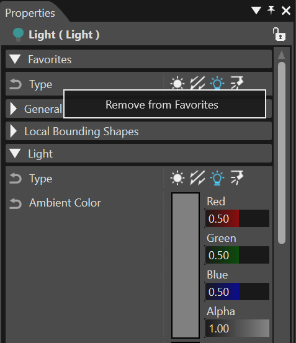
Right click on a property in the "Favorites" category and select "Remove from Favorites" in the context menu to remove a single one.
#### Import favorities... / Export favorities...
Use "Export favorites..." in the "Environment - Property" section for saving all the selected favorite properties on a chosen location (as an .XML document). Any exported .XML favorites document could be imported by using the "Import favorites..." button from the "Environment - Properties panel" section.
#### Reset favorites
The "Reset favorites" button in the "Environment - Properties" panel section allows to reset all the available favorite properties.
#### Show Asset ID as hexadecimal
If enabled, Asset IDs (ID property in the Assets section of the Properties panel) are displayed in hexadecimal, if disabled they are displayed in decimal.
---