# Graphic Options
# Anti-Aliasing
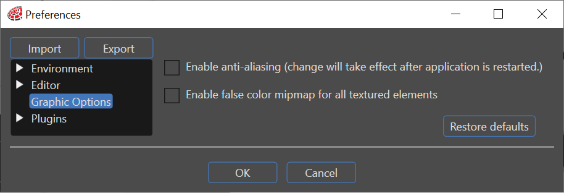
#### Enable anti-aliasing
Enables anti-aliasing effect.
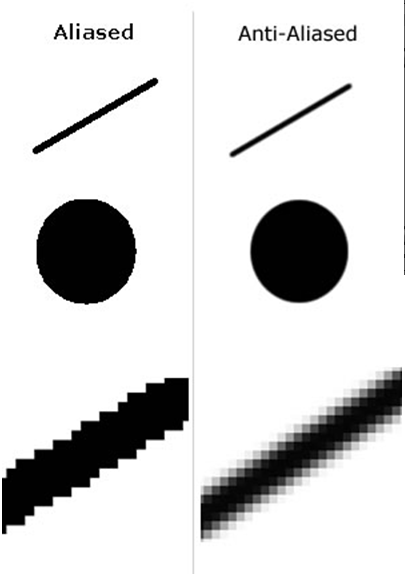
Anti Aliasing is a technique of adjusting pixel positions or setting pixel intensities so that there is a more gradual transition between the color of a line and the background color in order to give a smoother appearance of the object. The image bellow illustrates the Antialiasing effect on an object.
The changing of the anti aliasing will only take effect after the application is restarted.
---
# False Color Mipmap
#### Enable false color mipmap for all textured elements
Enables the False Color MipMap feature.
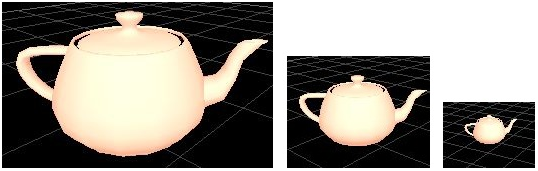
Mipmapping is a texturing technique for reducing artifacts caused by mapping a large texture onto a small area in screen space. It is accomplished by creating pre-downsized versions of the texture. A mipmap level is a single downsized version of the original texture, at some resolution.
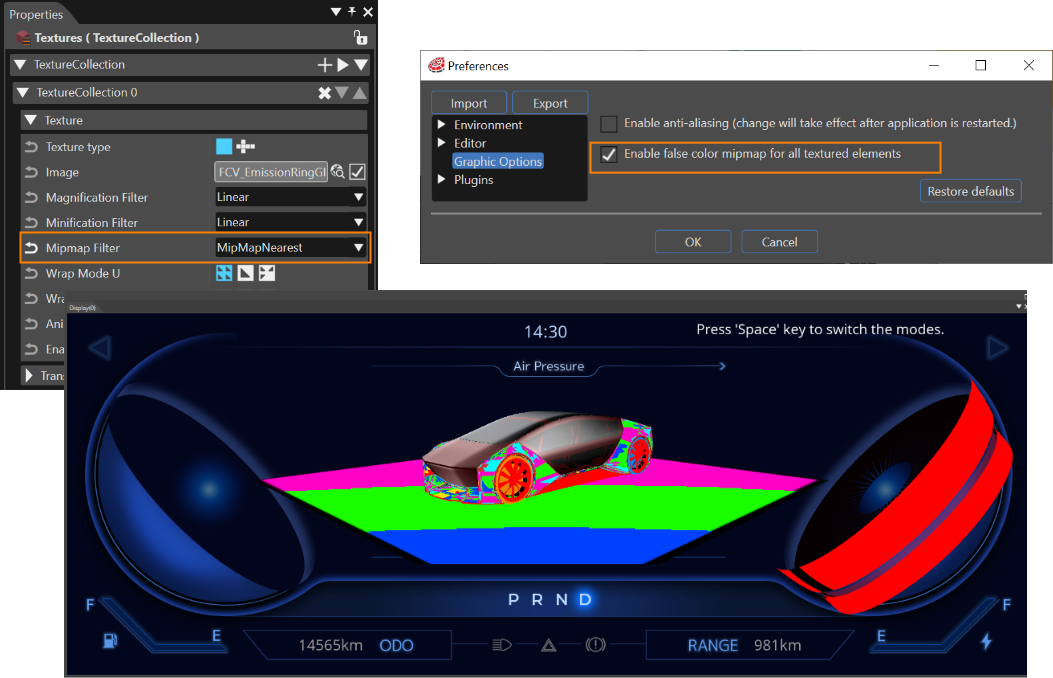
In the false-color mipmap technique each mip level has a different contrasting color. This can be seen in the image bellow:
The textures of the ground surface and the car's exterior are configured with Mipmap Filter "MipMapNearest". "False color mipmap" is enabled in the Preferences window. False color mapmap visualizes different mipmap levels by different colors in Scene Editor panel as well as in the display view.
---