# Value Generator

This feature provides the possibility to simulate the change of values on view elements. With this, view elements can be simulated without logic implementation.

#### <a class="anchor" id="bkmrk--6"></a>Selecting a property to simulate

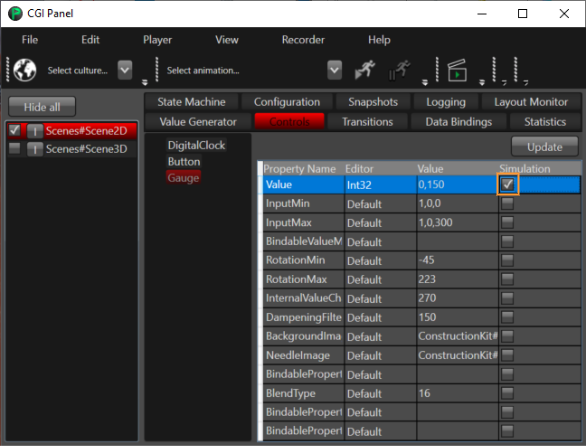
In the CGI Panel, select a scene and click on the Controls tab. This will display all controls and their properties.   
Checking the Simulation checkbox of a property will create a simulation entry inside the Value Generator tab.   
The Editor column defines the type for the property. Based on the Editor, the simulated value will be calculated.

<div drawio-diagram="7788"><img src="https://doc316en.candera.eu/uploads/images/drawio/2025-01/drawing-4-1736921957.png" alt=""/></div>

<div class="contents" id="bkmrk--0"><div class="contents">  
</div></div>#### <a class="anchor" id="bkmrk--8"></a>Modifying simulation properties (of a selected property)

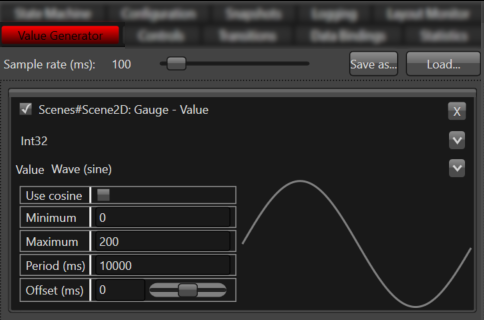
The properties which have been selected in the Controls tab, are created in the Value Generator tab.

<div class="contents" id="bkmrk-the-value-generator-"><div class="contents"><div class="contents"><div class="textblock">- The Value Generator tab contains general configurations, serialization and the configuration of all simulated properties.  
    <div drawio-diagram="7789"><img src="https://doc316en.candera.eu/uploads/images/drawio/2025-01/drawing-4-1736921998.png" alt=""/></div>


    - The **Sample Rate** defines the update rate of the simulated properties. This sample rate is applied to all simulated property entries.
    - Each simulated property entry has a predefined set of configurations.   
          
        
        - **Data type**   
            The simulation supports different datatypes. This includes double, float, all int types and special datatypes like size/coordinates and color.  
            If default editor is selected, it will try to guess the datatype based on the property name. Each value of a complex datatype can be set individually.  
              
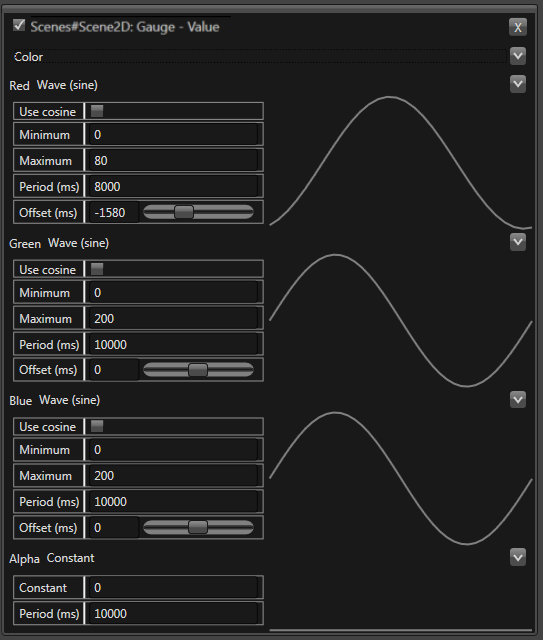
            The sample below simulates a color:  
            <div drawio-diagram="7790"><img src="https://doc316en.candera.eu/uploads/images/drawio/2025-01/drawing-4-1736922036.png" alt=""/></div>
        - **Value Simulation**   
              
            This represents the simulation algorithm that will be used to calculate the value.   
            The following list shows the different graph types and and some variants when modifying its configurations.  
              
            
            1. **Constant (Updates the value with the same value)**
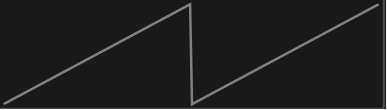
            2. ****Saw Wave**** <div drawio-diagram="3450"><img src="https://doc316en.candera.eu/uploads/images/drawio/2023-04/drawing-4-1682661015.png" alt=""/></div>
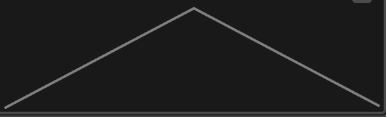
            3. ****Triangle**** <div drawio-diagram="3451"><img src="https://doc316en.candera.eu/uploads/images/drawio/2023-04/drawing-4-1682661027.png" alt=""/></div>
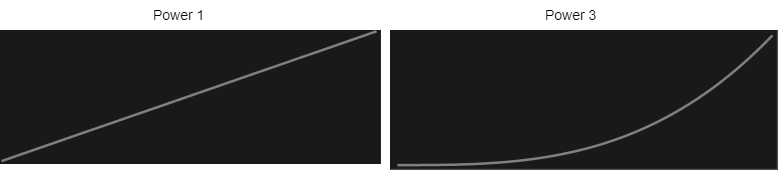
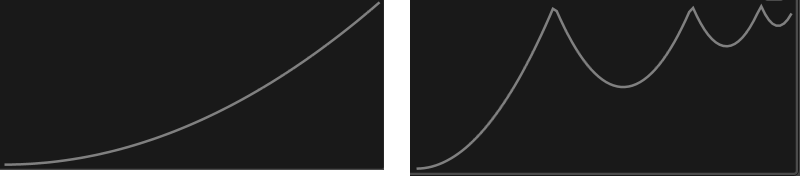
            4. ******Power (Power of 1 - linear, Power of 3)****** <div drawio-diagram="3452"><img src="https://doc316en.candera.eu/uploads/images/drawio/2023-04/drawing-4-1682661058.png" alt=""/></div>
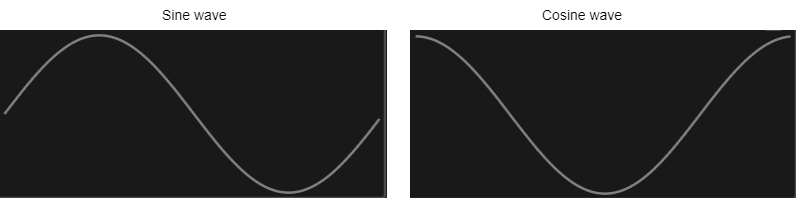
            5. ******Sine Wave (Sine, Cosine)****** <div drawio-diagram="3454"><img src="https://doc316en.candera.eu/uploads/images/drawio/2023-04/drawing-4-1682661103.png" alt=""/></div>
            6. **Random (No Visualization available)**
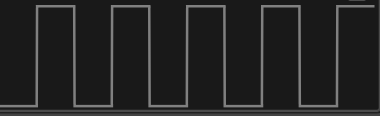
            7. ****Toggle (Toggles between 0 and 1)**** <div drawio-diagram="3455"><img src="https://doc316en.candera.eu/uploads/images/drawio/2023-04/drawing-4-1682661143.png" alt=""/></div>
            8. ****Bounce (Bounces 0, Bounciness 0.5; Bounces 3, Bounciness 0.20)**** <div drawio-diagram="1710"><img src="https://doc316en.candera.eu/uploads/images/drawio/2023-02/drawing-4-1676616314.png" alt=""/></div>
        - **Minimum and Maximum range**   
              
            The minimum and maximum range of values.
        - **Period and Offset (ms)**   
              
            The x value into the function is shifted by the offset. It shifts the graph, therefore the output value is also shifted. However, currently, offset is only supported in Sine wave. (limitation)
</div></div></div></div>#### <a class="anchor" id="bkmrk--17"></a>Starting the Value Generator simulation

Pressing the clapperboard icon will start and stop the simulation.

<div drawio-diagram="5321"><img src="https://doc316en.candera.eu/uploads/images/drawio/2024-02/drawing-5-1708689850.png" alt=""/></div>

<div class="contents" id="bkmrk--13"><div class="contents"><div class="textblock">  
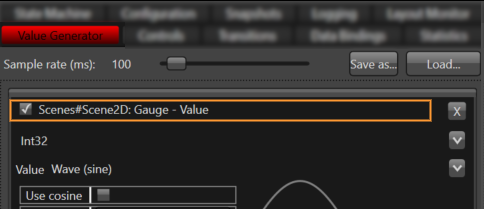
</div></div></div>The simulation of a single property can be paused by the checkbox next to the property name.   
It can be completely removed by pressing the X button on the right side of the name.

<div drawio-diagram="7791"><img src="https://doc316en.candera.eu/uploads/images/drawio/2025-01/drawing-4-1736922074.png" alt=""/></div>

#### <a class="anchor" id="bkmrk--20"></a>Serialization

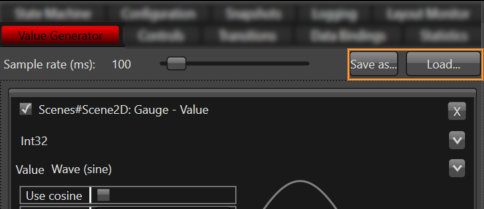
The simulation configuration can be saved as an xml file and loaded again.   
It is possible to load a simulation file when loading an asset.

<div drawio-diagram="7792"><img src="https://doc316en.candera.eu/uploads/images/drawio/2025-01/drawing-4-1736922098.png" alt=""/></div>

<div class="contents" id="bkmrk--23"><div class="contents"><div class="textblock">  
</div></div></div>It can also be loaded at Panel startup by using the command line:   
`--sim <filename>`   
In this case, the simulation will be directly started.