# The example file of Figma
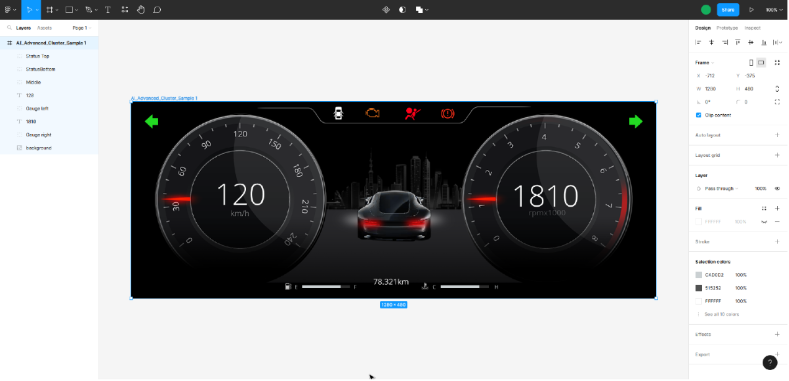
This section describes how to use the instrument cluster as a Figma design file example. The example file is stored in the following location.
**<root>/cgi\_studio\_content/2D/Figma/AI\_Cluster\_Sample.fig**
Due to technical limitations, Figma design files cannot be opened directly in CGI Studio. For this reason, the first step is to import them into your personal Figma account.
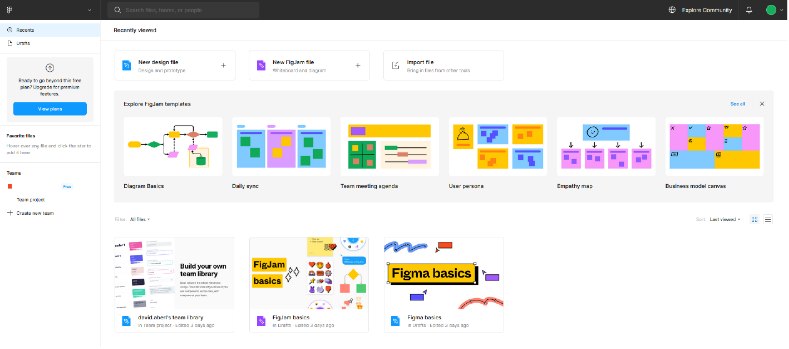
1. Log-in your Figma account.
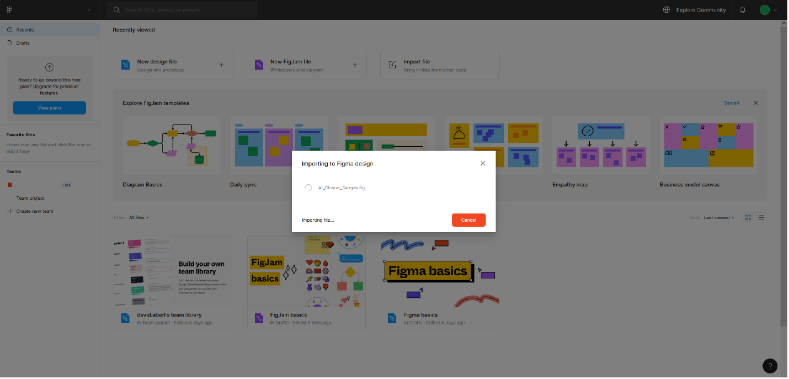
2. In your Figma account, click on "Import Files" and load the ***AI\_Cluster\_Sample.fig*** file.
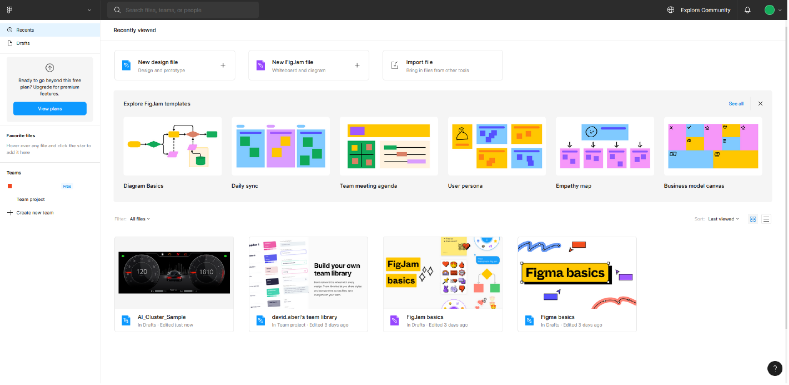
3. The ***AI\_Cluster\_Sample.fig*** will be uploaded to your account.
4. After uploading, you will see AI\_Cluster\_Sample in the file.
To import this sample file using the Smart Importer, select the Import from Cloud option from the menu and follow the settings. See [Figma](https://doc316en.candera.eu/books/import-of-resources/page/figma) for import instructions.