# Import Raw Resources
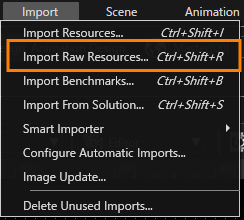
You can import any type of raw resource by selecting \[ Import > Import Raw Resources... \] from the menu bar.
It is possible to import raw resources in SceneComposer by dragging them on "Solution Explorer" panel.
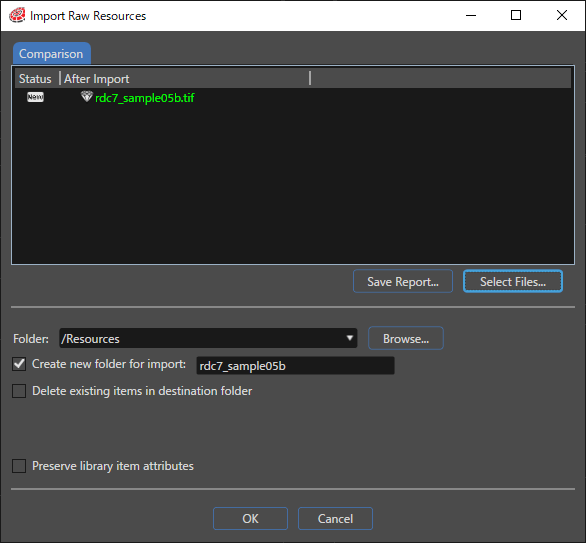
In the "Import" dialog click the "Select Files..." button and select one or more raw resources to import in the "Open" File dialog.
For a description of the checkboxes, refer to [Import Dialog Options](https://doc316en.candera.eu/books/import-of-resources/page/import-dialog-options "Import Dialog Options").
Compare new content with already imported resources by right-clicking on a raw resource, to open the "Compare Properties" dialog.
---
#### Problems: Import Conflicts
In the "Problems" panel, potential import conflicts are listed.
Import conflicts might appear if a raw resource has been imported and already used previously. A conflict will occur when new raw resources are imported in the same folder and the "Delete existing items in destination folder" is checked.
The content of this tab can be saved in CSV (Comma Separated Values) format by clicking the "Save Report..." button. A "Save As" file dialog appears which allows selecting the name and the location of the CSV file.