# Import from Solution

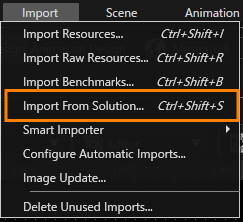
A powerful option to import different elements from a specific solution previous created in SceneComposer is "Import from Solution". This option can be accessed from Import menu.

<div drawio-diagram="5614"><img src="https://doc316en.candera.eu/uploads/images/drawio/2024-04/drawing-7-1713514370.png" alt=""/></div>

<div class="contents" id="bkmrk--0"><div class="contents"><div class="textblock">  
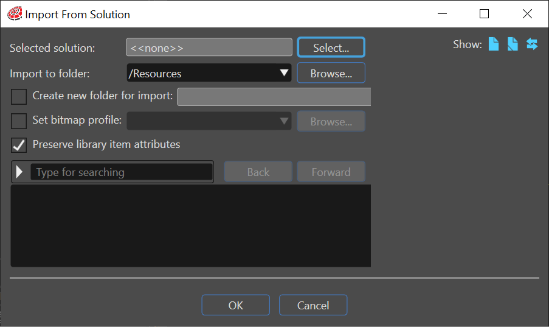
</div></div></div>The "Import from Solution" panel gives the possibility to follow a succession of three logical steps in order to import specific elements from a chosen solution.

<div drawio-diagram="5993"><img src="https://doc316en.candera.eu/uploads/images/drawio/2024-06/drawing-5-1717743135.png" alt=""/></div>

---

#### <a class="anchor" id="bkmrk--17"></a>Using the "Import from Solution"

The first step consists in selecting a desired solution from which the user needs to import some elements.   
Choose an existed folder were the desired elements from a selected solution will be imported or create a new folder for import   
Select some specific elements from a selected solution.   
Import the selected elements.

<div drawio-diagram="5994"><img src="https://doc316en.candera.eu/uploads/images/drawio/2024-06/drawing-5-1717743555.png" alt=""/></div>

<div class="contents" id="bkmrk--4"><div class="contents"><div class="textblock">  
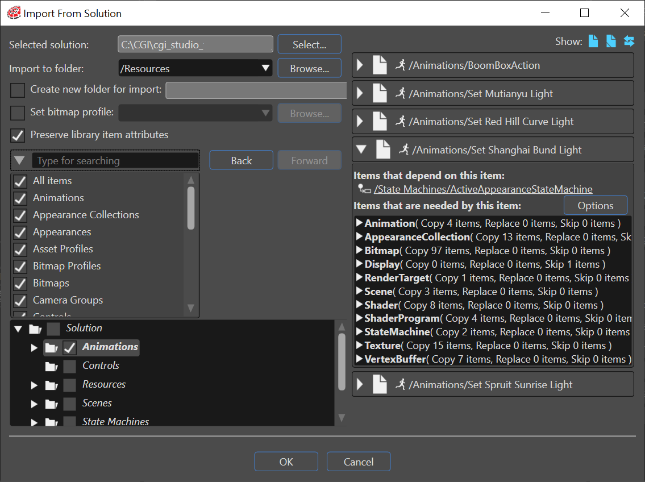
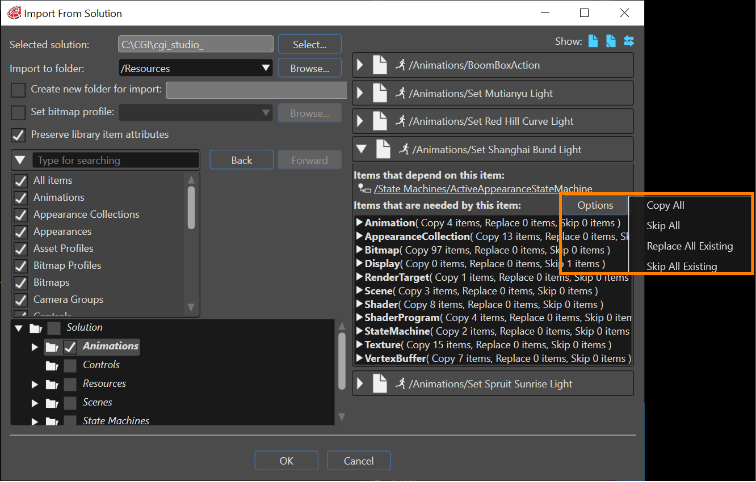
</div></div></div>If for a selected element there are dependent items, a special Options button will become available. This button is placed above the right side of the screen where all items are shown.

Four different options are available:

<div class="contents" id="bkmrk-copy-all-skip-all-re"><div class="contents"><div class="contents"><div class="textblock">- Copy all
- Skip all
- Replace all existing
- Skip all existing

</div></div></div></div><div drawio-diagram="5996"><img src="https://doc316en.candera.eu/uploads/images/drawio/2024-06/drawing-5-1717743743.png" alt=""/></div>

<div class="contents" id="bkmrk--6"><div class="contents"><div class="textblock">  
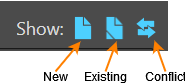
</div></div></div>For every category of imported items it is possible to see their relationship with existing imported items: New, Existing and Conflict.

<div drawio-diagram="5997"><img src="https://doc316en.candera.eu/uploads/images/drawio/2024-06/drawing-5-1717743930.png" alt=""/></div>

<div class="contents" id="bkmrk--8"><div class="contents"><div class="textblock">  
</div></div></div>By selecting one or many from these "Show" options, the user can see the new items, the existing items or the conflicts between new imported items and previous imported items. If there are different existing (\\=) items, another "Existing" button will become available. By using it a "CompareImportItemsView" dialog will be opened to show the existing items.

<div drawio-diagram="4340"><img src="https://doc316en.candera.eu/uploads/images/drawio/2023-09/drawing-4-1695692624.png" alt=""/></div>

<div class="contents" id="bkmrk--10"><div class="contents"><div class="textblock">  
</div></div></div>The "Show only differences" button allows the user to see just the differences between selected items. The comparison can be used in different modes. For instance, if the imported items are shaders, they can be seen in three different modes: Objects, Visual and Text.

<div class="contents" id="bkmrk-%22show-only-differenc"><div class="contents"><div class="textblock"><table border="0" style="width: 46.1728%;"><tbody><tr valign="middle"><td style="width: 16.3684%;">[![03_import_solution_7a.PNG](https://doc316en.candera.eu/uploads/images/gallery/2023-02/scaled-1680-/03-import-solution-7a.PNG)](https://doc316en.candera.eu/uploads/images/gallery/2023-02/03-import-solution-7a.PNG)

</td><td style="width: 83.6358%;">"Show only differences" button</td></tr><tr valign="middle"><td style="width: 16.3684%;">[![03_import_solution_7b.PNG](https://doc316en.candera.eu/uploads/images/gallery/2023-02/scaled-1680-/03-import-solution-7b.PNG)](https://doc316en.candera.eu/uploads/images/gallery/2023-02/03-import-solution-7b.PNG)

</td><td style="width: 83.6358%;">"Conflict" button</td></tr></tbody></table>

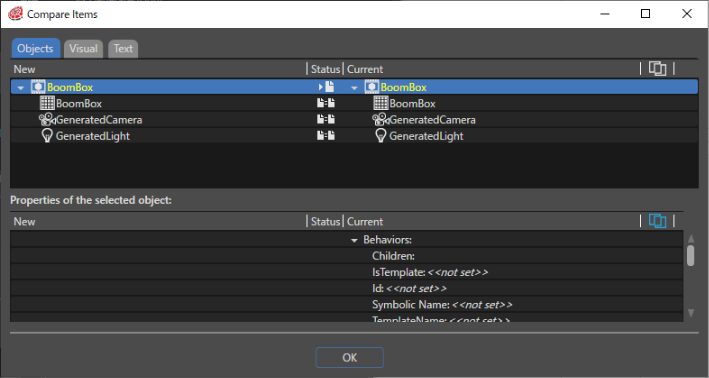
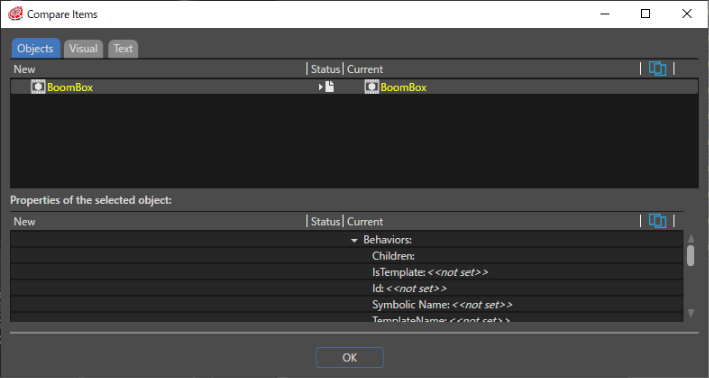
</div></div></div>If there are conflicts between items a "Conflict" button will become availI waable. By pressing it the "Compare Items" dialog will be opened and all the existing conflicts will be shown.

<div drawio-diagram="4341"><img src="https://doc316en.candera.eu/uploads/images/drawio/2023-09/drawing-4-1695692686.png" alt=""/></div>

<div class="contents" id="bkmrk--12"><div class="contents"><div class="textblock">  
</div></div></div>The status' signs show the nature of every conflict. If the "Show only differences" button is pressed, the dialogue will only show the conflicts. If the button is released, all the items will be shown. If a conflict is selected, all the properties and their differences will be shown.

<div class="contents" id="bkmrk--14"><div class="textblock">  
</div></div>