# Adobe XD Importing

#### <a class="anchor" id="bkmrk--22"></a>Description

In this section, explain about Adobe XD file format, its layer structure and naming part and the importing example by using the concrete sample file.

---

#### <a class="anchor" id="bkmrk--24"></a>Layer Structure and Naming Guideline

As same as PSD file format, the SmartImporter's AI will analyze imported files to detect/propose and create Controls for the solution. Thus, again recommended to keep Adobe XD layer format close to the standard Controls in Scene Composer. That naming guideline is as same as PSD, please refer to the <span style="color: rgb(230, 126, 35);">[Recommended Layers Structure for Smart Importer](https://doc316en.candera.eu/link/84#bkmrk-page-title "Recommended Layers Structure for Smart Importer")</span> in detail.

Additional naming conventions exist for efficient import of AdobeXD files, such as the below.

##### Control: Text

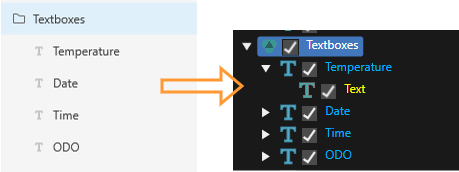
Text layer will be set as Text Control as same as AxureRP and Sketch.

<div drawio-diagram="6795"><img src="https://doc316en.candera.eu/uploads/images/drawio/2024-09/drawing-5-1726235688.png" alt=""/></div>

<div class="contents" id="bkmrk--87"><div class="contents"><div class="textblock">  
</div></div></div>##### Control: Tell Tale

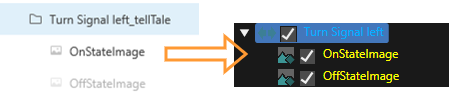
The layer group name has a suffix of "\_telltale" and has a child image layer will be set as Tell Tale Control.

<div class="contents" id="bkmrk--89"><div class="contents"><div class="textblock"><div drawio-diagram="6785"><img src="https://doc316en.candera.eu/uploads/images/drawio/2024-09/drawing-5-1726233615.png" alt=""/></div>

</div></div></div>##### Control: TextButton

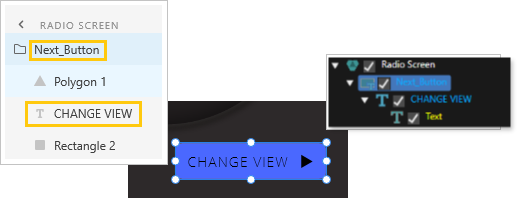
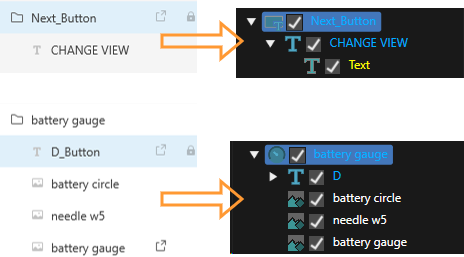
The layer that has either the below condition will be set as TextButton Control. There is a child text layter in a group layer. A Text layer, that name has a suffix of "\_Button".

<div drawio-diagram="6796"><img src="https://doc316en.candera.eu/uploads/images/drawio/2024-09/drawing-5-1726235918.png" alt=""/></div>

<div class="contents" id="bkmrk-the-rectangle-shape-"><div class="textblock"><dl class="note"><dd><p class="callout info">The Rectangle shape is only supported, the other shape such as polygon isn't supported.</p>

</dd></dl></div></div><div class="contents" id="bkmrk--0"><div class="contents"><div class="textblock">---

</div></div></div>#### <a class="anchor" id="bkmrk--25"></a>AdobeXD Features Supported by CGI Studio Smart Importer

The Smart Importer supports importing of following Adobe XD features:

<div class="contents" id="bkmrk-artboards-components"><div class="contents"><div class="contents"><div class="textblock">- <span style="color: rgb(230, 126, 35);">[Artboards](#bkmrk-artboards)</span>
- <span style="color: rgb(230, 126, 35);">[Components](#bkmrk-components)</span>
- <span style="color: rgb(230, 126, 35);">[Texts](#bkmrk-texts)</span>
    - Text
    - Font
    - FontStyle
    - FontSize
    - FillColor
    - Position
    - Size
- <span style="color: rgb(230, 126, 35);">[Images](#bkmrk-images)</span>
    - Position
    - Size
- <span style="color: rgb(230, 126, 35);">[Solid Rectangles](#bkmrk-solid-rectangles)</span>
    - Color
    - Position
    - Size
- <span style="color: rgb(230, 126, 35);">[Buttons](#bkmrk-buttons)</span>
    - Text
- <span style="color: rgb(230, 126, 35);">[Transitions](#bkmrk-transitions)</span>
- [<span style="color: rgb(230, 126, 35);">TellTales</span>](#bkmrk-telltales)

</div></div></div></div>##### <a class="anchor" id="bkmrk--26"></a>Artboards

Each AdobeXD Artboard is converted into a **Scene** in SceneComposer.

##### <a class="anchor" id="bkmrk--27"></a>Components

Adobe XD has a component system, where components can be defined once, and instantiated multiple times. If an artboard references a component, the Adobe XD converter looks up and instantiates components as needed.

##### <a class="anchor" id="bkmrk--28"></a>Texts

Adobe XD text areas are converted into **Text Nodes** in SceneComposer.

The Smart Importer will read the configuration of the AdobeXD text and apply the following properties to the SceneComposer Text Node:

<div class="contents" id="bkmrk-text---the-text-to-d"><div class="contents"><div class="textblock">- *Text* - the text to display
- *Font* - the font's postscript name (e.g. "OpenSans-Light")
- *FontStyle* - the font's style (e.g. "Light")
- *FontSize* - the font's point size (e.g. 72)
- *FillColor* - a fill color (if a `solid`-style is configured in the AdobeXD file)
- *Position* - the position of the text area in the scene
- *Size* - the size of the text area (might not be available, see note below)

</div></div></div><div class="contents" id="bkmrk-if-an-adobexd-text-a"><div class="contents"><div class="contents"><div class="textblock"><dl class="note"><dd><p class="callout info">If an AdobeXD text area is configured for `Auto Width` and `Auto Height`, the Smart Importer cannot calculate the size of the text area (bounding box).</p>

</dd></dl></div></div></div></div>Please also see section <span style="color: rgb(230, 126, 35);">[Text Controls](#bkmrk-text-controls)</span> of the <span style="color: rgb(230, 126, 35);">[Adobe XD import example](#bkmrk-adobe-xd-import-exam)</span>.

##### <a class="anchor" id="bkmrk--29"></a>Images

Adobe XD shapes (`"type": "shape"`) with a pattern fill (a `fill` of `"type": "solid"`) are converted to **RenderNodes**.

The Smart Importer will apply the following properties to the SceneComposer RenderNode:

<div class="contents" id="bkmrk-position-size"><div class="contents"><div class="contents"><div class="textblock">- *Position*
- *Size*

</div></div></div></div>##### <a class="anchor" id="bkmrk--30"></a>Solid Rectangles

Rectangles (`shape`s of `"type": "rect"`) with a solid fill (a `fill` of `"type": "solid"`) are converted to **SolidColorNodes**.

The following properties will be applied to the SceneComposer SolidColorNode:

<div class="contents" id="bkmrk-color-position-size"><div class="contents"><div class="textblock">- *Color*
- *Position*
- *Size*

</div></div></div>Please also see section<span style="color: rgb(230, 126, 35);"> [Rectangle](#bkmrk-rectangle)</span> of the <span style="color: rgb(230, 126, 35);">[Adobe XD import example](#bkmrk-adobe-xd-import-exam)</span>.

##### <a class="anchor" id="bkmrk--31"></a>Buttons

If the Adobe XD resource contains a group, the name of which ends with *\_Button*, the Smart Importer will create a **TextButton**.

<div class="contents" id="bkmrk-smart-importer-check"><div class="contents"><div class="textblock"><dl class="note"><dd><p class="callout info">Smart Importer checks the suffix in a **case insensitive** way, so *\_button* or *\_BUTTON* etc. will also work.</p>

</dd></dl></div></div></div>The Smart Importer will apply the following properties to the SceneComposer TextButton:

<div class="contents" id="bkmrk-text---the-first-tex"><div class="contents"><div class="contents"><div class="textblock">- *Text* - The first text label found inside the Adobe XD group will become the TextButton's Text.

</div></div></div></div><div drawio-diagram="6798"><img src="https://doc316en.candera.eu/uploads/images/drawio/2024-09/drawing-5-1726236104.png" alt=""/></div>

<div class="contents" id="bkmrk--7"><div class="contents"><div class="textblock">  
</div></div></div><div class="contents" id="bkmrk-the-button-depicted-"><div class="contents"><div class="textblock"><dl class="note"><dd><p class="callout info">The button depicted above, provokes a Scene transition. This transition is taken from the first artboard transition found inside the group (see <span style="color: rgb(230, 126, 35);">[Transitions](#bkmrk-transitions)</span>).</p>

</dd></dl></div></div></div>##### <a class="anchor" id="bkmrk--33"></a>Transitions

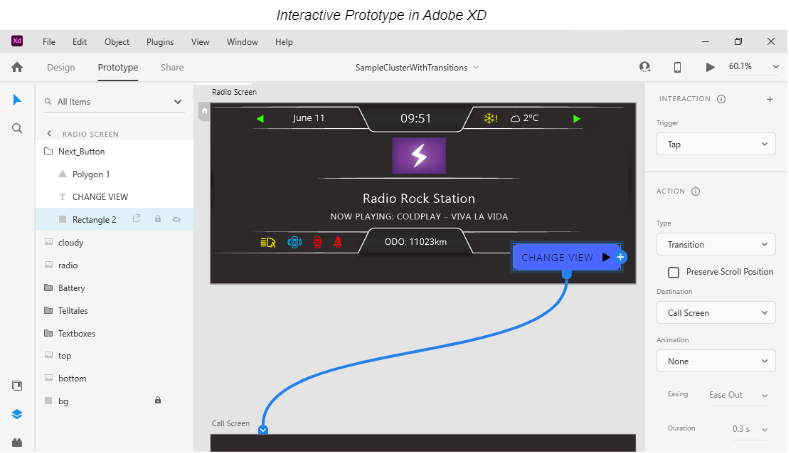
Adobe XD supports building interactive prototypes with serveral kinds of transitions. A button may trigger a navigation transition to a different artboard, a component may support transitions between different states etc. SceneComposer supports button-triggered scene transitions generated from artboard transitions in the XD file.

<div drawio-diagram="544"><img src="https://doc316en.candera.eu/uploads/images/drawio/2023-02/drawing-4-1676360249.png" alt=""/></div>

<div class="textblock" id="bkmrk--9"></div><div class="textblock" id="bkmrk--10"></div><div class="textblock" id="bkmrk--11"><div drawio-diagram="6791"><img src="https://doc316en.candera.eu/uploads/images/drawio/2024-09/drawing-5-1726235118.png" alt=""/></div>

</div><div class="textblock" id="bkmrk--12"></div>Please also see section<span style="color: rgb(230, 126, 35);"> [Transition](#bkmrk-transition) </span>of the Adobe XD import example.

##### <a class="anchor" id="bkmrk--36"></a>TellTales

Smart Importer creates a **TellTale Control** for an Adobe XD group, whose name ends with *\_TellTale*. If this group contains an image with *OnState* or *OffState* in its name, this image will be set as the TellTale Control's **On State Image** or **Off State Image** respectively.

<div class="contents" id="bkmrk-smart-importer-check-0"><div class="contents"><div class="textblock"><dl class="note"><dd><p class="callout info">Smart Importer checks the group name's suffix and the image names in a **case insensitive** way, so *\_Telltale* or *\_telltale* etc. and *ONSTATE\_pic*or *image\_offstate\_picture* etc. will also work.</p>

</dd></dl></div></div></div>Please also see section <span style="color: rgb(230, 126, 35);">[Tell Tale Control](#bkmrk-tell-tale-control)</span> of the Adobe XD import example.

---

#### <a class="anchor" id="bkmrk--37"></a>Adobe XD import example

Please get the mentioned sample Adobe XD file in the below location.

Using this sample, explain about the layer structure and restrictions for Adobe XD.

**"...\\cgi\_studio\_content\\2D\\XD\\XD\_SampleCluster.xd"**

##### <a class="anchor" id="bkmrk--38"></a>Rectangle

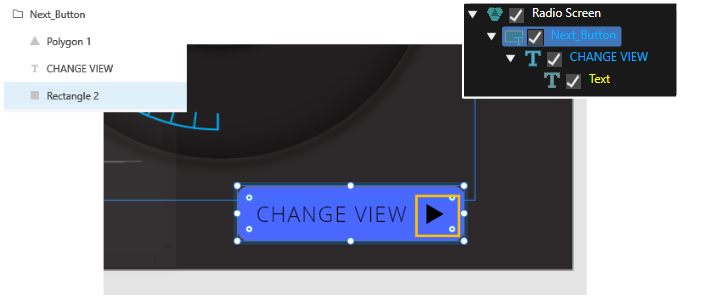
Though there is a polygon in the group "Next\_Button" of the sample, that isn't imported into a Solution in Scene Composer. This is because a rectangle shape is only supported for importing.

<div drawio-diagram="6799"><img src="https://doc316en.candera.eu/uploads/images/drawio/2024-09/drawing-5-1726236171.png" alt=""/></div>

<div class="contents" id="bkmrk--16"><div class="contents"><div class="textblock">  
</div></div></div>##### <a class="anchor" id="bkmrk--40"></a>Text Controls

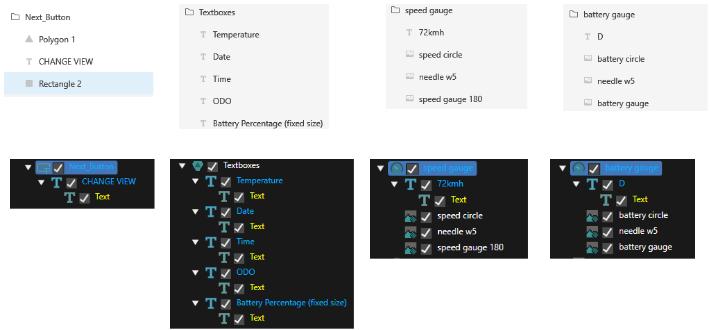
Text layer will be set as Text Control as same as other file format. In this sample, the following layer are text layers.

<div class="contents" id="bkmrk-change-view-under-%22n"><div class="contents"><div class="contents"><div class="textblock">- Change view under "Next\_Button"
- The all child layers under "Textboxes".
- 72km under "Speed gauge"
- D under "Battery gauge"

</div></div></div></div><div drawio-diagram="6801"><img src="https://doc316en.candera.eu/uploads/images/drawio/2024-09/drawing-5-1726236408.png" alt=""/></div>

<div class="contents" id="bkmrk--18"><div class="contents"><div class="textblock">  
</div></div></div>##### <a class="anchor" id="bkmrk--42"></a>Tell Tale Control

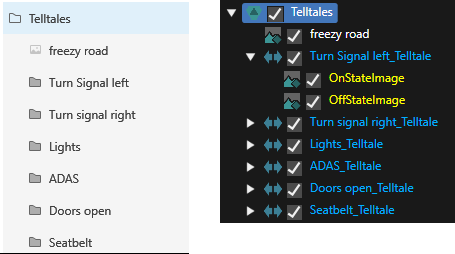
Since there is "TellTale" group in the sample file and that group name has a suffix of "\_telltale", its child image layers are set as Tell Tale Control.

<div drawio-diagram="6804"><img src="https://doc316en.candera.eu/uploads/images/drawio/2024-09/drawing-5-1726236664.png" alt=""/></div>

<div class="contents" id="bkmrk--20"><div class="contents"><div class="textblock">  
</div></div></div>##### <a class="anchor" id="bkmrk--44"></a>Transition

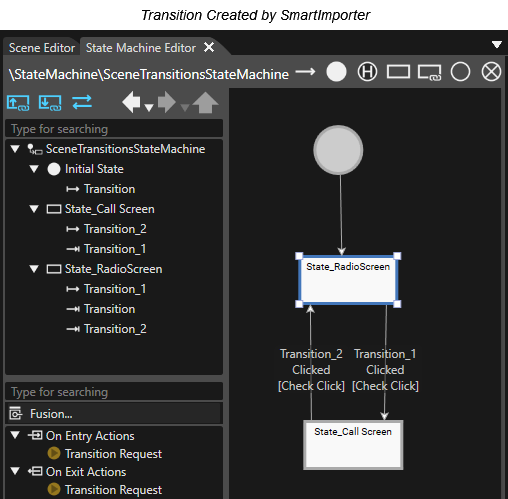
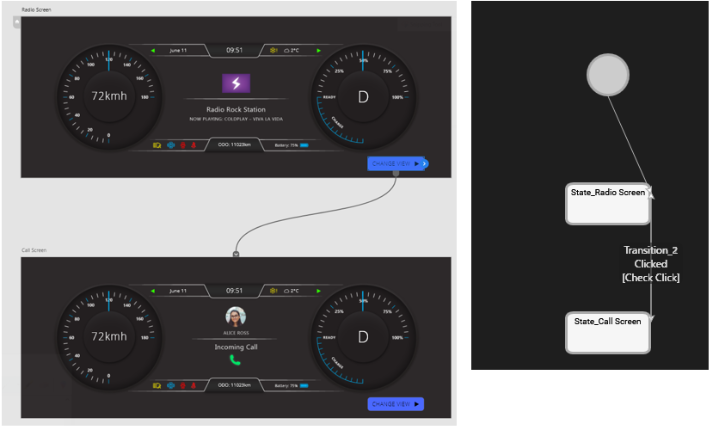
The transition setting that is created by Adobe XD is transferred to State Machine editor.

<div drawio-diagram="541"><img src="https://doc316en.candera.eu/uploads/images/drawio/2023-02/drawing-4-1676360124.png" alt=""/></div>

<div class="contents" id="bkmrk--23"><div class="contents"><div class="textblock">  
</div></div></div>##### <a class="anchor" id="bkmrk--46"></a>Other options

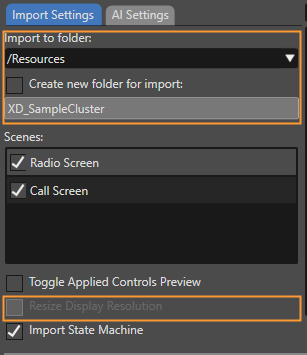
If necessary, please change the setting on "Import to folder" and its related options. And, mark "Resize Display Resolution" option just in case.

<div drawio-diagram="6805"><img src="https://doc316en.candera.eu/uploads/images/drawio/2024-09/drawing-5-1726236863.png" alt=""/></div>

<div class="contents" id="bkmrk--49"><div class="contents"><div class="textblock">  
</div></div></div>##### <a class="anchor" id="bkmrk--50"></a>Perform Player

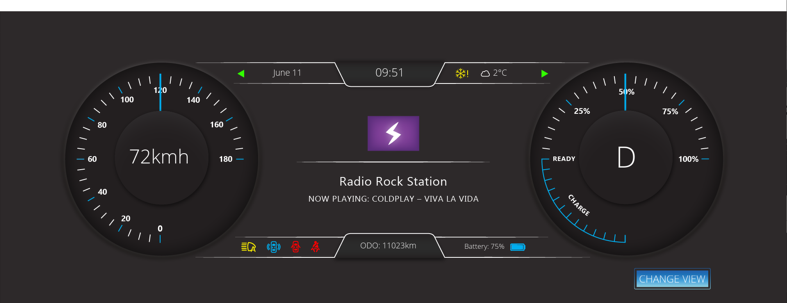
After set the above, press OK button on Smart Importer dialog to proceeding import. Then, press "Play" button with "Generate and Play" option. Player application is run, and uncheck "Scenes#Scene2D" section and then you could get the importing result. If you press "change view" button in the right bottom corner, you can make transition to the other scene accordingly to the transition in Adobe XD.

<div drawio-diagram="543"><img src="https://doc316en.candera.eu/uploads/images/drawio/2023-02/drawing-4-1676360178.png" alt=""/></div>

<div class="contents" id="bkmrk--53"><div class="textblock">  
</div></div>