# Trouble-Shooting
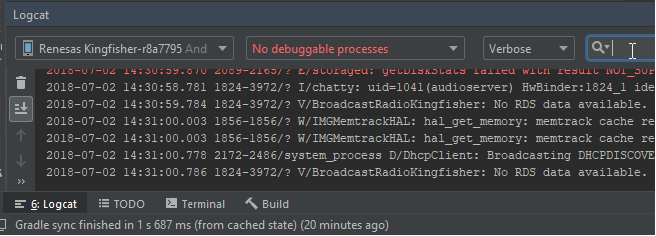
- If you experience Problems, sometimes the so called “Log Cat” is quite helpful, which also allows live filtering by keywords like e.g. “myappname” or “failed” and thelike.
- Depending on the kind of your Android OS, sometimes the Permissions-Dialog is not displayed.
In such a case, the user has no chance to grant the needed permissions, when the app is installed the first time. That’s how to solve this problem:
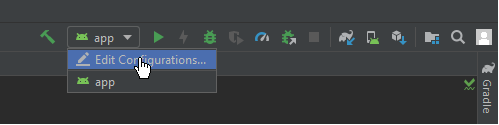
Click “app->Edit Configurations”, like shown below:
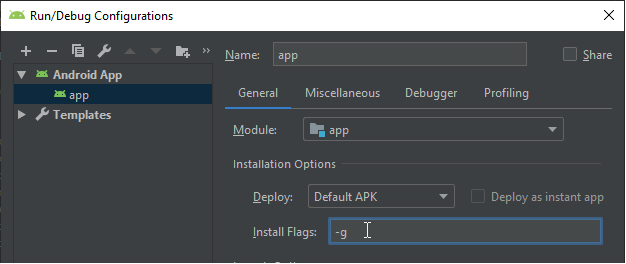
A dialog opens; In the field “Install Flags” input “-g” which pre-grants all permissions on installing.
After saving this configuration, clicking at the Build-Button should do it’s job.
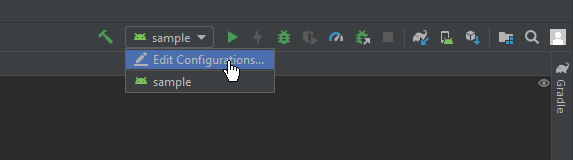
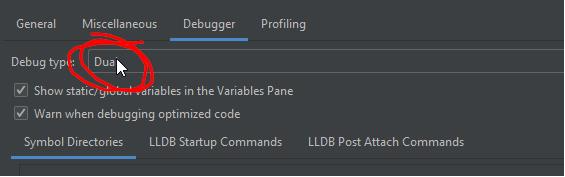
- When you want to debug your application and encounter that your breakpoints are ignored, you can try following: go to the run-configurations at the top right toolbar of android studio as shown below.
A Popup appears, navigate do “Debugger” and ensure that “Dual” is set for the field: Debug types: