# Deploying the Asset Library
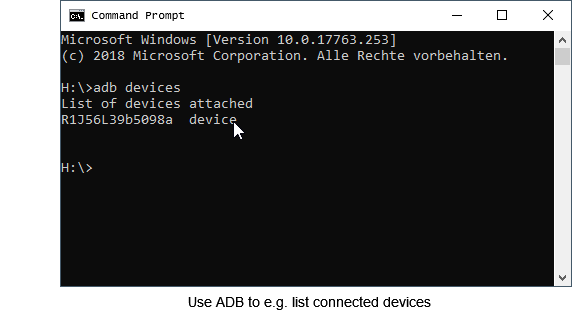
Before an android application can be launched, the asset library has to be deployed on the Android device. Now the tool ADB (Android Debug Bridge) comes into play, which is part of the sdk-platform tools. It is a command line tool which has to be called e.g. within a Windows CMD. ADB is a general device management tool for Android.
The most important tasks are:
- Pushing and pulling files between the host computer and the android device
- Installing/uninstalling android apps on the device
- Viewing the logcat
- It even provides a bash terminal access (yes, even root user) to the android device
The most important commands for this work are:
- adb help
Show help and description of supported commands
- adb devices
List all connected android devices
- adb push <source-file> <target-file or target-folder>
Push a local file to the android device
- adb shell
Open a bash terminal session on the android device – this is the god-mode, so be careful!
Steps for deploying the AssetLib on the Android device:
- Open a Windows CMD and navigate to the build folder (or where you generated the asset library)
- Type e.g.: adb push AssetLibCff\_Android\_Target.bin /sdcard/AssetLibCff.bin
/sdcard is the internal or external storage on Android. That’s the location, where the app expects the asset library.