# Fusion Editor UI

#### Opening Fusion

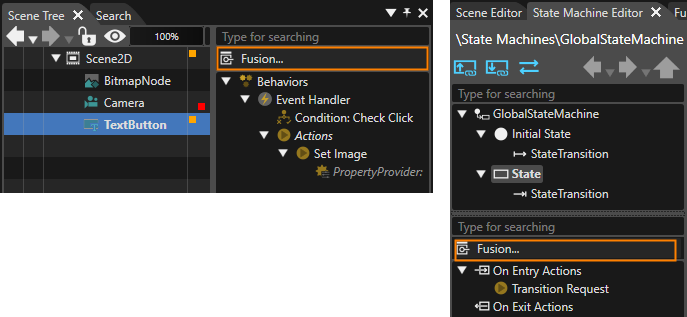
There are multiple ways to open Fusion.

- **Via the menu**  
    Navigate to **View &gt; Fusion &gt; Fusion**.
- **Via the Scene Tree Panel**  
    Select a Node in the **Scene Tree**, then click the \[Fusion...\] button in the **Extra Scene Tree** on the right.
- **Via the State Machine Panel** Select a State or Transition in the State Machine Editor, then click the \[Fusion...\] button in the **State Machine Behaviors panel** on the left lower half.

<div drawio-diagram="7620"><img src="https://doc316en.candera.eu/uploads/images/drawio/2024-12/drawing-5-1733495675.png" alt=""/></div>

Once Fusion is open, you can switch between Fusion and other editors (e.g. the Scene Editor) by selecting the corresponding tab.

To configure display preferences for the Fusion panel, open the Preferences dialog via the menu: **File &gt;** Preferences..., then navigate to [Preferences &gt; Environment &gt; Fusion](https://doc316en.candera.eu/books/preferences/page/fusion).

#### Fusion Diagram

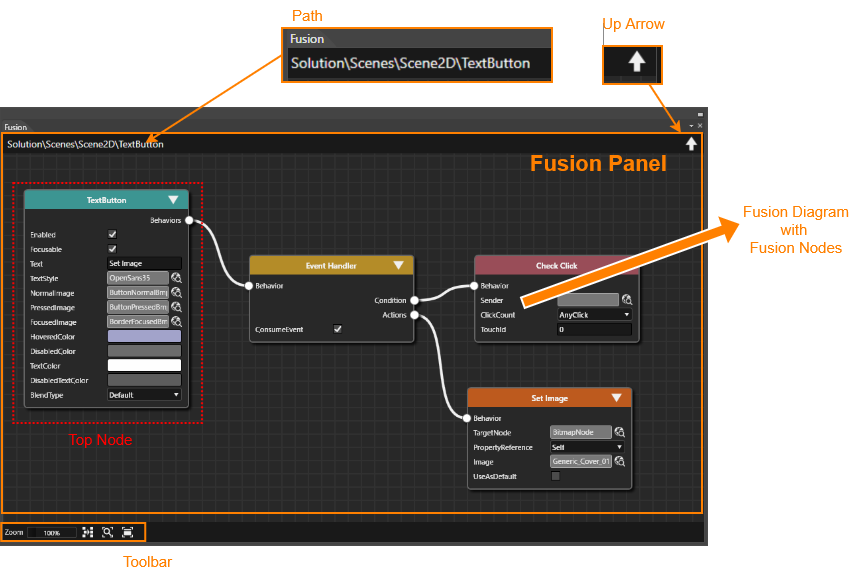
When Fusion is opened, it always displays the Fusion diagram for the node currently selected in the Scene Tree Panel or the state/transition selected in the State Machine Editor.

A Fusion diagram consists of a [Top Node](https://doc316en.candera.eu/books/fusion/page/top-node), which serves as the root node, along with its attached behaviors, conditions and actions. The simplest Fusion diagram contains only the Top Node.

Fusion Nodes can be rearranged within the diagram using drag and drop. To select multiple nodes, click and drag a rectangle with your mouse to enclose the nodes you want to select.

<div drawio-diagram="8803"><img src="https://doc316en.candera.eu/uploads/images/drawio/2025-11/drawing-5-1764338845.png" alt=""/></div>

##### Path

The upper-left corner of the Fusion panel displays the path of the currently shown Top Node.

##### Up arrow

You can navigate to other Fusion diagrams by clicking the **Up Arrow** located in the upper-right corner of the Fusion panel.

- **When TopNode is an element that has a parent element**   
    (e.g. a Group Node in Scene Tree or a state enclosed within a parent state), pressing the **Up Arrow** will display the Fusion diagram of the parent element.
- **When TopNode is a transition or a state without a parent**  
    Pressing the **Up Arrow** returns you to **State Machine Editor**.
- **When TopNode is a scene**  
    The **Up Arrow** is disabled

##### Fusion Panel Toolbar

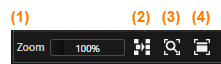
At the bottom of the Fusion panel, a toolbar provides controls for the panel display operations.

<div drawio-diagram="8804"><img src="https://doc316en.candera.eu/uploads/images/drawio/2025-11/drawing-5-1764341566.png" alt=""/></div>

<table border="1" id="bkmrk-1.-zoom-the-display-" style="border-collapse: collapse; width: 600px;"><tbody><tr><td style="width: 10px;">1</td><td style="width: 170px;">Zoom</td><td>Adjusts the display magnification. You can enter a numerical value or use the mouse wheel to zoom in and out.</td></tr><tr><td style="width: 10px;">2</td><td style="width: 170px;">Rearrange layout</td><td>Automatically reorganizes the layout of Fusion Nodes within the diagram. This feature is particularly useful when nodes overlap or are difficult to view.</td></tr><tr><td style="width: 10px;">3</td><td style="width: 170px;">View whole layout</td><td>Automatically adjusts the display magnification to fit the entire diagram within the Fusion panel.</td></tr><tr><td style="width: 10px;">4</td><td style="width: 170px;">Switch to selected node</td><td>Centers the diagram on the selected Fusion Node. When a node is selected and this button is pressed, the display automatically positions the selected node in the center.</td></tr></tbody></table>