# Configuration example
This page explains how to use Fusion to configure operations related to "[Set Text](https://doc316en.candera.eu/link/572#bkmrk-set-text-example)", which is one examples of applying a behavior within a Fusion diagram.
#### Prepare Nodes in the Scene Editor
1. In the Toolbox, navigate to **Control > Touchable.**
2. Drag and drop a **TextButton** control onto the Scene Editor.
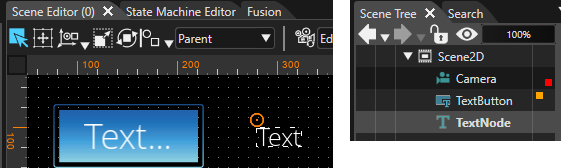
- In the Scene Editor, a TextButton has been created.
3. In the Toolbox, navigate to **Node 2D**.
4. Drag and drop a **Text Node** onto the Scene Editor.
- In the Scene Editor, a TextNode has been created.
5. Adjust the position of the Text Node so that it is placed next to the **TextButton** in the Scene Editor.
- In the Scene Editor, a TextButton and a TextNode are next to each other.
- In the Scene Tree panel, TextButton and TextNode are part of the scene tree.
#### Configure the TextButton in Fusion
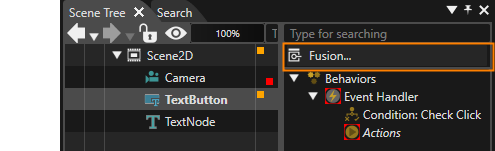
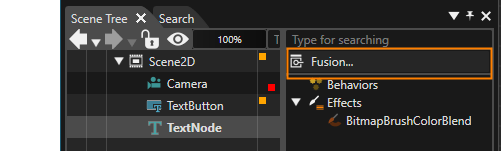
1. In the Scene Tree panel, select the TextButton and click the **\[ Fusion... \]** button in the Extra Scene Tree.
- Fusion will be opened, displaying the TextButton's Fusion diagram.
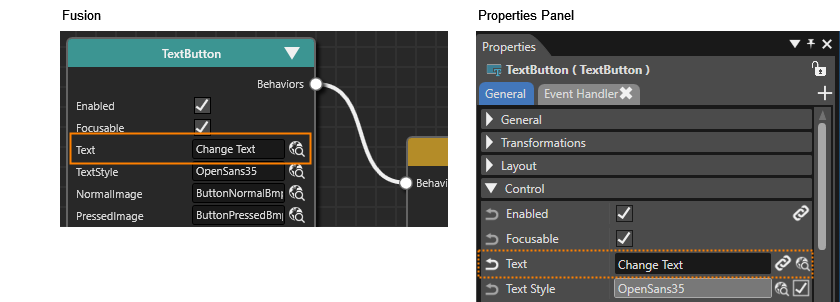
2. In Fusion, at the TextButton's Fusion Node change the Text property to "Change Text".
- This is the same as editing the TextButton's Text property in the Properties panel.
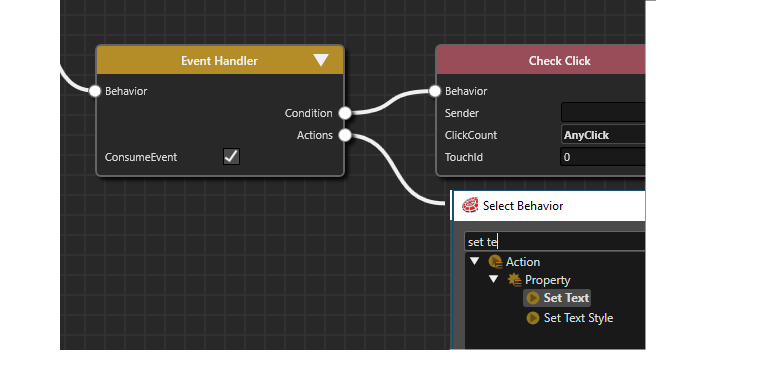
3. In Fusion, click the **Action connector** on the right side of the **Event Handler** Fusion Node.
- The Select Behavior dialog will be opened.
4. Click into the input field in the top of the dialog and start typing **Set Text**.
- The list of behaviors will be narrowed down while typing.
5. In the dialog, double-click the **SetText** behavior.
- A new Fusion node **Set Text** has been created, connected to the Event Handler's Actions connector.
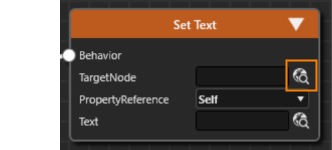
6. In Fusion, click the Select Item icon at the **TargetNode** property of the added **Set Text** Fusion node.
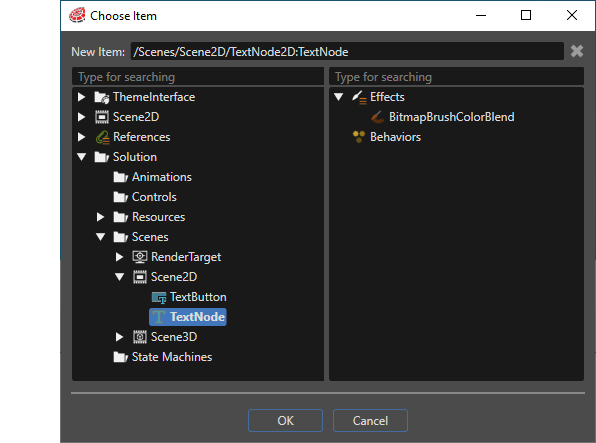
- The **Choose Item** dialog will be opened.
7. In the **Choose Item** dialog, select the **TextNode** and click **\[OK\]**.
- The **TargetNode** for the **Set Text** behavior is the scene's TextNode.
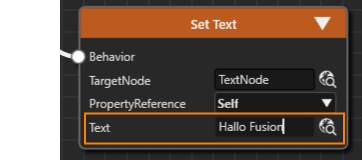
8. In Fusion, configure the **Set Text** Fusion Node's **Text** Property to "**Hallo Fusion**".
- The Set Text behavior will set the TextNode's text to "Hallo Fusion",
#### Configure the TextNode in Fusion
1. In the Scene Tree panel, select the TextNode and click the **\[ Fusion... \]** button in the Extra Scene Tree.
- Fusion will be opened, displaying the TextNode's Fusion diagram.
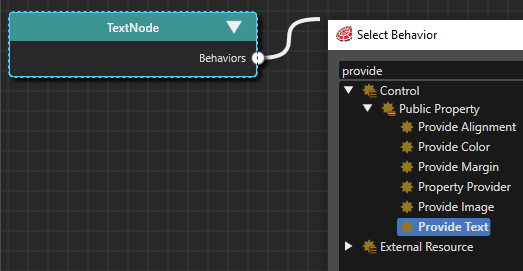
2. In Fusion, click the **Behaviors connector** on the right side of the **Text Node** Fusion Node.
- The Select Behavior dialog will be opened.
3. Click into the input field in the top of the dialog and start typing **Provide Text**.
- The list of behaviors will be narrowed down while typing.
4. In the dialog, double-click the **Provide Text** behavior.
- A new Fusion node **Provide Text** has been created, connected to the **Text Node's Behaviors** connector.
#### Check the Scene in the Player
1. **Save** your work and **start** the **Player** to test the functionality of your configuration.
- The Player will be opened, displaying the configured scene.
2. **Click** on the **TextButton**.
- The **TextNode's** text will be changed to "**Hallo Fusion**".