# FTC Command (Optional)
#### Command Line Automation with FTC Command
*FTCCmd* is a command line tool that supports operations like import and the generation of assets without the need to open SceneComposer GUI.
It is delivered as an ***optional add on*** to CGI Studio with the following content:
FTCCmd can be launched by using the Windows Command Prompt.
FTCCmd.exe relies on standard SceneComposer binaries, hence it is only functional when located in the same folder as SceneComposer.exe and related dynamic link libraries.
---
#### FTCCmd Arguments
The FTCCmd syntax basically supports following command line arguments:
```
- FTCCmd /? - displays generic info about the possible modes (Import, Info, Generate, ExportScl)
- FTCCmd {Mode} /? - displays detailed info about the specified mode
- FTCCmd {Mode} {SolutionFile} {Options} - performs an operation on the given solution as specified by the mode and the additional options
```
Note the following syntax rules:
- {} = Any content which is included between curly brackets is *mandator*
- \[\] = Any content which is included between square brackets is *optional*
- \[...\] = The suspension point indicates that the content can be *repeated*
- For any path the "" (quotation marks) have to be used.
```bash
C:\SceneComposer>FTCCmd /?
FTCCmd /?
--or--
FTCCmd {Mode} /?
--or--
FTCCmd /v
--or--
FTCCmd /version
--or--
FTCCmd {Mode} {SolutionFile} {Options}
Mode Specifies the mode (Info, Import, Generate, ExportScl).
SolutionFile The solution file which will be processed.
Options See help specific for each mode.
/SH,/SCHost Specifies the path to the SCHost.dll file that will be taken into account.
C:\SceneComposer>
```
There are four operation modes supported:
Get Info, Import or Generate asset for old solutions using Convert option
- [/Convert](#bkmrk-ftccmd-convert-solut)
Get a piece of information about version both in FTCLauncher and FTCCmd
- [/Version](#bkmrk-ftccmd-version-solut)
Specify full file path to SCHost.dll file for Scene Composer
- [/SCHost](#bkmrk-ftccmd-specifying-wh)
---
#### FTCCmd Specifying which SCHost.dll : /SH,/SCHost
This command allows you to specify the full file path to the SCHost.dll file to be used by FTCCmd.
**Example:**
FTCCmd {Mode} {SolutionFile} {Options} /SCHost {SCHost.dll Path}
```
FTCCmd ExportScl d:\Libraries\Materials.scs /outscl d:\ExportedLibraries\Materials.scl /SCHost "C:\temp\Scenecomposer\SCHost.dll"
```
---
#### FTCCmd Operation Mode: Info
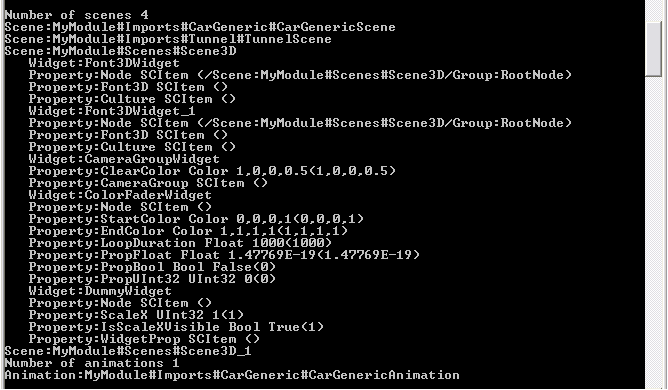
Use the *Info* operation mode of FTCCmd to display some basic information about the content of a given solution (for example: the scene contained in the accessed solution, the used animations, the widgets which are used in the given solution and their properties).
```
C:\SceneComposer>FTCCmd info
Displays a list with scenes and animations contained in a solution.
FTCCmd Info {SolutionFile} [/Convert Yes|No]
SolutionFile The solution file which will be processed.
/Convert Converts the solution if necessary (Yes, No, default No).
C:\SceneComposer>
```
**Example:**
```
FTCCmd Info "C:\Documents and Settings\User\Desktop\Solution\Solution.scs"
```
---
#### FTCCmd Operation Mode: Import
Use the *Import* operation mode of FTCCmd to import content like FBX files or images to a given solution. Following options are supported:
```
C:\SceneComposer>FTCCmd Import
Imports content into a solution.
FTCCmd Import {SolutionFile} /Importer Fbx|Image /Input {File1} [{File2} ...] /Destination {DestinationFolder} [/Flags {Flag1} [{Flag2} ...]] [/Convert Yes|No] [/Config {ConfigFile}]
SolutionFile The solution file which will be processed.
/Importer Specifies the importer to use (Fbx, Image).
/I,/Input Specifies the list of files to process. The following wildcards are supported: '*' - zero or more characters, '?' - zero or one characters. Example: *.jpg
/B,/BitmapProfile Specifies the bitmap profile to be applied to the imported images (full name). Example: "/Global/Config/Profiles/BitmapProfiles/BitmapProfile"
/D,/Destination Specifies the destination folder from the solution where the imported content will be put.
/F,/Flags Specifies the import flags (ClearDestination, PreserveLibraryItemAttributes, ShowInImports, UnlockItems).
/Convert Converts the solution if necessary (Yes, No, default No).
/Cfg,/Config Specifies the configuration file.
Example:
FTCCmd Import d:\Solutions\SolutionAuto\SolutionAuto.scs /Importer Fbx /Input d:\Solutions\_importable\CarGeneric\CarGeneric.FBX /Destination /MyModule/Imports/CarGeneric
C:\SceneComposer>
```
**Optional Import flags:**
- *ClearDestination*: Deletes existing items in the destination folder
- *PreserveLibraryItemAttributes*: Preserves item attributes
- *ShowInImports*: Makes the imported objects visible in Imports panel
**Wildcard Support:**
If there are many files which must be imported we can use the available wildcards - characters that can be used as a substitute for an entire class of characters. For instance, if in a folder we have many graphic files named "img1.png", "img2.png", "img3.png" and so forth, and if it is necessary to import all of them we can do this by specifying through the wildcard (\*) that we need to import all the files which respect the rule "img\*.png".
Available wildcards:
- *(\*) Star wildcard*: used for 0 or many characters (any)
- *(?) Question mark wildcard*: used for 0 or exactly one character (any)
If it is necessary to set the bitmap attributes, following option is available:
```
FTCCmd ... /BitmapProfile
```
**Examples:**
```
FTCCmd Import "D:\Work\Solutions\SolutionImportBitmap\SolutionImportBitmap.scs" /Importer image /Input
FTCCmd Import "D:\Work\Images\rust.png" /BitmapProfile "/Global/Config/Profiles/BitmapProfiles/BitmapProfile2"
/Destination "/MyModule/Imports/Import5"
```
---
#### FTCCmd Operation Mode: Export SCL
This mode will allow you to export a specific solution to an .scl file. The specified output solution must be of type SCL in order to succeed.
```
C:\SceneComposer>FTCCmd ExportSCl
Exports the specified solution to an .scl file. The specified solution must be of type SCL in order to succeed.
FTCCmd ExportScl {SolutionFile} /outscl {OutputFilePath}
SolutionFile The solution file which will be processed.
/outscl OutputSclFilePath Specifies the file path where the SCL is to be generated
/Convert Converts the solution if necessary (Yes, No, default No).
Example:
FTCCmd ExportScl d:\Libraries\Materials.scs /outscl d:\ExportedLibraries\Materials.scl
C:\SceneComposer>
```
- SolutionFile: The file path to the solution file (.scs) to be exported.
- OutputFilePath: The file path including the (.scl) file name where the SCL is to be generated.
---
#### FTCCmd Operation Mode: Generate
Use the *Generate* operation mode of FTCCmd to generate a simulation or target asset from a given solution. Following options are supported:
```
C:\SceneComposer>FTCCmd Generate
Generates an asset file from the solution.
FTCCmd Generate {SolutionFile} /ShaderCompiler Target|Simulation /Asset {AssetFile} [/AssetProfile {AssetProfileFullName}] [/CustomId {Id}] [/FloatFormat {Format}] [/Convert Yes|No] [/Config {ConfigFile}] [/Licenses None | {Lic1} [{Lic2} ...]]
SolutionFile The solution file which will be processed.
/SC,/ShaderCompiler Specifies the shader compiler to use (Simulation, Target).
/FF,/FloatFormat Specifies the float number format to use.
/AF,/Asset Specifies the asset file which is going to be generated.
/AP,/AssetProfile Specifies the full name of the asset profile (from solution) to be activated
/Id,/CustomId Specifies the custom id written to the asset header (long integer, default 0).
/Convert Converts the solution if necessary (Yes, No, default No).
/Cfg,/Config Specifies the configuration file.
/Lic,/Licenses Specifies the licenses which will be acquired (2D, 3D, Globalization, SmartImporter, AssetLibraryVerification, Safety). If this parameter is not specified and no license configuration file is found (see /Config) all licenses will be acquired.
Example:
FTCCmd Generate d:\Solutions\SolutionAuto\SolutionAuto.scs /ShaderCompiler Target /Asset d:\AssetTarget.bin
C:\SceneComposer>
```
**Optional Generate flags:**
- *CustomId*: Asset verification value written in an asset header section
- *FloatFormat*: Information about the representation of float numbers in the asset; all the formats are platform dependent
- /SC,/ShaderCompiler - Specifies the shader compiler to use (Simulation, Target).
- /AF,/Asset - Specifies the asset file name that is going to be generated.
- /AP,/AssetProfile - Specifies the full name of the asset profile from solution (.scml) to be activated.
---
#### FTCCmd Configuration: /Config
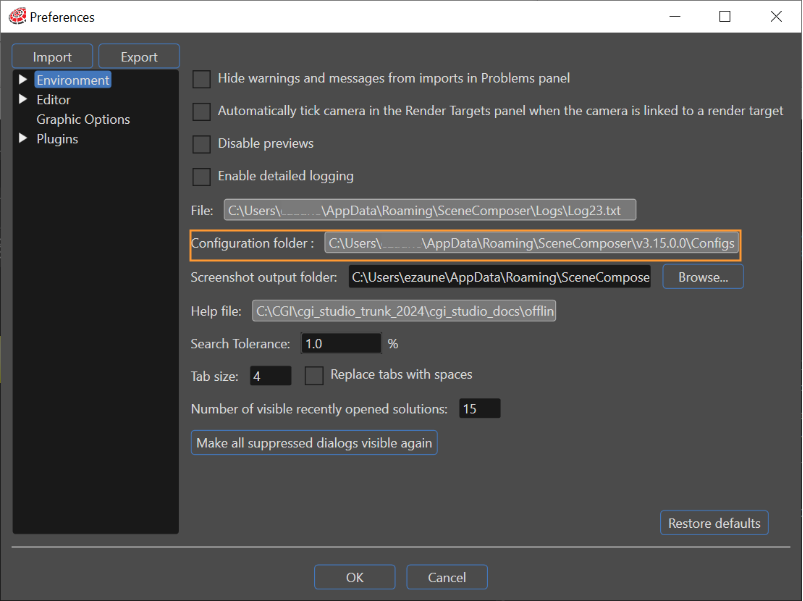
To reuse all the user specific persistent SceneComposer settings in an FTCCmd session, use the */Config* argument to specify the path to the SceneComposer configuration folder.
The configuration folder valid for a given SceneComposer GUI session can be found in "File" > "Preferences" section "Environment":
Instead of the full configuration folder, an exported .sccfg file can also be used as a /Config argument value. Use the "Export all" button to create a .sccfg file.
**Examples:**
```
FTCCmd ... /Config C:\Documents and Settings\...\...
FTCCmd ... /Config FTCSettings.sccfg
```
---
#### FTCCmd License Handling: /Licenses
By default - if neither /Config nor /Licenses arguments are given in an FTCCmd call - FTCCmd will acquire all licenses before the desired operation is executed.
- Refer to [Using Licenses](https://doc316en.candera.eu/books/starting-scenecomposer/page/using-licenses "Using Licenses") to learn about available licenses.
To adapt this behaviour, following options are available:
```
FTCCmd ... /Config {path to config folder or .sccfg file}
```
In this case, the license settings from the SceneComposer GUI can be applied to FTCCmd.
```
FTCCmd ... /Licenses 2D 3D Globalization
```
In this case, only the specified licenses ("2D", "3D", "Globalization", "PhotoshopImporter", "AssetLibraryVerification") will be acquired by FTCCmd.
```
FTCCmd ... /Licenses None
```
In this case, no license at all will be acquired by FTCCmd.
---
#### FTCCmd Convert solution: /Convert
By default FTCCmd will not convert old solutions. In order to get information, import or generate asset for old solutions, the following option is available:
```
FTCCmd .../Convert Yes
```
---
#### FTCCmd Version solution: /Version
A command which gives a piece of information about version both in FTCLauncher and FTCCmd:
```
FTCCmd .../Version
```