# Executable Generation

#### <a class="anchor" id="bkmrk--13"></a>Executable Generation

In the toolbar is available the "Automation Scripts" plug-in which provides the option to generate the asset files and run a script with certain commands defined by the user.

<div class="contents" id="bkmrk-the-script-will-run-"><div class="contents"><div class="contents"><div class="textblock"><dl class="note"><dt></dt><dd><p class="callout info">The script will run when the asset will be generated.</p>

</dd></dl></div></div></div></div><div drawio-diagram="6597"><img src="https://doc316en.candera.eu/uploads/images/drawio/2024-08/drawing-5-1724416781.png" alt=""/></div>

<div class="contents" id="bkmrk--0"><div class="contents"><div class="textblock">  
</div></div></div>The configuration dialog can be accessed via menu "File" &gt; "Automation Scripts...", too.

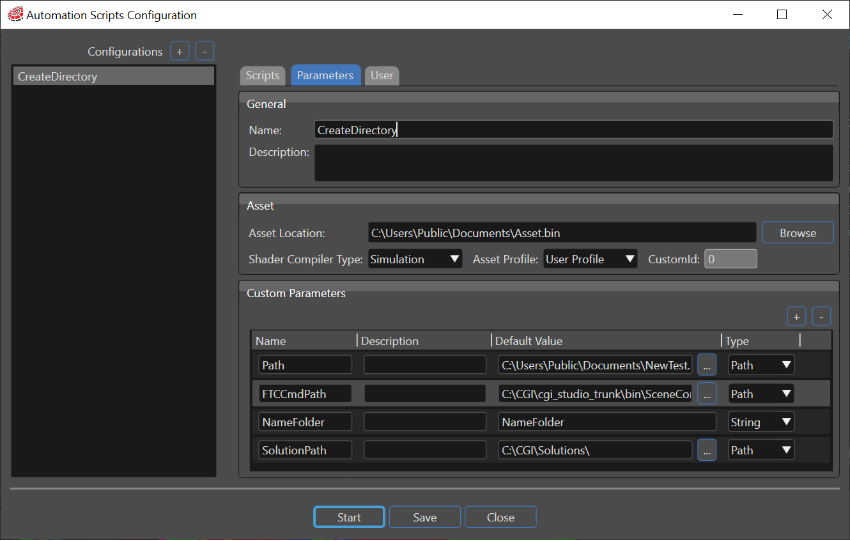
The user is able to define as many configurations as necessary, each configuration containing a set of default parameters, a set of custom parameters and a script to be run after a successful asset generation. The script is not mandatory and it can contain references to the default and custom parameters defined by the user.

<div class="contents" id="bkmrk-the-set-of-custom-pa"><div class="contents"><div class="contents"><div class="textblock"><dl class="note"><dt></dt><dd><p class="callout info">The set of custom parameters are specific for each solution and are saved in</p>

</dd><dd></dd></dl><div class="fragment">  
</div></div></div></div></div>```
	USER_DIR\ AppData\Roaming\FTC.Launcher\v3.2.0.0\Configs\.ExecutableGeneration\
```

or

```
	USER_DIR\ AppData\Roaming\SceneComposer\v3.2.0.0\Configs\.ExecutableGeneration\
```

<div drawio-diagram="6598"><img src="https://doc316en.candera.eu/uploads/images/drawio/2024-08/drawing-5-1724417392.png" alt=""/></div>

<div class="contents" id="bkmrk--2"><div class="contents"><div class="textblock"><div class="fragment">  
</div></div></div></div>The **default parameters** names are predefined and they must be referred using the following keywords:

<div class="contents" id="bkmrk-%24assetlocation%24-for-"><div class="contents"><div class="textblock">- $AssetLocation$ for the asset file location (in the image below "Asset Location")
- $AssetType$ for the asset type (in the image below "Shader Compiler Type")
- $AssetConfig$ for the asset configuration (in the image below "Asset Profiles")
- $AssetId$ for the asset id (in the image below "CustomId")

</div></div></div>The default parameters will be referred using the custom parameter name between two "$" characters.

<div drawio-diagram="6599"><img src="https://doc316en.candera.eu/uploads/images/drawio/2024-08/drawing-5-1724417491.png" alt=""/></div>

<div class="contents" id="bkmrk--4"><div class="contents"><div class="textblock">  
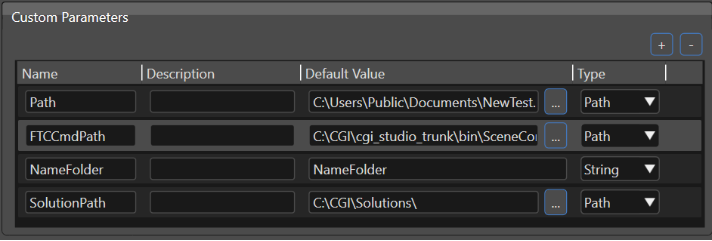
</div></div></div>The custom parameters will be referred using the custom parameter name between two "#" characters.

<div drawio-diagram="6600"><img src="https://doc316en.candera.eu/uploads/images/drawio/2024-08/drawing-5-1724417521.png" alt=""/></div>

<div class="textblock" id="bkmrk--6"></div>Example:

```
	#ParameterName#
```

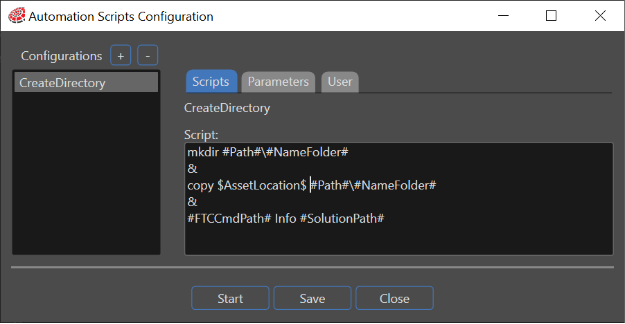
When the script will be executed the parameters' names will be replaced with the values defined by the user.

<div drawio-diagram="6601"><img src="https://doc316en.candera.eu/uploads/images/drawio/2024-08/drawing-5-1724417660.png" alt=""/></div>

<div class="contents" id="bkmrk--8"><div class="contents"><div class="textblock">  
</div></div></div>If script contains multiple commands they must be separated using the "&amp;" character.

<div class="contents" id="bkmrk-as-can-be-noticed-fr"><div class="contents"><div class="textblock"><dl class="note"><dt></dt><dd><p class="callout info">As can be noticed from all the examples mentioned above, the "$", "#", and "&amp;" characters are reserved. They cannot be used as values defined by the user.</p>

</dd></dl></div></div></div>Before the asset generation if a script is defined it will be verified if it is valid; if the script fails the validation the execution will be canceled (both: the asset generation and the commands execution from the script), and the user will be notified with a message containing the parameters names mismatch.

<div drawio-diagram="6602"><img src="https://doc316en.candera.eu/uploads/images/drawio/2024-08/drawing-5-1724418904.png" alt=""/></div>

<div class="contents" id="bkmrk--10"><div class="contents"><div class="textblock">  
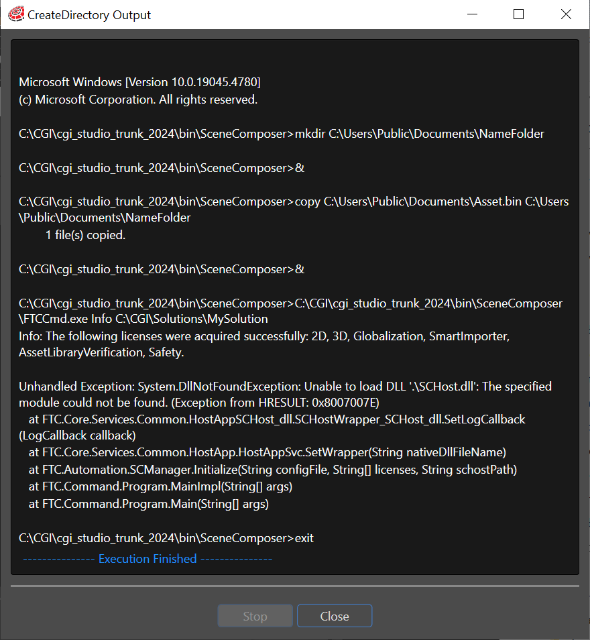
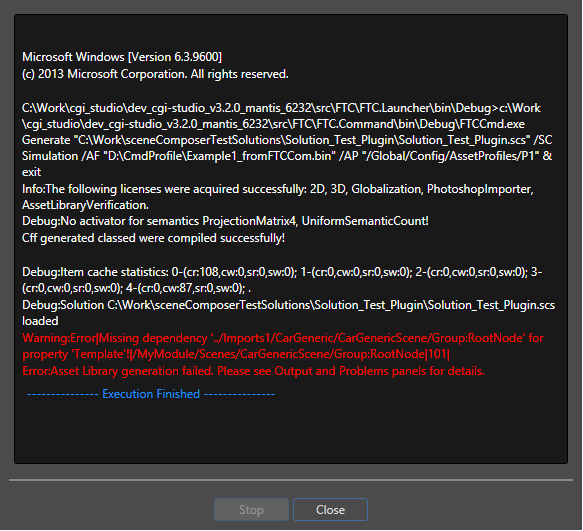
</div></div></div>When the script is executed a window will be opened in which will be logged the output generated by the execution of the commands. The execution can be suspended by clicking on the "Stop" button which is enabled only during script execution. The user also will be notified when all the commands are finished to be run.

<div drawio-diagram="3412"><img src="https://doc316en.candera.eu/uploads/images/drawio/2023-04/drawing-4-1682659220.png" alt=""/></div>

<div class="contents" id="bkmrk--12"><div class="contents"><div class="textblock">  
</div></div></div>If there are errors which do not allow to finish properly the execution of the script, they will be displayed - as can be seen in the image above - with red letters.

The user has the possibility to save the defined configurations by clicking on the "Save" button which is enabled when all the required fields are passing the validation. Also the "Start" button obey the same validation rules and it will be enabled only after all the validations will be successfully passed.

When the user will open the "Configuration" settings window it will be populated with the previously saved configurations.