# Link a Camera to a Render Target

#### Link a Camera to a Render Target

There are two options on how to create a link between a camera and a render target:

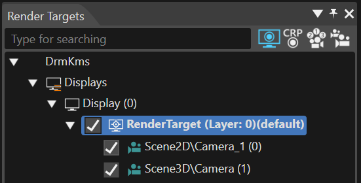
- Camera to render target: Drag the camera in the Scene Tree panel and drop it on the desired render target in the Render Targets panel.
- Render target to camera: Drag a render target in the Render Targets panel and drop it on the desired camera in the Scene Tree panel.

Existing links will be overridden by a new drag and drop operation.

<div drawio-diagram="6297"><img src="https://doc316en.candera.eu/uploads/images/drawio/2024-06/drawing-5-1718955616.png" alt=""/></div>

Render Targets Panel with Camera enabled

<p class="callout info">A camera can be associated to exactly one render target at a moment.   
A render target can be associated to one or more cameras, hence one or more cameras can use the same render target as output target.</p>

---

#### Render Target Swapping

Once all cameras are finished with rendering their content onto a render target, the render target must be swapped. There are two options to ensure this:

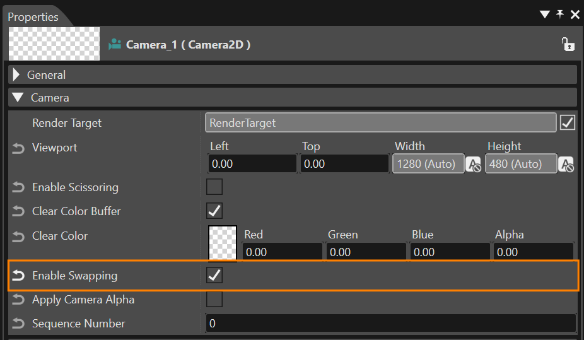
- Enable the "Enable Swapping" property of exactly one camera linked to the render target. In case of more cameras, take the camera with the highest sequence numbers, so only the last camera linked to a render target will trigger the swap of the render target buffers.
- If no camera has "Enable Swapping" property enabled, the application must take care to swap the buffers during the render loop correctly.
<div drawio-diagram="6298"><img src="https://doc316en.candera.eu/uploads/images/drawio/2024-06/drawing-5-1718955742.png" alt=""/></div>

"Enable Swapping" property of Camera

<p class="callout info">In case no swapping is done, the display will remain black.   
In case more than one swapping is done during a render pass, the display will flicker.</p>

---

#### Additional Info about Rendering

This section explains the render loop performed by SCHost for the Scene Editor part of SceneComposer. For each frame, the following procedure is executed:

Displays are cleared (all the render targets are cleared) - due to specific requirements.

All cameras are rendered in the order specified by the camera property "Sequence Number". A camera is rendered only if it is explicitly enabled in the Render Targets panel.

##### Active Camera Rendering:

- 3D: Active camera attached to scene render panel is about to be rendered.   
    &gt; If the camera has any ReflectionCamera children, they will be placed in a list along with the active camera.   
    &gt; The list is sorted considering the Sequence Number property of the cameras.   
    &gt; All the cameras in the list are rendered.   
    &gt; The scene render panel render target is swapped.
- 2D: Active camera attached to scene render panel is rendered.
<div drawio-diagram="4735"><img src="https://doc316en.candera.eu/uploads/images/drawio/2023-11/drawing-4-1699592111.png" alt=""/></div>

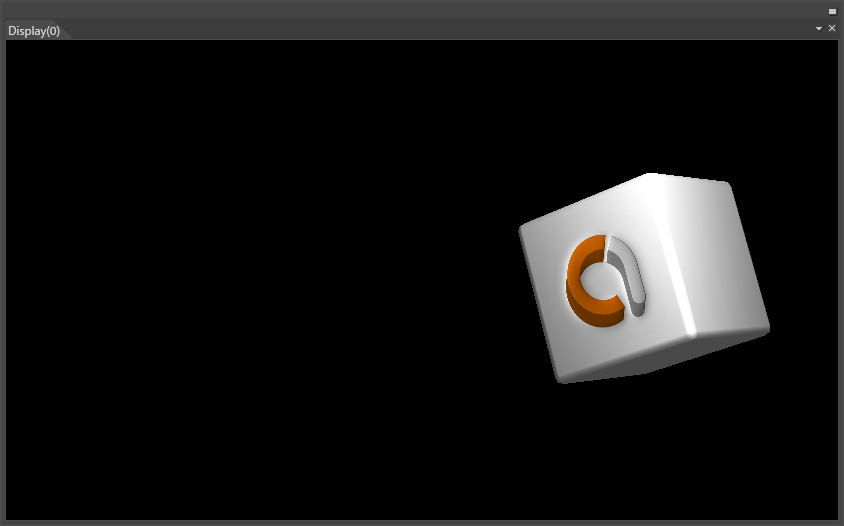
Scene Rendered on a Configured Display

##### Zoom Display Preview:

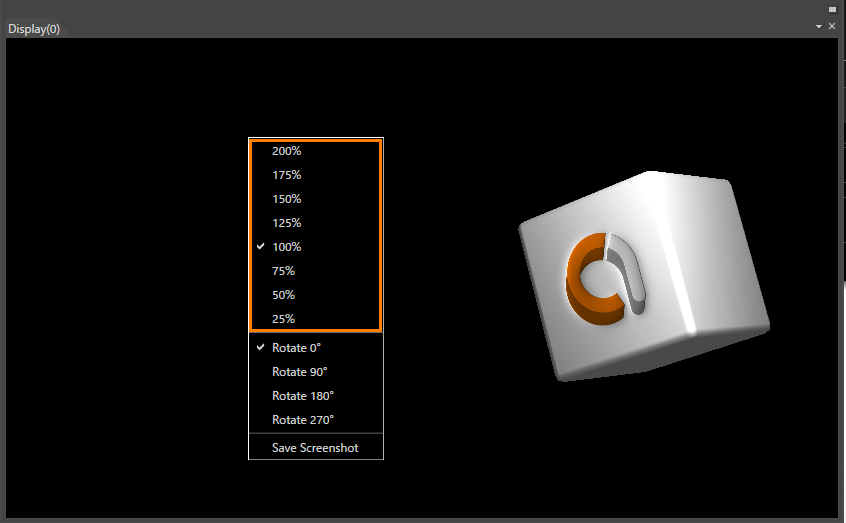
In some particular situations, the user could need an option to switch back to 100% of a display if its size has been modified. Consequently, the possibility to zoom in Display Preview through options in the context menu of the view is available. In the context menu which can be opened by right click anywhere in the display, eight given values are available: 200%, 175%, 150%, 125%, 100%, 75%, 50%, and 25%.

<div drawio-diagram="4734"><img src="https://doc316en.candera.eu/uploads/images/drawio/2023-11/drawing-4-1699591998.png" alt=""/></div>

Context Menu with Zoom Options on a Preview Display

---

##### Rotate Display Preview:

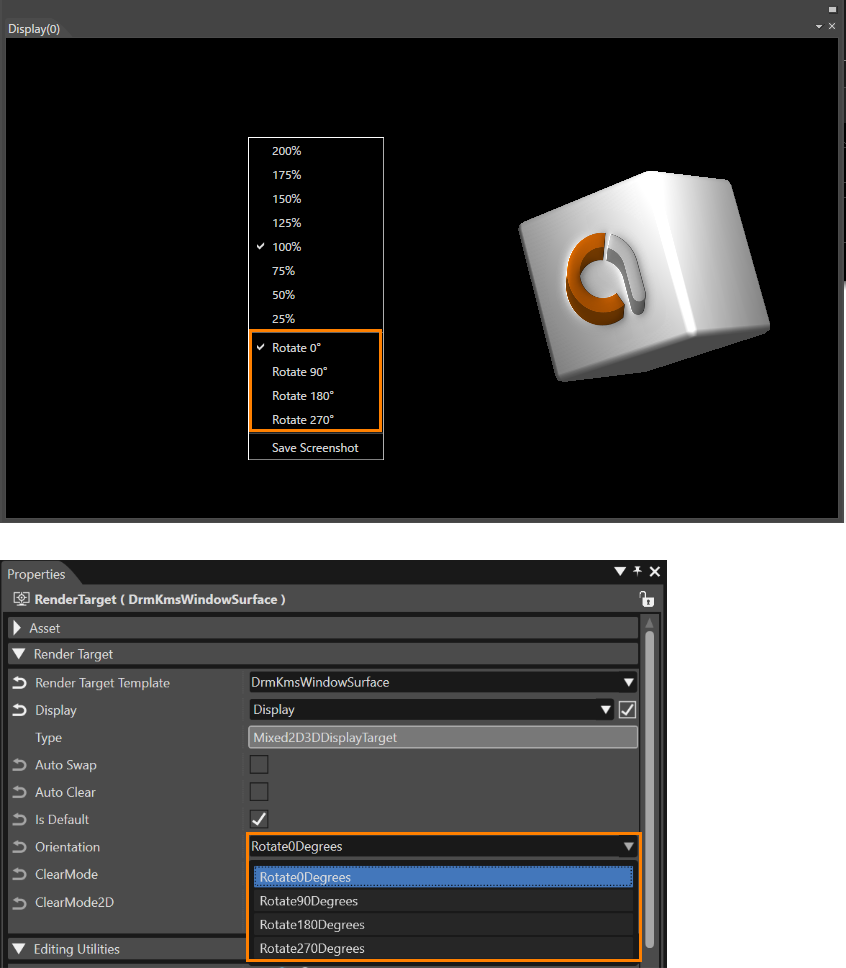
This function is used to rotate the orientation of the display preview to match the orientation of the target device (landscape/portrait). The CGI Player also has a similar function. See [<span style="color: rgb(230, 126, 35);">"Rotate"</span>](https://doc316en.candera.eu/books/player/page/rotate) for details.

The display preview can be rotated in the below two ways.

- Set the rotation angle (0°/90°/180°/270°) from the context menu of the display preview.
- Set the rotation angle (0°/90°/180°/270°) from the Orientation property of the render target. This setting also applies to the rotation angle of the CGI Player.

<div drawio-diagram="6299"><img src="https://doc316en.candera.eu/uploads/images/drawio/2024-06/drawing-5-1718955881.png" alt=""/></div>